

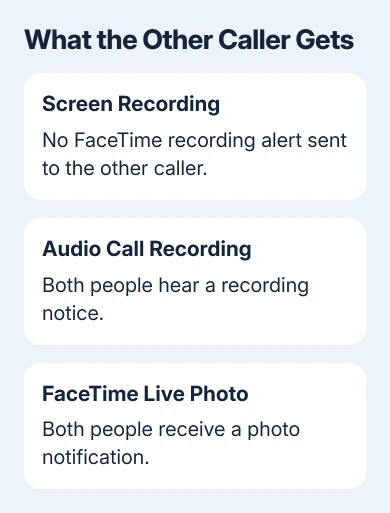
No, ordinary screen recording doesn't send a FaceTime alert to the other person. FaceTime's built-in audio recorder does play a notice to both people, and a FaceTime Live Photo notifies both too. It depends on how the call is captured.
Don't treat a silent call as evidence that nothing is being saved. A participant can record with another device outside FaceTime's controls. Ask before recording instead of depending on an automatic warning.
In this guide
Match the notification to the capture method
Screen Recording, Call Recording and Live Photos save different parts of a call, and each handles notifications differently. Check which button was used before deciding what the other person would see.
With ordinary iPhone or iPad screen recording, the controls and indicator appear on the device doing the recording. They don't send a banner to the other caller. FaceTime's screen-sharing controls do another job.
Check whether someone tapped a control inside FaceTime or started a separate recorder. That distinction explains a warning on one call and silence on another, without assuming that either person's phone is broken.
A regular screenshot differs from FaceTime's Live Photo button. The photo notification doesn't cover every way of saving a still of your conversation. It belongs to that specific feature.
The same privacy limit applies if the other person joins from a different device. Their computer or another camera can capture what they see. A setting on your iPhone can't stop someone from saving what appears on their own screen.
Screen Recording doesn't promise a complete call recording
To use the iPhone screen recorder, open Control Center and tap Screen Recording. After its countdown, the phone begins recording. Stop through the recording indicator or Control Center when you're finished; the result is saved in Photos.
To reach Control Center with an iPad or a Face ID iPhone, start at the upper-right edge and swipe downward. With a Home button, begin at the bottom of the iPhone display and swipe toward its top.
For a missing control in current iOS, open Control Center, enter its editing controls and choose Add a Control, then find Screen Recording. For a disabled button or failed save, use the iPhone Screen Recording fixes.
Capturing the screen doesn't mean the call's audio is included. Some apps prevent recording of audio or video, and the standard iPhone screen recorder shouldn't be treated as a reliable way to save both sides of a FaceTime conversation.
Hold Screen Recording and turn on the microphone to record through your microphone. This doesn't turn it into FaceTime's built-in audio recorder. A movie with moving faces can still lack the conversation you intended to save.
Review a short recording before using it to save an agreed conversation. If voices are missing, use the built-in audio-call recorder where it's supported. Turning up playback volume can't recover an absent audio track.
Built-in FaceTime audio recording does announce itself
Apple's FaceTime audio-call instructions describe recording a one-to-one audio call in supported countries and regions. Both participants hear a notice when it starts. This feature isn't the screen recorder in Control Center.
During the one-to-one FaceTime audio call, open the call's More controls and choose Call Recording. Use the recording stop control when finished, or open More and choose Stop beside Call Recording. Ending the call also stops the recording.
The recording goes to Notes > Call Recordings. Listen in its note. If your language, device and region support it, the note can also contain a transcript, a written copy of the conversation. It may take time to finish after the call ends.
Check the recording itself when an exact statement matters. A transcript can contain mistakes, and a generated summary is another interpretation of that transcript. The audio is the part to review before quoting what either person said.
If Call Recording is missing, check availability for your language and region. It doesn't mean someone removed your permission. The audio recorder and screen recorder can capture different things.
Disabling audio call recording removes your own built-in recording option. It doesn't disable equipment or software on the other person's device. One local switch can't control another participant's recording tools.
FaceTime Live Photos notify both people
The Live Photo button saves a short moment during a video call, rather than the whole conversation. Both participants get a notification. The Live Photo goes to the photographer's Photos library.
On current iPhone software, open Settings > Apps > FaceTime > FaceTime Live Photos. On older software, FaceTime is directly in Settings. Both participants need this feature available and enabled.
To take a Live Photo in a one-to-one video call, show the FaceTime controls and tap its photo button. For a group call, select the person's tile, open it to the larger view and use the photo control there.
Turn FaceTime Live Photos off to prevent captures through that feature. That controls FaceTime's Live Photo function; it doesn't prevent a regular screenshot, an external camera or screen-capture software on another device.
The FaceTime screen-sharing guide covers a different set of controls. Showing another person your screen doesn't start a recording automatically, and stopping the share doesn't erase anything they have already saved.
A Mac screen recorder has its own controls
On Mac, press Shift + Command + 5 to open Screenshot. Choose a recording control, select the area and start capture. These controls don't send the other participant a FaceTime recording alert.
Open Options before starting to choose the recording's save location and microphone. Choosing a microphone doesn't mean the movie will contain the whole conversation. Play the saved file before using this method for an agreed call.
In macOS 27 (Golden Gate) and newer versions, Options also offers Include System Audio. Earlier versions of the built-in recorder offer microphone capture instead. An app can still restrict capture, so check the saved result.
For a Mac recording, note both the tool and macOS version before checking missing sound. The controls offered by Screenshot can differ from those in a third-party recorder, so use instructions for whichever app made your recording.
What to do when recording privacy matters
Agree on whether the call will be saved before sharing private information. If you need a record of an audio conversation and the feature is supported, use the announced recorder so both people know when capture begins and ends.
For video, agree on the tool and check the saved result together. Don't choose a method simply because a banner didn't appear. A missing notification tells you very little about what the other person might be using to record.
For unexpected behavior, give Apple Support the model, software version and capture method. Include whether it was audio or video and what each person saw or heard. Saying only that FaceTime recorded leaves out those distinctions.
The Short Version
Screen recording doesn't send a FaceTime alert. Built-in audio recording plays a notice to both people, and Live Photos notify both. None of these controls prevents every way another device could capture a conversation.
Checked November 13, 2026.
 If you have any business, I can build it online






