
You go to record your screen and your iPhone tells you the feature is not available, without saying which of your settings it means.
One alert covers three completely different problems: "This feature is not available when AirPlay, restrictions, or screen mirroring are active."
Two of the three cost nothing to check and only the last needs Settings, so I have put this page in that order. Before any of it, check the button is even there.
There is no Record button in Control Center
If Control Center has no Record control, there is nothing to fix. It was never added.
The first three steps of Apple's iOS 26 route are the ones that matter here, in its own words: "Swipe down from the top-right corner of the screen to open Control Center." Then "touch and hold the background of the screen, then tap Add a Control." Then "in the controls gallery, tap Screen Recording to add it to Control Center."
The button is called Add a Control, and it has been there since iOS 18.
If you remember adding this from Settings, Control Center, that was the iOS 17 way, and Apple's iOS 17 page for the same screen gives it as "go to Settings > Control Center, then tap next to Screen Recording".
That route is gone.
Apple adds one reassurance worth having: "After you add Screen Recording to Control Center, you don't need to add it again for future recordings."
The alert appears the moment you tap Record
Apple states this twice, in the same words on two separate pages: "You can't record your screen and use screen mirroring at the same time."
So if anything is being mirrored or AirPlayed, even something you forgot about in another room, stop it and try again.
This is the cause people skip because they are certain it does not apply, and it takes a glance at Control Center to rule out.
If that is the version you are getting, I would start with AirPlay, because it costs you nothing and it is the commonest of the three.
The button is there but nothing happens
Apple does document a Screen Recording restriction, and it is filed under Game Center, which is odd enough that people assume it is a typo.
Apple's parental controls page, updated in April 2026, lists it plainly: "Screen Recording: Allow or don't allow capturing the screen and sound".
The route Apple gives is Settings > Screen Time > Content & Privacy Restrictions > App Store, Media, Web & Games > Game Center > Screen Recording > Allow.
On the page written for parents there is a step in the middle where you tap a child's name, and Apple marks that one optional, so the same route works on your own phone.
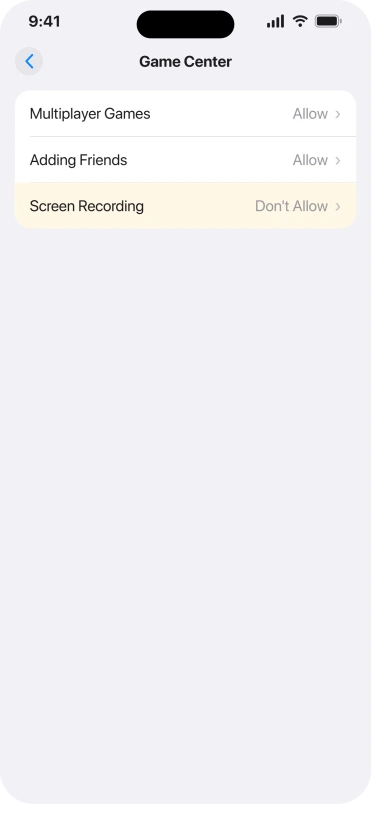
The middle step is the one to watch. You may remember a row called Content Restrictions, and it is not there any more.
In iOS 26 it is App Store, Media, Web & Games. Scrolling for the old name finds nothing, which is why people give up and decide the fix is invented.
The old name is not made up, it is just old, and it did not change when Screen Time arrived.
Diffing one Apple page across four versions dates it exactly: Content Restrictions through iOS 16, then Store, Web, Siri & Game Center Content in iOS 17, then App Store, Media, Web & Games from iOS 18 onwards.
The iOS 11 route, Settings, General, Restrictions, Game Center, is described the same way across several older third-party guides and by no Apple page we could open, so treat that last step as folklore that happens to be right about the destination.
Four limits on this. Apple prints the Screen Recording row itself on exactly one of the pages we read, and that page is written for managing a child's device through Family Sharing.
Its Screen Time guide pages do name Game Center, in the parent row you tap through, but none of them mentions Screen Recording.
And one owner reported having no Screen Recording row under restrictions at all, so we cannot promise it is always there on every phone.
If your phone is managed by a school or an employer, the restriction may be enforced from outside, in which case nothing you do in Settings will move it.
Our page on an App Store icon that vanished covers how to spot a management profile.
If that is where you are, I would rule out the two free causes before you open Settings at all.
If Control Center will not even open inside the app
There is a switch for this, and it produces a symptom people describe as screen recording being broken.
Apple heads a section "Turn off access to Control Center in apps", and under it: "Go to the Settings app on your iPhone > Control Center, then turn off Access Within Apps."
With that off, you cannot pull down Control Center while you are inside the app you want to record. Check it before you conclude the recording feature has failed.
The recording works but there is no sound
Two different failures live under this complaint, and the test that separates them takes one recording.
Whose voice is missing? If yours is, it is the microphone. If the app's sound is missing but your voice came through fine, it is the app, and no setting will fix it.
For the microphone, Apple's steps are: "Touch and hold [the Screen Recording control], tap Microphone to turn it on, tap Start Recording, then wait for the 3-second countdown to start recording."
You have to tap Start Recording from inside that expanded panel. Closing Control Center and tapping the button again starts a fresh recording with the microphone off.
For app audio, Apple's own wording is the answer: "Some apps might not allow you to record audio or video." Streaming and music apps are the usual ones.
There is no toggle for this and it is working as the app intends.
There is a third variable, new in iOS 26. Apple's release notes add an "audio input picker in Control Center".
Apple says nothing about how it interacts with a recording, but ours: if your phone is routing audio input somewhere unexpected, the microphone toggle can be on and the recording still come out wrong.
A gap worth knowing about: Apple's main support article on recording opens by saying you can "start a screen recording and capture sound", and then never mentions the microphone anywhere on the page.
If you followed that page and got silence, you did not miss a step. It is not there.
The video plays back black
Apple covers this in one hedged sentence and never uses the word DRM: "Some apps might not allow you to record their content."
Its other page puts it more usefully as "audio or video", which tells you the two can be blocked separately. That is why a streaming app can give you a black picture while a webinar app gives you picture with no sound.
If the Camera app itself is black on screen rather than only in playback, that is a different fault and a black or frozen iPhone camera is the page for it.
Where the file went
Apple: "Screen recordings are automatically saved to your photo library in the Photos app. To see all your screen recordings, open Photos, tap Collections, scroll down to Media Types, then tap Screen Recordings."
If you are looking under Photos, Albums, Screen Recordings, that was the older Photos layout and the recordings are not filed there any more.
Status: checked on iOS 26.6, August 2026. No release from 26.0 to 26.6 mentions screen recording at all, so waiting for a point release to fix this is not a plan.
Two things blamed for this that nobody has documented
- Low Power Mode. Apple lists what it affects, and the list runs to 5G, Auto-Lock, brightness, refresh rate, visual effects, iCloud Photos, automatic downloads, email fetch and background app refresh. Screen recording is not among them. Apple introduces that list with "such as", so it is examples rather than a closed set. Nobody has documented Low Power Mode as a cause, and Apple has not ruled it out either.
- A storage minimum. Apple names no figure on any of its recording pages. Running out of space genuinely can stop a recording saving, but any specific gigabyte figure is somebody's guess.
Why does my screen recording have no sound?
Because the microphone is off unless you turn it on for that recording, by touching and holding the control and tapping Microphone before you start. If your own voice recorded fine but the app's audio did not, that is the app refusing to share it, which Apple documents and which no setting changes.
Where is the screen record button on iPhone?
In Control Center, but only once you have added it. Touch and hold the Control Center background, tap Add a Control, then choose Screen Recording. It stays there afterwards.
Why is screen recording greyed out or refusing to start?
The alert names three causes at once. Stop any AirPlay or screen mirroring first, then check Settings, Screen Time, Content & Privacy Restrictions, App Store, Media, Web & Games, Game Center, Screen Recording.
Why is my recording black on some apps?
Because that app blocks capture. Apple says only that some apps do not allow it, most often streaming services. Picture and sound can be blocked separately, so a black video and a silent video are the same cause wearing different clothes.
The Short Version
- One alert covers three causes: AirPlay, a restriction, or screen mirroring. Rule them out cheapest first, which means mirroring and AirPlay before Settings.
- No Record button means it was never added. Touch and hold the Control Center background, tap Add a Control, pick Screen Recording.
- The restriction really is filed under Game Center, and Apple documents it on one page only.
- The middle step is App Store, Media, Web & Games in iOS 26. The old Content Restrictions row is gone.
- If Control Center will not open inside an app, check Settings, Control Center, Access Within Apps.
- No sound splits two ways. Your voice missing is the microphone, the app's audio missing is the app blocking it.
- Recordings save to Photos, under Collections, Media Types, Screen Recordings.
- Nobody has documented Low Power Mode as a cause, and Apple publishes no storage minimum.
Where to Next
Work cheapest first and most people never reach Settings at all. Stopping a mirroring session takes a second. Putting the control back takes two taps.
Only the restriction needs a menu, and that is the one where the row you are hunting has been renamed.
A screen that misbehaves rather than refuses to record needs a different check. iPhone screen flickering separates software from a panel fault.
If you get the alert with no AirPlay running and no restriction set, drop me a comment with the exact wording, because that is worth knowing about.

Isaac Smith is the founder and editor of PC Glance, a website that covers computers, laptops, and technology. He is a tech enthusiast and a computer geek who loves to share his insights and help his readers make smart choices when buying tech gadgets or laptops. He is always curious and updated about the latest tech trends.