
QuickTime Player captures a connected iPhone's screen. For portrait, set the app upright and lock the phone's orientation before pressing Record. If a saved recording plays sideways, rotate the clip in QuickTime.
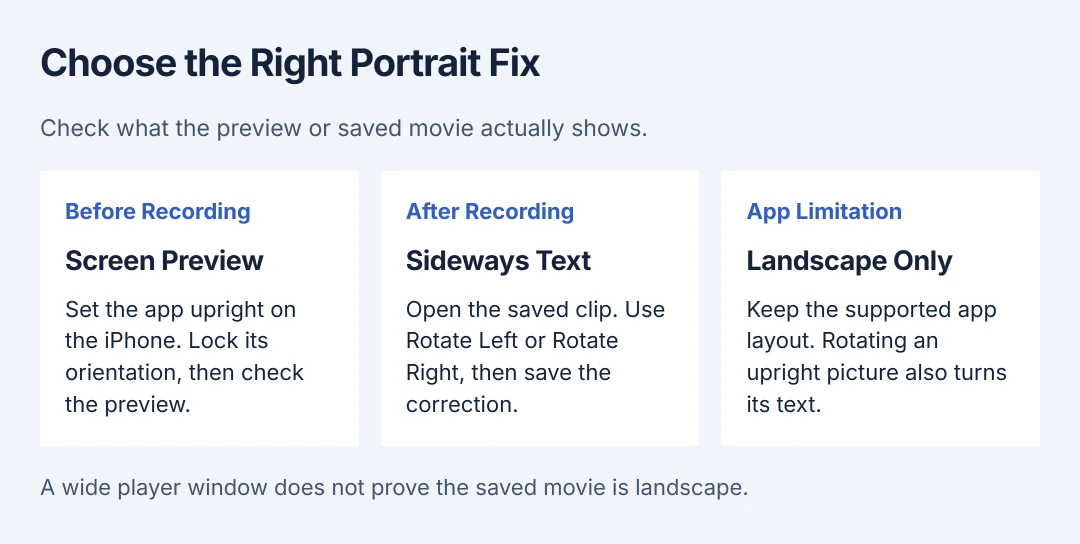
Check the actual picture in the preview. A wide Mac window, a sideways video and an app that only supports landscape require different actions.
Select the connected iPhone screen
Unlock the iPhone and attach it to the Mac using a cable. Open QuickTime Player > File > New Movie Recording. In the options menu beside the recording button, choose the connected iPhone under Camera.
Apple documents capturing what appears on the connected device in its QuickTime recording instructions. The preview should show the iPhone's screen and the app being demonstrated.
Status: Apple's QuickTime capture, rotation and saving controls checked October 28, 2026. Screen orientation guidance also checked. No iPhone recording was made here.
If the preview shows the room or your face, it is a camera feed. The Mac camera recording guide covers that separate use of New Movie Recording. Return to the connected-device screen view for an app demonstration.
Put the app in portrait before recording
Hold the iPhone upright and open the app to the view being recorded. Confirm that its text is upright and that the QuickTime preview shows that same view before starting the take.
To prevent an accidental turn, open Control Center. For a Face ID model, swipe downward starting at the upper-right corner. For an iPhone SE with a Home button, swipe upward starting at the screen's bottom.
Tap the rotation-lock button, identified by a lock inside a circular arrow, to turn it on. Apple says in its screen orientation guide that the button is red when locked and gray when unlocked.
Close Control Center and check the app again. The lock maintains the phone's screen orientation; it does not add a portrait layout to an app that only works in landscape.
Apple notes that rotation support depends on the app. If Safari displays upright but a particular game remains horizontal, use the game's supported layout. Turning that image afterward would also turn its text sideways.
If rotation lock is missing, tap Control Center's Add button to edit its controls. Tap Add a Control and add rotation lock. Check the preview again after returning to the app.
Record a short sample and save it
Choose the required Microphone in QuickTime's recording options, then click Record. Capture a short sample, stop it and review the picture and sound before recording the full demonstration.
Keep the app in its chosen orientation during the take. If another orientation is needed, stop and save the current clip, change the app view, then begin a separate recording.
Use File > Save, enter a name in Export As, choose a location and click Save. Apple states in its saving instructions that new recordings receive a placeholder name. Save a named file in the chosen location.
Reopen the recording in its saved folder. Upright text and the intended portrait picture confirm that the recording is usable. A phone-shaped area inside a wide player window does not by itself show that the movie has the wrong orientation.
Rotate an existing clip when its text is sideways
Keep a copy of the original movie before editing it. Apple's clip rotation procedure gives these controls:
- Open the movie in QuickTime Player and choose View > Show Clips.
- Select the clip that needs correcting.
- Choose Edit > Rotate Left or Edit > Rotate Right, whichever makes the picture upright.
- Click Done, save the change and reopen the saved movie to check it.
One owner confirmed that rotating and then saving corrected their sideways iPhone movie. That report concerns an already-recorded file, not a promise that changing a phone setting repairs an existing recording.
If empty side areas are part of the saved movie frame, rotating upright text also turns it sideways. Use the original portrait recording or an editor's canvas and crop controls to change that framing.
If the preview still disagrees with the phone
Check that the selected source is the connected device's screen and compare the same app view on both displays. Record the iPhone model, iOS version, macOS version and what the preview shows for Apple Support if the mismatch remains.
For a recording made directly on the phone, the iPhone screen recording checks cover unavailable controls, restrictions and saved files. That is an alternative capture method; its controls do not change QuickTime's input.
The Short Version
Select the connected iPhone in New Movie Recording, make its app display upright and enable rotation lock before recording. Check a saved sample. For an existing sideways clip, use Show Clips and Rotate Left or Rotate Right, then save it.

Isaac Smith is the founder and editor of PC Glance, a website that covers computers, laptops, and technology. He is a tech enthusiast and a computer geek who loves to share his insights and help his readers make smart choices when buying tech gadgets or laptops. He is always curious and updated about the latest tech trends.