

An account already on a phone isn't necessarily signed in to Chrome. Open Chrome's own Settings > Sign in and choose that account; on a computer, use the Profile button and Sign in to Chrome.
If the password is rejected or you can't finish verification, use account recovery instead. If sign-in is disabled on a work device, ask your administrator. Check which screen stops you before removing an account that other apps still use.
In this guide
1. Choose the account inside Chrome
On Android, open Chrome, tap the three-dot menu, and choose Settings > Sign in. Select the Google Account you want, then tap Continue as. Check the address carefully if the phone has personal and work accounts.
Google explains how to choose the account in its Chrome sign-in instructions. Having Gmail open doesn't automatically mean you've accepted Chrome's own sign-in prompt.
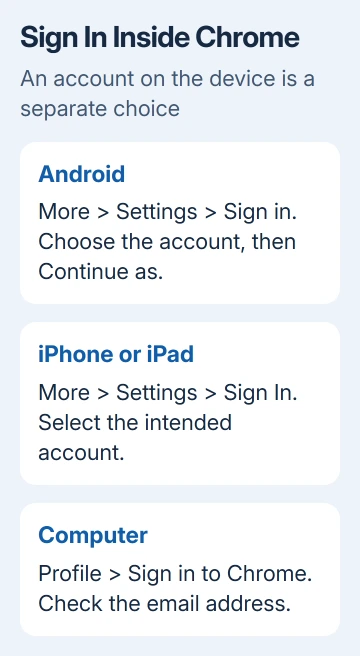
For iPhone or iPad, open Chrome and select More > Settings > Sign In. Choose the intended account, or enter its details if the list doesn't include it. Follow the prompts until Settings shows the selected account.
On Windows, Mac or Linux, select the profile icon near the top-right corner of Chrome, then Sign in to Chrome. Enter the account's sign-in information and select Next when prompted.
Read the email address on the final screen instead of relying on its avatar. Two accounts can use similar names or pictures. Successful sign-in to the wrong account won't bring back the bookmarks or passwords saved in the other one.
An employer's Microsoft account isn't automatically a Google Account. Choose whichever Google Account contains the Chrome data you need. If a work email has a Google Account attached to it, use that account's Google sign-in details.
2. Check whether the account itself accepts the login
Open a normal Chrome tab and visit the Google sign-in page. Enter your account details there. Use the full Chrome app rather than a sign-in window built into another app.
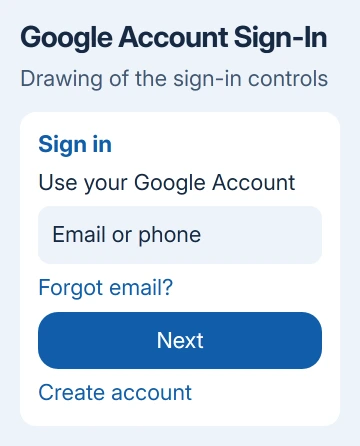
If the website accepts the account but Chrome's profile sign-in still fails, the password is working. Return to Chrome Settings and continue with the browser checks. Repeated password resets won't fix a disabled browser control.
For a rejected password, an account Chrome can't find or unfinished verification, use Forgot password? or the offered recovery choices. Keep the exact message; a wrong password and an unavailable verification phone need different responses.
The Google Account recovery guide explains that route. Don't delete the account from a working phone while you still need that device to receive a Google prompt or other verification.
When the account works on another device, compare the email addresses character by character. An old address selected from a saved list can make this look like a device problem when Chrome is trying a different account.
3. Allow the sign-in page to run properly
If the login page is blank or rejects your browser, check Chrome's settings next. Google blocks some sign-ins from browsers built into other apps, browsers with JavaScript turned off, or browsers using unsafe or unsupported extensions.
On a computer, open Chrome > Settings > Privacy and security > Site settings > JavaScript. JavaScript runs interactive page features. Choose Sites can use JavaScript, or remove a block on the sign-in page, then reload it.
Use the supported-browser checks for the browser rejection message. These checks help get the login page working. Having a Google Account in your phone's settings doesn't fix a page that can't run.
If a desktop extension alters sign-in pages or blocks scripts, open More > Extensions > Manage extensions and temporarily disable it, then retry sign-in. Try signing in again before turning extensions back on individually.
If sign-in works with one extension off, you know which extension or its settings to check. If nothing changes, restore that extension's previous setting and continue. Removing every extension isn't needed to check one suspect.
4. Update Chrome and retry in its regular window
On a computer, open More > Help > About Google Chrome. Allow any available update to finish, select Relaunch if offered, and retry sign-in after the browser returns.
On Android, update Chrome through the Google Play Store. On iPhone or iPad, use the App Store. Return to Chrome's own Settings afterward; updating Gmail doesn't update the separate Chrome app.
When an update reports an unsupported operating system, compare Chrome's system requirements before reinstalling. Reinstalling won't make the latest Chrome release work on an operating system it no longer supports.
On a computer, try signing in through a regular Chrome profile. An Incognito window won't sign the browser itself in. Incognito is useful for website testing, but browser sign-in still belongs to the Chrome profile you select.
When several people share a computer, check the profile name before signing in. The Chrome profile recovery guide covers keeping separate browser spaces so your bookmarks and account aren't mixed with someone else's.
5. Resolve managed-device and supervised-account limits
If sign-in is gray, an organization message appears, or Chrome says the account isn't allowed, check for workplace restrictions. On desktop Chrome, open the menu and look for Managed by your organization.
Give IT the exact message, the intended account address, and whether normal Google website sign-in works. Ask whether Chrome browser sign-in is disabled or limited to approved accounts. Reinstalling Chrome won't remove a company policy.
For a child's account, have the parent check the supervised account and device setup. Don't use an adult account to bypass the child's restriction. Account age and supervision can change which sign-in choices are available.
If a personal, unmanaged device still fails after these checks, open the Chrome Help Community through Help in the menu. Include the device model, operating system, Chrome release, plus the sign-in screen and message that stop you.
The Short Version
Choose the account in Chrome itself, then check whether its website login works. Use recovery for a rejected password or a verification problem, update Chrome for browser failures, and ask IT or the parent about disabled sign-in controls.
Checked November 13, 2026.
 If you have any business, I can build it online






