When Apple Watch messages don't arrive, the connection or iMessage account usually needs attention. Keep the paired iPhone nearby and online, then try a fresh text. Messages that arrive silently need alert settings checked instead.
Old conversations and unread badges can differ even when new messages arrive. Start with a newly sent text so you can tell whether delivery is broken or the watch is showing a different history.
In this guide
1. Separate missing delivery from a quiet alert
Open Messages on the watch and look inside the conversation. Lock the iPhone, wear the unlocked watch and ask a friend to text you. See whether the message arrives, whether you get an alert and whether you can reply.
A message already inside the watch's conversation has reached it. Changing accounts won't fix a missing vibration. On the iPhone, open Watch > My Watch > Notifications > Messages and check the notification choice.
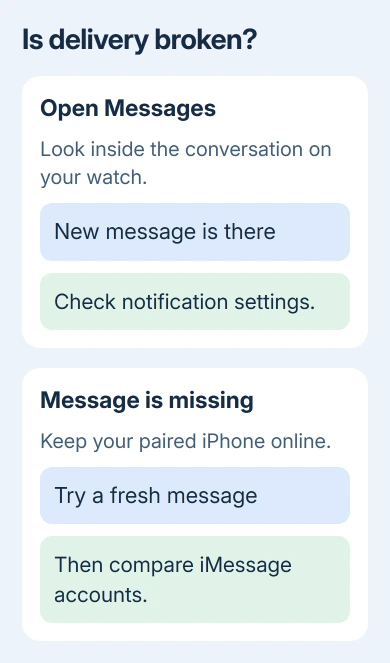
Notifications normally appear on the iPhone or the watch, rather than both at once. An unlocked iPhone usually gets the alert. Test with the phone locked before treating that behavior as a fault.
For messages that arrive silently, follow the checks for an Apple Watch not getting notifications. Continue here when a fresh message is missing from the Messages app itself.
Don't judge delivery from a deleted conversation or an old unread count alone. Write down which part differs, since a history mismatch is a different support question from a message that never arrives.
2. Restore the connection and keep the iPhone online
On watchOS 10 or later, a side-button press opens Control Center. On watchOS 9 or earlier, start a long touch near the bottom edge, then slide your finger upward. Turn off Airplane Mode if it's enabled.
Bring the paired iPhone close and leave Bluetooth and Wi-Fi enabled in its Settings app. If you see a red iPhone icon or red X, check the connection before changing Messages settings.
Apple says in its message troubleshooting steps that a cellular watch still needs its paired iPhone powered on and online to send or receive SMS/MMS. The phone doesn't have to be nearby.
iMessage can work over the watch's Wi-Fi or cellular connection while the iPhone is off. That explains why messages to one person can work while texts to another fail during the same outing.
Repeat the test while the iPhone is running with Wi-Fi or cellular service. If that restores the missing texts, keep the phone online when you leave it behind. Buying a different watch plan won't remove that phone requirement for SMS/MMS.
If the red connection symbol remains even beside the phone, work through the Apple Watch connection checks first. Changing Messages settings won't reconnect the watch to your phone.
3. Send the same kind of message from the iPhone
Send a message from the iPhone to the same person. Use the same conversation that failed on the watch. An iMessage that reaches someone else doesn't tell you whether ordinary texts can reach this person.
If the phone also fails, fix that first. Check its cellular service for ordinary texts and its internet connection for iMessage. If both devices show a failed-send alert, the watch's notification settings aren't the problem.
Green bubbles can include RCS as well as SMS/MMS on current iPhones. Don't use the bubble color alone to decide which service is failing. Tell support whether all contacts fail or only a particular conversation does.
If the iPhone sends normally and the watch doesn't, continue with the account check. I'd make this comparison before signing out; it avoids changing a working account when the real problem is the phone's service.
4. Match the iMessage account on both devices
On the iPhone, open Watch > My Watch > General > Apple Account. Note the account used by the watch. Older software may label this Apple ID instead.
Next, open Settings > Apps > Messages on iOS 18 and later, and check that iMessage is on. On iOS 17 or earlier, Messages sits directly inside Settings. Open Send & Receive.
Check the account shown there against the watch's account. Also look at the receiving phone number and email choices. A conversation sent to an old address can make the mismatch seem limited to one person.
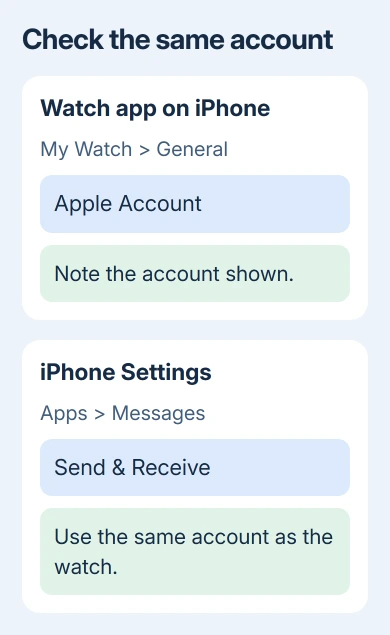
Sign in if iMessage asks you to. When the accounts match, ask for another text sent to your usual number or address. If delivery starts working, leave the other settings alone.
The Watch app's Reset Sync Data isn't a general Messages repair button. Don't substitute a contacts-and-calendar sync reset for checking the messaging account.
5. Sign back into iMessage when the account is stuck
If the accounts match but delivery still fails, return to Settings > Apps > Messages > Send & Receive. Select the displayed Apple Account, then Sign Out. This signs out of iMessage, not the whole iPhone.
Return to Messages settings, turn iMessage off, then turn it on again. Open Send & Receive, choose Use your Apple Account for iMessage, and enter the watch's account details.
Have the account password and any verification method ready before signing out. Wait for the phone number or address to become available for messaging, then repeat the phone-and-watch test.
If you see an activation error, deal with it on the iPhone first. A watch reset can't finish phone-number activation on the iPhone. Record the exact activation message if you need help with it.
6. Restart both devices, then check their updates
Restart the watch normally: take it off its charger, hold the side button, tap the power button on current watchOS, and drag Power Off. To start the watch again, hold its side button. The Apple logo signals when to let go.
On older watchOS versions, Power Off is available without that extra power button. Restart the paired iPhone too, using its normal power-off controls. A force restart isn't needed when both devices respond.
Check Settings > General > Software Update on the iPhone. For the watch, use Watch > My Watch > General > Software Update and follow its charging and connection requirements. Retest Messages when both finish.
7. Re-pair only after the delivery checks fail
Unpairing removes the watch's contents and restores factory settings. Have its Apple Account password available, and know the watch passcode.
As a final repair, remove the existing pairing, then reconnect the watch. Use Watch > My Watch > All Watches, select the watch's information button, then Unpair Apple Watch. Keep your cellular plan if you'll pair that watch again.
Pair with the same iPhone and account. Test a new incoming message and a reply. If messages still won't arrive, contact Apple Support about Watch Messages. Give them your model, software versions and the results from both devices.
Specify whether delivery, alerts, history or unread counts differ. Report any activation error and whether the iPhone was online. Support can then work on the failing part without repeating unrelated alert checks.
The Short Version
Check a fresh message inside the watch's Messages app, restore its connection and compare the iMessage account. Keep the paired iPhone online for SMS/MMS. Re-sign into iMessage, restart and update before using unpairing as the final repair.
Checked November 13, 2026.