The little Notes panel that appears when the pointer reaches your Mac's bottom-right corner is Quick Note. Remove Quick Note from that corner in Hot Corners to stop it appearing. Your saved notes stay in the Notes app.
Closing the panel only dismisses the current window. Changing its corner assignment stops the panel returning when the pointer touches that spot again.
In this guide
Remove Quick Note from the corner's action menu
macOS 13 and later use System Settings. Open Apple menu > System Settings > Desktop & Dock, scroll down, and click Hot Corners. This covers Ventura and newer releases, including macOS 27.
The window has a menu for each screen corner. Open the bottom-right menu and change Quick Note to the plain hyphen (-) entry. Click Done to save the choice.
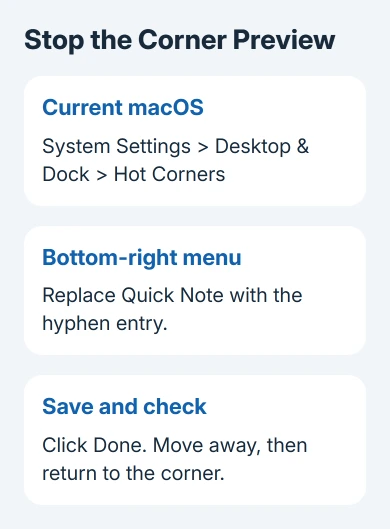
The hyphen means that corner has no assigned action. It doesn't delete Notes or remove a note. If another action is selected instead, the corner will trigger that action when the pointer reaches it.
Take the pointer out of that corner, then return to it. The small Quick Note preview should no longer appear. Moving the pointer back checks that the corner is off; closing an open note window alone doesn't check that.
Apple's Hot Corners instructions explain how to set a different action for each corner. Leave the other three alone if they already do something useful, such as locking the screen or showing the desktop.
If the bottom-right menu already has a different action, check all four menus for Quick Note. Someone may have moved it to another corner. Change the corner that actually triggers the panel on your Mac.
Use System Preferences on macOS Monterey
Monterey 12 uses System Preferences, so it won't have the Desktop & Dock sidebar described for newer releases. Open the Apple menu > System Preferences > Mission Control, then click Hot Corners.
Open the bottom-right menu, choose the hyphen entry, and click OK. Move the pointer out of the corner and return to it to confirm the preview has stopped.
On Monterey, you can also open that window through System Preferences > Desktop & Screen Saver > Screen Saver > Hot Corners. Both routes change what your screen corners do. The setting isn't inside Notes.
Follow the route for the interface on your Mac. On the same macOS release, the corner control works identically with Intel or Apple silicon. Processor type doesn't change which menu turns off Quick Note.
If the instructions don't match, check Apple menu > About This Mac for the installed version. Look for System Preferences or System Settings to choose the right route; you can't choose the route just from your laptop's age.
Close the note that's already open
After turning off the corner, close a full Quick Note window with its red close button. Turning off this corner shortcut doesn't require erasing the note or closing all your Notes windows.
If only a small preview is showing, take the pointer out of that corner before checking again. A full note window and the corner's preview aren't the same thing, so check whether touching the corner starts another preview.
Open Notes and select Quick Notes in the sidebar to find saved Quick Notes later. Your text stays saved. The corner setting changes how you open a note, not what's in it or where it's stored.
I'd leave the saved notes alone while changing the corner. Deleting an old note is unnecessary for stopping this shortcut, and leaves you unsure whether the shortcut is off or its old content is just gone.
When the Dock itself needs adjusting, the Mac Dock visibility controls cover that setting. Hiding the Dock doesn't turn off a screen corner's Quick Note action.
Keep Quick Note available without accidental openings
Quick Note can still be opened with Fn + Q or Globe + Q, depending on the keyboard. Turning off its corner doesn't remove that keyboard shortcut or prevent you from opening the Notes app normally.
To prevent accidental openings, add a modifier key that you must hold while using the corner. In Hot Corners, open that corner's menu and hold Command, Shift, Option, or Control while choosing Quick Note.
For example, hold Control while selecting the action. After saving, the corner should require Control as well as the pointer movement. Test once without the key and once while holding it to check the difference.
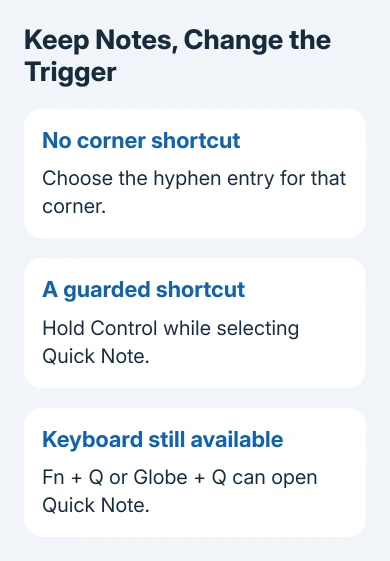
Another option is moving Quick Note to a corner you use less often. Assign it there and remove it from the old corner. Otherwise both corners can remain active, leaving the original accidental trigger in place.
These options keep the same notes available. Turn the corner off to stop pointer activation, add a key to prevent accidental openings, or move the shortcut to another corner.
Change the old note that reopens, or check a different popup
Quick Note normally returns to the previous Quick Note. If an old note reopening is the problem, open Notes > Settings and clear Always resume to last Quick Note to start a new one instead.
On Monterey, look in Notes > Preferences for that choice. This changes which note a Quick Note shortcut opens. It doesn't disable the corner, so choose it when keeping Quick Note available is the goal.
For notes edited through a browser, the iCloud Notes editing guide covers those account controls. The bottom-right pointer action described here belongs to macOS itself.
A notification banner, a yellow Stickies window, or a desktop widget needs its own controls. Notice whether the item appears only when the pointer touches the corner. If it does, check Hot Corners first.
If Quick Note still opens, reopen Hot Corners and check that your changes were saved. Give Apple Mac Support your macOS version and say whether pointer movement or Fn + Q starts the unwanted panel.
The Short Version
In Hot Corners, replace Quick Note with the hyphen entry and save. Use Desktop & Dock on current macOS or Mission Control in Monterey's preferences. Close the existing note separately; its content and keyboard shortcut remain.
Checked November 13, 2026.