One iMessage conversation can fail because it's addressed to an old number or email. Compose a fresh message using the person's confirmed current number, then check that both phones have the intended address enabled in Send & Receive.
A Not Delivered error needs different checks from a message that arrives without an alert. A green message that reaches the person can also be working normally, particularly if they've moved to Android.
In this guide
1. Check whether delivery or the alert is missing
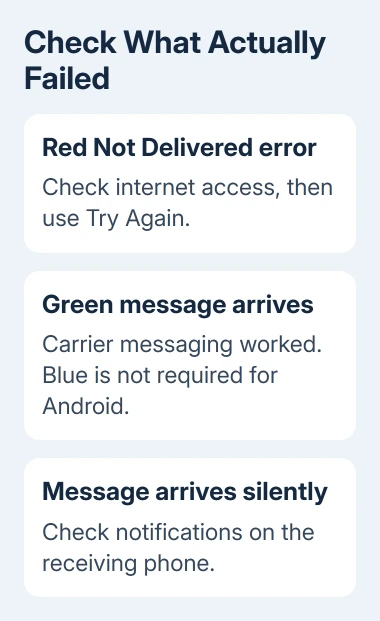
Ask the recipient to open Messages and look inside the conversation. If your new message is there, delivery worked. A silent notification, hidden alert or unread badge needs different checks from a message that won't send.
For that case, use the one-person notification checks. Changing the sending account won't repair a muted conversation that's already receiving messages.
Send one short text to another person who normally uses iMessage. If it works, your phone can still send iMessages to other people. Ask the affected person whether they can exchange iMessages with anyone else.
A missing Read receipt doesn't mean delivery failed. People can turn read receipts off. A missing Delivered label can't tell you whether they blocked you, lost their connection or have a number or email that isn't registered with iMessage.
When every iMessage conversation fails, move to the connection and account checks in section 4. When just one thread fails, confirm its destination before resetting anything on the whole phone.
2. Start a message to the confirmed current address
Confirm the person's current mobile number through another channel. Include the country code if needed, and check whether their contact card also contains an old number or Apple Account email address.
Open Messages, tap compose and enter the confirmed number in To. Select that number rather than the first suggested contact. Keep the existing conversation while trying the newly addressed message.
The composer or send-button color shows the service selected for that destination. Blue indicates iMessage; green uses a carrier service. One person's number and email can behave differently because each needs iMessage registration.
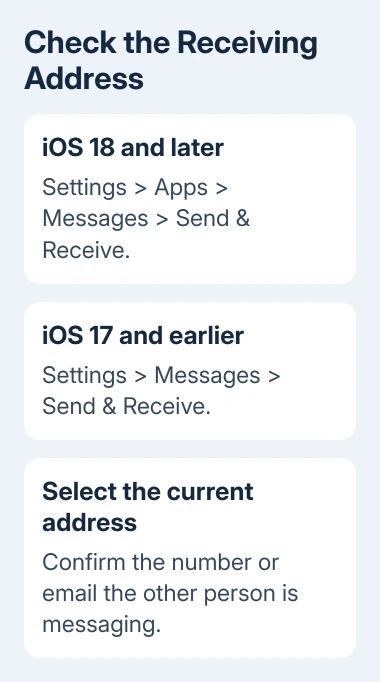
Ask the recipient to open Settings > Apps > Messages > Send & Receive on iOS 18 and later. For iOS 17 and older, start at Settings > Messages without the Apps level.
Have them check that the number or email you're messaging appears and is selected for receiving iMessages. Check your own Send & Receive page too, especially if replies go to an old email conversation instead of your number.
If the person's email address works but their phone number doesn't, report that difference when seeking activation help. I'd keep using the working, agreed address while its activation is fixed rather than delete the whole conversation.
3. Retry a failed message and use the right fallback
For a red exclamation point beside Not Delivered, check that the internet connection works. Try loading a webpage to confirm data works. Return to the failed message and tap its red exclamation point, then Try Again.
Apple says to use Send as Text Message in the error menu when the retry fails. Carrier charges may apply, so use that fallback when an ordinary text is appropriate.
A successful text tells you the carrier route reached that number. It doesn't repair iMessage registration, and it doesn't confirm why the blue message failed. Note which service worked before changing more settings.
If the recipient now uses Android, blue iMessage isn't the expected result. Your conversation needs RCS, SMS or MMS instead. The recipient may need to deregister their old iPhone number from iMessage if messages still route incorrectly.
The green-message explanation covers the service colors. Focus on whether the message arrives, rather than trying to turn every conversation blue.
If even a short carrier text fails to this confirmed number, contact the carrier with the time, destination and error. Picture-message failures also need the carrier's MMS or RCS support checked separately from a plain text.
4. Repair settings after a phone or SIM change
A new phone or added eSIM can leave the wrong line selected. Open Settings > Cellular and check that your intended phone line is enabled. On a dual-SIM iPhone, check the actual number rather than just the line's nickname.
After a new-device setup problem, open Settings > Apps > Messages, turn iMessage off, then on again, then open Send & Receive and select the intended phone number. On older iOS releases, Messages appears directly inside Settings.
The recipient should do the same checks on their phone if the issue began when they changed devices. A working setting on your iPhone can't enable a number that isn't registered on theirs.
If the number is waiting for activation rather than selectable, follow the activation help linked from Apple's delivery page. Ask the carrier to check SMS service for that line and give support the exact activation message.
For broader failures, restart the affected iPhone and check Settings > General > Software Update. Do this on the phone showing the problem; you don't need to change accounts on both phones just because one message failed.
5. Review blocks and filters on the receiving phone
An accidental block on the receiving device can stop delivery for one number or email. On iOS 26, open Settings > Privacy & Security > Blocked Contacts and check for the affected entry.
To remove an unintended block, choose Edit, use the delete control beside the contact and tap Unblock. For earlier software with different menus, open the contact in the conversation and review its blocking control.
The blocked-contact instructions describe undelivered messages with no notification to the sender that a block exists. Message colors and receipt labels can't tell you who's on someone else's blocked list.
Also have the recipient look at their message filters when a new number isn't visible in the main list. An unfamiliar sending address can put a message outside the conversation they normally check.
When the confirmed address still fails
Contact Apple Support through the Messages delivery page when iMessage fails between confirmed enabled addresses. Give them both devices' iOS versions, whether you're sending to a number or email, and whether another iMessage contact works.
Ask the carrier about failures specifically involving RCS, SMS or MMS. Have the failed message and its time ready. Leave your conversation and settings unchanged during the support review.
The Short Version
Confirm the address and match Send & Receive at both ends. Retry sending errors and check recipient blocks without deleting history. Ask Apple about iMessage failures and the carrier about failed carrier texts.
Checked November 13, 2026.