

Word's Insert > Object > Create from File command embeds an existing document in the Windows app. Pick the document and leave Link to file unchecked so the Word file stores its own copy.
Choose Display as icon for a compact attachment that opens when double-clicked. To combine the actual pages into one editable document, use Text from File instead. Choose based on whether you want an attachment or editable pages.
In this guide
Choose between an attachment and combined text
Use an embedded object when you want the original file to stay separate inside your Word document. A report can carry its supporting document without turning every paragraph of that document into part of the report.
Microsoft says an embedded object is stored inside the Word file. The object insertion instructions distinguish this from a link to an external source.
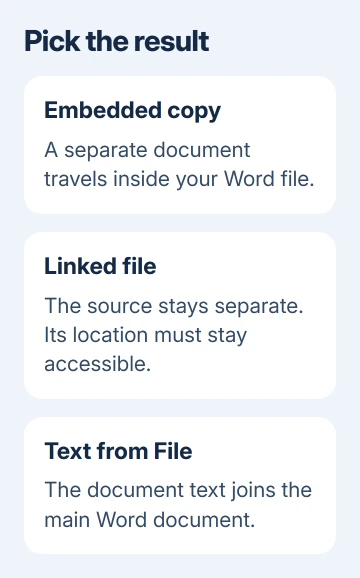
Use a link when you want the source file to stay separate and its changes to be available in your Word document. The link needs access to the source location, so consider whether someone else can reach it when opening your document.
The Text from File command brings the other document's words into the main document for editing. That isn't an attachment, even though the material came from another Word file.
I'd embed a supporting file that needs to travel with a report. For a document that several editors maintain, sharing its source separately avoids keeping several embedded copies current.
Insert the existing document as an object
Open the document that needs the attachment in Word for Windows, then click its intended position. If it's the only copy of an important original, make a separate Word copy before changing the layout.
- Open the Insert tab and find Object in the Text group.
- If Object opens a menu, choose Object, rather than Text from File.
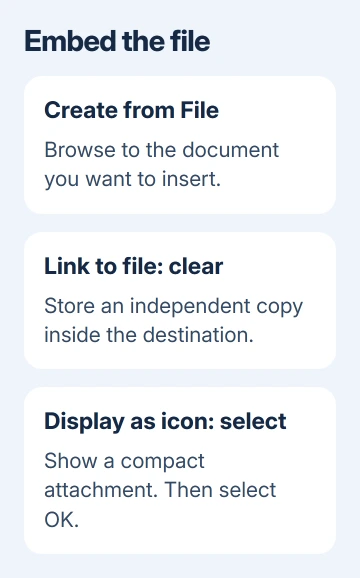
- In the dialog, select Create from File.
- Select Browse, find the document, and choose Insert or the file picker's open command.
- Leave Link to file unchecked to store the inserted copy inside your Word document.
- Select Display as icon if you want the compact attachment appearance, then select OK.
The object should appear where you placed the cursor. With Display as icon selected, expect an icon rather than the document's complete contents flowing onto the following pages.
Save the Word file that now holds the attachment. Keep its filename distinct from the source file so it's clear which one is the report carrying the attachment and which one is the original supporting document.
These desktop controls are available in versions including Microsoft 365, Word 2024 and Word 2021. The Windows dialog is the route described here; don't search for Create from File in a browser tab.
Set the appearance without changing the storage choice
Display as icon controls how the object looks in your document. Link to file controls whether Word keeps an external connection. Choosing an icon doesn't turn a linked object into an embedded one.
The dialog's Result area changes with your selections. Read it before choosing OK, particularly if you previously inserted a linked object and are now making an attachment for someone else.
For an icon, Change Icon lets you choose a different available icon. A clear surrounding sentence, such as a description of the supporting document, also helps the reader understand what they're opening.
Leaving Display as icon unchecked can show a preview of the file's first page. It doesn't mean a multipage document has been merged into your report as ordinary Word text.
For a PDF attachment, use the PDF-specific insertion guide for its reader and conversion requirements. A PDF preview and an embedded Word document aren't interchangeable editing formats.
Open the embedded copy and check what travels
Double-click the inserted object to open or edit its contents in the app that handles that file type. Check that it's the right document and that its contents are correct, then save your changes and return to the Word file holding it.
Changing the original source afterward won't update the embedded copy. That's the point of embedding: your Word file holds its own copy. Make changes to the correct copy when a correction arrives later.
For a linked object, the source stays separate and your Word file stores its location. Moving the report to another computer can leave that location unavailable, even while the report itself still opens normally.
Before sending, close and reopen the saved Word file in the desktop app and try opening its object. Ask the recipient to check it in the app they'll actually use, especially if the attachment is essential to the report.
The recipient needs software that can open that file type. Embedding a document doesn't install its editing application or make an unsupported viewer able to open it.
Insert editable document contents when that was the goal
Place the cursor where the other document's text belongs. Open Insert, open the menu beside Object, then choose Text from File. Locate the Word file and double-click it to bring its contents into the destination.
Review the combined text, tables and page breaks afterward. The resulting material belongs to the main document instead of sitting behind an attachment icon.
When the source's header and footer must come too, the document insertion procedure calls for inserting its text in a new section. Otherwise those page elements won't be limited to the imported pages as intended.
When the Object command isn't available
Word for the web preserves embedded files but displays them as placeholders. Use the desktop app for inserting and working with these objects; refreshing the browser won't add the Windows Object dialog.
On a Mac, don't assume the Windows dialog has identical controls. Ask the recipient to check whether their Word version supports the object, or send the supporting file separately if they can't open it.
For an insertion error, note the exact message, then check that the source opens by itself. Send Microsoft Support your Word edition, the file type and what happens when you insert another small document.
The Short Version
Use Create from File with Link to file clear to embed a separate document. Display as icon changes its appearance. Use Text from File for merged editable content, then reopen the saved result and check it in the app your recipient will use.
Checked November 15, 2026.
 If you have any business, I can build it online






