
Outlook contacts need contact access and an enabled sync or export setting to reach iPhone Contacts. If you use the Outlook app, turn on Save Contacts. An account added in iPhone Settings needs its Contacts switch instead.
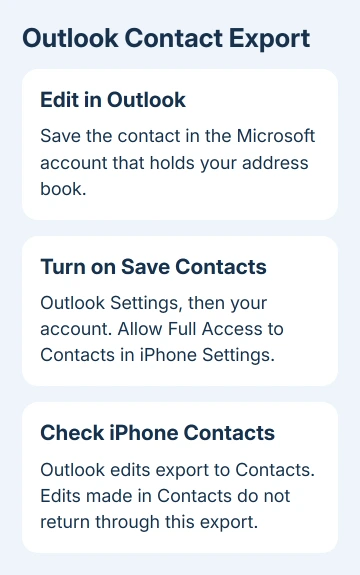
Outlook's iPhone export sends changes to Contacts, but edits in iPhone Contacts don't travel back through that export. Check which setup you're using so your next edit reaches the right account.
In this guide
1. Check which app holds the missing contact
Find one missing person's contact entry in the Outlook account where you saved it. Compare the name and number with the iPhone's Contacts app. Keep using that same person while checking settings so you can tell when the change arrives.
A name suggested while addressing an email isn't necessarily a saved personal contact. Confirm that the person has a contact entry, rather than treating a recent recipient or company directory result as something the phone should export.
If the entry is missing in Outlook too, correct or save it in the Microsoft account first. The phone can't download an entry that isn't in the account you're syncing.
If your calendar is missing as well, the iPhone Outlook calendar checks help check the account itself. If only contacts are missing, focus on contact permissions and export settings.
2. Enable contact export in Outlook for iPhone
Open Outlook, open its account or navigation menu, and tap the Settings gear. Select the Microsoft account holding your contacts and turn on Save Contacts. If several accounts appear, changing one doesn't turn on export for all of them.
Microsoft says its iPhone contact export steps also call for iCloud as the default Contacts account when that option is available. On current iOS, open Settings > Apps > Contacts > Default Account.
On iOS 17 and earlier, open Settings > Contacts > Default Account. Select iCloud if you're following the Outlook export setup. The Default Account choice may be absent when only one account is available.
This chooses where new contacts are saved; it doesn't move your existing address book into Outlook. With no account connected on the device, exports stay local and won't sync to your other devices.
Return to Contacts and look for the person you chose. If the entry is still absent, keep Save Contacts enabled while checking the permission that allows Outlook to write to the address book.
3. Give Outlook access to the address book
On current iOS, open Settings > Apps > Outlook > Contacts and choose Full Access. Limited contact access can prevent the app from working with the whole address book. Also turn on Background App Refresh on Outlook's settings page.
For older iOS without the Apps group, select Outlook from Settings itself. If the permission appears as an on/off Contacts switch, turn it on. The exact permission controls depend on the installed iOS version.
Open Outlook again after changing the permission. Let it connect, then return to Contacts and search for your chosen entry. If the entry appears now, the contact was there, but Outlook needed permission to copy it.
If access is controlled by your employer, ask IT whether saving work contacts to the personal address book is allowed. You'll need a contact setup your company allows. Changing your personal iCloud settings won't remove that restriction.
I'd check these permissions before removing the account. It's a smaller change, and you keep the existing sign-in while seeing whether the export can run.
4. Check the account added directly to iPhone
If you use Apple's Contacts integration instead of Outlook's Save Contacts, open Settings > Apps > Contacts > Contacts Accounts. Select the Outlook.com or Exchange account and check that Contacts is on.
For iOS 17 or an earlier release, open Settings > Contacts > Accounts. An email account can have Mail enabled while Contacts is disabled, so receiving messages doesn't mean your contacts are syncing too.
Open Contacts, tap Lists, and select the list belonging to that Microsoft account, or choose All Contacts. On older versions this list selector may be called Groups. An unchecked list can hide contacts that have already arrived.
To save new contacts to Microsoft through the iPhone's Contacts app, select the Microsoft account as its default. This differs from Outlook's iCloud export setup. Decide which route you intend to use before changing the default.
Apple's Contacts account settings cover adding accounts, choosing a default, and showing their contacts. If no Contacts switch exists for a manually configured mail account, check its account type next.
5. Correct a mail-only account or stalled export
IMAP and POP are email connection types; they don't sync an address book. In Outlook, open Settings > Accounts, select the affected account, and check the account type shown. Receiving email through IMAP doesn't mean contacts are supported.
For a Microsoft account, use its supported Microsoft sign-in route when adding it, rather than manually choosing IMAP. For a company account, ask the administrator for its approved Exchange or Microsoft 365 setup.
If the account type is correct but Outlook's data won't refresh, select Reset Account on that account's settings page. Recheck the chosen contact after Outlook reconnects. This is an account refresh inside Outlook, not an iPhone erase.
Don't enable Save Contacts simultaneously on your iPhone and iPad for this account. Choose a single device to handle the export. Multiple exporters can create conflicts and duplicates.
If contacts already appear twice, leave export enabled on just the chosen device. It may take 24 hours for the duplicate contacts to be sorted out. Avoid manually deleting large groups while the export setup is still changing.
6. Make future edits in the right place
For Outlook's Save Contacts route, edit the person in Outlook. Changes made directly to the exported entry in Apple's Contacts app don't sync back to Outlook through that feature. Repeating the export won't turn it into two-way editing.
A desktop contact with notes that refuse editing needs its own update or contact-data repair before export settings can help.
Disabling Save Contacts removes exported entries. Removing the Microsoft 365 or Exchange account from Outlook also removes its saved contacts from iCloud. Copy any needed contact details elsewhere before removing the account.
If entries are still missing after these account, permission and reset checks, use Outlook's Contact Support option. Give support the account type, iOS version, whether Save Contacts is enabled, and whether the entry exists inside Outlook.
For password prompts instead of missing entries, follow the Outlook iPhone sign-in checks. A failed sign-in needs attention before the address book can update.
The Short Version
Choose Outlook export or the iPhone's native Microsoft account integration, then check that route's contact switch and permissions. Use Outlook for edits to exported contacts. IMAP mail accounts can't supply contact sync.
Checked November 15, 2026.






