

Siri can miss your voice despite clear recordings because voice activation needs its own setup. Switch Siri or Hey Siri off and on, then repeat voice training. Start there when the button works but the wake phrase doesn't.
If Siri displays your request but answers silently, check spoken responses instead. One clear recording doesn't tell you whether all the iPhone's microphones work, so compare recordings when Siri opens but never captures your words.
In this guide
1. Try the button before changing microphone settings
For a Face ID iPhone, hold its side button until Siri activates. For a Home button model, hold Home instead. If that button doesn't activate Siri, turn on its button option in Siri settings first.
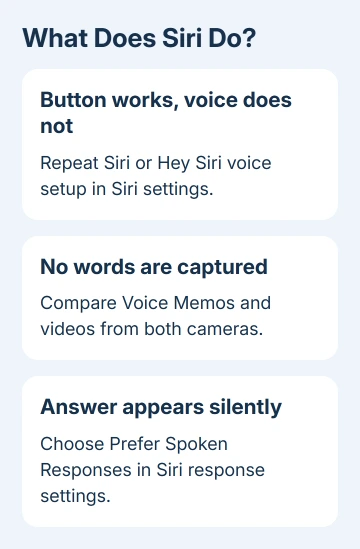
Ask a short question while watching the screen. If Siri captures it and answers, Siri can hear you when you start it with the button. Continue with voice activation setup rather than changing unrelated apps' microphone permissions.
If Siri opens but doesn't capture speech, continue to the recording checks after voice setup. If your words appear and Siri provides an answer without sound, go to spoken responses. Use what Siri displays to pick the next check.
Use a working internet connection for the check. A connection-error reply means Siri did respond to the request but couldn't finish it. Switch between Wi-Fi and cellular data before treating that message as a microphone fault.
For a Siri AI error after the request has been heard, use the Siri AI connection and availability checks. Activation and a failed online answer aren't the same problem.
2. Rebuild Siri's recognition of your voice
Open Settings > Siri > Requests on versions that use that layout. On versions with Apple Intelligence & Siri, open Talk & Type to Siri. Some versions label the main settings group Siri instead.
Find the option for Siri or Hey Siri. Turn voice activation off, then turn it back on. When the setup screen appears, tap Continue and say each command shown on the screen.
Tap Done after the commands finish. Put the iPhone where you normally use it and try the wake phrase without holding a button. If the Siri screen now appears and takes your request, the new voice setup is working.
Apple's Siri voice setup repair recommends repeating this recognition process. Use the choices offered on your phone; Siri availability and supported activation phrases vary by language and region.
If the phone can't hear the setup commands, don't keep repeating the same training session. Check its microphones and audio accessories next. Voice training won't help if the microphone isn't picking up clear speech.
I'd retrain the voice setup before resetting the whole iPhone. It targets the feature that fails when a button works but the wake phrase doesn't.
3. Check recordings through more than one microphone path
Disconnect wired headsets and unplug audio adapters. Temporarily disconnect Bluetooth audio accessories in Settings > Bluetooth so you can test the iPhone's microphones without an accessory taking over.
Remove any case or protective film covering the openings. Clear debris from the microphone openings without pushing tools into them. Keep the openings clear without reaching inside the phone.
Open Voice Memos and start recording while talking into the iPhone's bottom end. Stop it and play it back. Your voice should sound clear. Keep the recording for comparison with the camera tests.
In Camera, make a video while directing your voice at the iPhone's top end. Switch cameras and repeat that recording. Play both back and listen for clear speech.
The microphone recording checks cover these separate tests. A good Voice Memos recording alone doesn't tell you how the camera recordings will sound. If the recordings sound different, tell support which one is unclear.
If a recording is muffled or silent after clearing the openings, seek service for that audio fault. If every recording sounds clear but Siri still captures nothing, continue with Siri's own settings and software.
4. Turn on spoken responses when Siri already heard you
Watch for a written answer. If Siri shows your request and completes it, the missing spoken reply isn't a microphone problem. Changing contact access or another app's microphone permission won't make that answer audible.
Open Settings > Siri > Responses and select Prefer Spoken Responses. On versions with Apple Intelligence & Siri, the response page may be called Siri Responses. Choose the option for spoken replies there.
Activate Siri again and ask a question. Adjust the volume while Siri is speaking. Confirm that the sound is coming from the iPhone rather than a connected headset or another audio accessory.
This check matters even when other apps play sound normally. Siri's reply settings can favor silent answers, so hearing music doesn't mean Siri is set to answer out loud.
If spoken replies now work but voice activation still doesn't, return to the activation result from the earlier check. Keep the two symptoms separate when explaining the problem to support.
5. Handle missing settings, restrictions and software
Restart the iPhone, then reopen Settings. If Siri's settings group is still absent, check whether a VPN or managed configuration is involved. Some VPN profiles can prevent Siri from being used.
For a managed iPhone, have IT check Siri restrictions. Don't remove its management profile as a shortcut. IT can tell you which voice features are allowed on your phone.
A disabled Siri voice option needs a restrictions check. If speech also fails in calls, compare the FaceTime microphone checks before treating the fault as Siri-only.
After backing up, check Settings > General > Software Update for a compatible update. Repeat the same short request afterward. Do this after the settings and audio checks so you can tell what changed.
If Siri still fails with clear recordings, ask Apple Support for Siri voice-input troubleshooting. Give them the iPhone model, iOS version, selected Siri language, and whether the side or Home button works.
Include whether voice training completes and whether Siri displays your words. If recordings are also unclear, ask for microphone service assessment instead. These details help support focus on what isn't working on your phone.
The Short Version
Use Siri's button to separate wake-phrase trouble from missing input. Retrain voice recognition and compare several recordings. Enable spoken replies for silent answers; report failed Siri input with clear recordings to support.
Checked November 15, 2026.
 If you have any business, I can build it online






