

A missing Apple Mobile Device Service can mean you need to repair the Apple app installation. First, check whether you use iTunes or Apple Devices. If the service is listed but stopped, restart it instead.
For a Windows 11 PC managing an iPhone today, Apple Devices is the current app. Don't install a service file from a download site just to make an old iTunes instruction match your computer.
In this guide
1. Check which app is supposed to recognize the phone
Open Start and search for Apple Devices, then iTunes. Note which one is installed and which one you actually open when connecting your iPhone. An Apple app can play your music without being the app that manages your phone.
The current Windows app arrangement puts iPhone and iPad backups, syncing and restores in Apple Devices. iTunes remains available for podcasts and audiobooks. That distinction matters before repairing an older setup.
If Apple Devices already lists your phone in its sidebar, device recognition is working. Don't rebuild iTunes just because old service instructions don't match what you see.
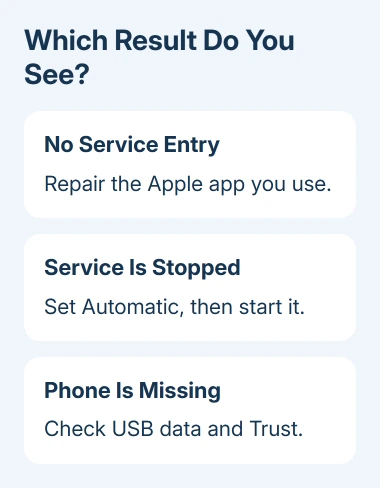
If your phone doesn't appear in the app, continue with the connection checks. If a program specifically reports that Apple Mobile Device Service isn't started, inspect that service in the next section.
2. Separate a missing entry from a stopped service
Disconnect the iPhone and close iTunes. Press Windows + R, enter services.msc, then press Enter. Click inside the service list and look alphabetically for Apple Mobile Device Service.
An entry with a blank Status column is installed but stopped. An entry showing Running has started. Neither means the service is missing. Double-click the entry to see its startup setting and controls.
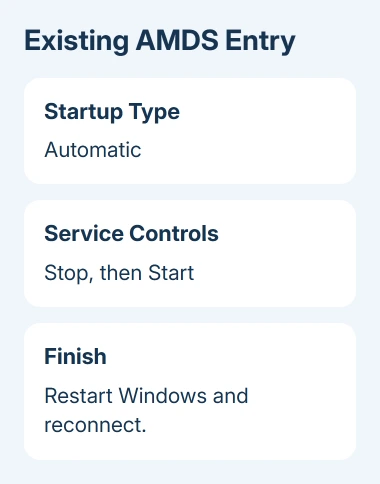
For an existing entry, Apple says to follow this AMDS restart sequence: set Startup type to Automatic, select Stop, wait for it to stop, then select Start and OK.
If it was already stopped, use Start after setting Automatic. Restart Windows, reopen iTunes and reconnect the device. Check that iTunes now recognizes your phone without showing the service warning again.
Write down any start error exactly. An entry that stops seconds after starting needs different help from an absent entry. Repeatedly pressing Start won't replace missing program components.
3. Repair the installed Apple app when the entry is absent
Open Settings > Apps > Installed apps in Windows 11. Find the Apple app you're trying to use. Open its three-dot menu and select Advanced options if that choice is available, then choose Repair.
I'd try Repair before uninstalling the app. It gives Windows a chance to fix the installation without removing it. Not every desktop program offers the same Advanced options page.
For a desktop installation without that page, open Control Panel, select Programs > Programs and Features, select the program, and look for Repair or Change. Follow the repair option if the installer offers one.
After repair, restart Windows and reopen the app. For an iTunes service warning, inspect Services again. For Apple Devices, check whether your phone appears in the sidebar. That tells you whether the app can recognize it.
Keep your existing device backups before resetting or removing app data. If repair is unavailable or fails again, uninstall the affected app through Installed apps, then reinstall it from the official Microsoft Store listing.
Don't manually create an AMDS entry with a command or copy an executable from another PC. A service needs the correct installed components and permissions, not just a name in the Services window.
4. Check USB data and the trust request
Reconnect the iPhone using a cable that supports data as well as charging. Unlock it and leave its Home Screen visible. Open Apple Devices and watch for the phone in the left sidebar.
A charging symbol only confirms that power reaches the phone. A charge-only cable or a failed data connection can leave the battery charging while the app sees nothing. Try another suitable cable and another USB port.
Tap Trust when the iPhone displays Trust This Computer?, then provide its passcode. If you previously chose Don't Trust or the request never appears, follow the trust-request recovery steps.
Use a direct port on the PC while comparing cables. If the phone appears with one connection and disappears with another, that result points toward the cable, port or intervening hub rather than the Windows service.
If Windows sees a connected phone but it doesn't appear as expected in Explorer, the phone detection guide covers that separate Windows view. A phone appearing in Explorer doesn't tell you whether Apple Devices recognizes it.
5. Update the software and check a service that stops again
Install the offered Windows updates from Settings > Windows Update. Open Microsoft Store and check for updates to Apple Devices or iTunes. On the phone, check Settings > General > Software Update.
After restarting, reconnect with the same cable. Check whether the phone appears after each update. Once the app recognizes the phone, leave its service settings alone.
If an existing AMDS entry repeatedly stops, review third-party security software. The service restart page identifies security software as a possible cause. Ask that software's support team how to allow the Apple components safely.
Don't leave antivirus protection disabled as a permanent repair. Tell the security vendor which service error appeared, your Apple app version, and whether their product had just updated.
If another computer can't recognize the iPhone with a known data cable, ask Apple Support for device-recognition help. If only this PC fails after an official reinstall, report your service-check results and the Windows version installed.
The Short Version
Check the Apple app first. Restart AMDS only when its entry exists; repair an incomplete installation when it doesn't. For Apple Devices, the practical success check is an unlocked, trusted iPhone appearing in the sidebar.
Checked November 15, 2026.
 If you have any business, I can build it online






