

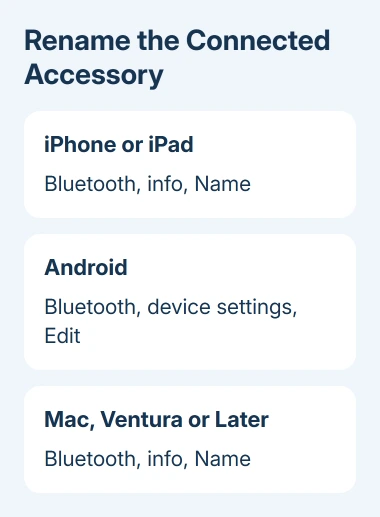
To rename a Bluetooth accessory that supports custom names, open its settings on your phone or Mac. Connect it first, open its information page and edit Name. Android often uses a pencil-shaped Edit button for the same task.
Renaming the accessory is different from renaming your phone or computer. Choose the accessory's own settings entry so you change the label you recognize in the connection list, rather than your phone's or computer's name.
In this guide
Choose the connected accessory before editing its name
Turn on the accessory and connect it to the phone or Mac you're using. Open the Bluetooth settings and check that its entry says Connected. A saved entry that isn't connected can offer different controls.
If several similar devices are listed, power off the other ones while you check which entry belongs to the one you want. A name such as Headphones or Speaker doesn't tell you which physical device you're about to edit.
Choose a short name that distinguishes it, such as Desk Speaker or Travel Headphones. I'd use its purpose or location rather than a phone number or full personal name. The label should help you pick the right device quickly.
Keep the device connected while saving, then return to the main Bluetooth list. Check there first to see whether the new name saved. A missing rename control calls for a compatibility check, not a new pairing by default.
If it won't connect at all, handle that before changing names. The iPhone Bluetooth connection checks address pairing failures; a label change doesn't repair a disconnected accessory.
Change the name on iPhone or iPad
Open Settings > Bluetooth. Find the connected accessory under My Devices and tap its information button. Tap Name, replace the existing text, then tap Done to save the new name.
Return to Bluetooth and read the accessory's entry. Check that the renamed entry still shows the expected connection. Play some audio or type on the keyboard if you want to check that you renamed the right accessory.
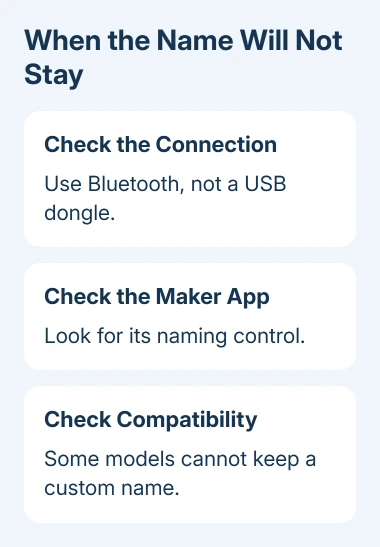
Apple's accessory naming instructions require a Bluetooth connection. A keyboard connected through a USB cable or wireless dongle isn't using that Bluetooth route, even if a saved Bluetooth entry also exists.
If Name isn't available, check the connection status first. If the accessory is connected correctly and still has no editable field, use its companion app if it offers a naming option. Some accessories don't support custom names.
Don't select Forget This Device just to look for the rename field. Forgetting removes the pairing, so you'll need to pair again. It also doesn't make an unsupported naming feature appear.
For AirPods, remember that forgetting them can also unpair them from the other devices attached to your Apple Account. Use the Name field for a normal name change, leaving pairing removal for an actual recovery step.
Edit the saved accessory name on Android
Pull down Quick Settings and hold Bluetooth. Find the accessory under Media devices, then tap its settings button. If it isn't there, open See all under Saved devices and select its settings.
Find and tap the accessory page's Edit button, enter the new name, and confirm with the save or rename control your phone shows. Google's Android Bluetooth steps describe this Edit route.
Android manufacturers arrange their settings differently. On a phone whose Bluetooth list uses a gear beside each device, open that gear first and look for Rename or Edit. Stay inside the accessory's page rather than the phone's About page.
Go back to the Bluetooth list after saving. Check the selected accessory's label and connection status. Saving a name on this phone doesn't mean it has changed on every other phone paired with the accessory.
If the pencil or rename command isn't offered, check the accessory's app and the phone maker's instructions. Don't install an unrelated Bluetooth management app just to edit a label that your current controls don't support.
If you accidentally removed the device instead of editing it, the pair-again instructions explain how to restore the connection. The accessory may need discovery mode before it appears again.
Use the Mac Bluetooth information panel
For macOS 13 Ventura or newer, open the Apple menu, choose System Settings > Bluetooth, and locate the connected accessory under My Devices. Click its information button, then edit Name.
Enter the replacement and finish the dialog using its save control if shown. Return to Bluetooth and check the result. Keep the accessory connected so you're editing the device in use, rather than an old, disconnected entry.
On an older macOS version, open System Preferences > Bluetooth. Control-click the connected accessory, choose Rename, enter the replacement and confirm. The older context-menu route differs from the current information panel.
Changing the Mac's computer name is a separate task. To identify your headphones in the Mac's sound controls, edit the headphones' Bluetooth entry, not the name of the Mac itself.
On a Windows PC or another device with no usable rename control, check the accessory manufacturer's companion app. The Mac steps don't mean every Bluetooth accessory has the same rename option in Windows.
Handle a name that disappears or returns to its default
Disconnect and reconnect the accessory once after saving, then check its name using the phone or computer where you changed it. If it returns to its old name, note whether the edit failed immediately or only after the accessory restarted.
Check the accessory's companion app for a name or reset setting. If its maker offers a firmware update, follow that model's update instructions. Firmware runs inside the accessory; updating the phone is a separate operation.
If naming still fails, forgetting and pairing again may restore a default name. Use that only when you're prepared to rebuild the connection. Pairing again won't add custom naming to an accessory that doesn't support it.
For an accessory with removable batteries, the support procedure also allows removing them for a few minutes. Don't open sealed rechargeable headphones to imitate that step. Use the model's supported power or reset controls instead.
Ask the maker whether your accessory supports custom names on your phone or Mac. Give them its model, your operating system, and when the old name returns. Some accessories may not keep a custom name on an Apple device.
The Short Version
Connect the accessory and edit Name, or tap Edit on Android. Reconnect and check the label. For a missing control or a name that won't stay, check the maker's app and model compatibility.
Checked November 15, 2026.
 If you have any business, I can build it online






