

Uninstall Microsoft Teams from Settings > Apps > Installed apps on Windows 11. Find Teams, open its menu and choose Uninstall. Remove an old Teams Machine-Wide Installer separately if that entry is present.
Closing Teams, disabling its startup entry and removing its taskbar icon leave the application installed. Decide whether you want it gone or simply want it to stop opening when you sign in before making the change.
In this guide
Close Teams and identify the installed copies
Finish any call and save work you still need from the app. On Windows, open the menu for the Teams notification-area icon near the clock and use Quit if offered. The hidden-icon panel may contain it.
Search installed apps for Teams. Older PCs can list classic Teams and Teams Machine-Wide Installer separately. Remove the entries you find; an absent legacy installer isn't an error.
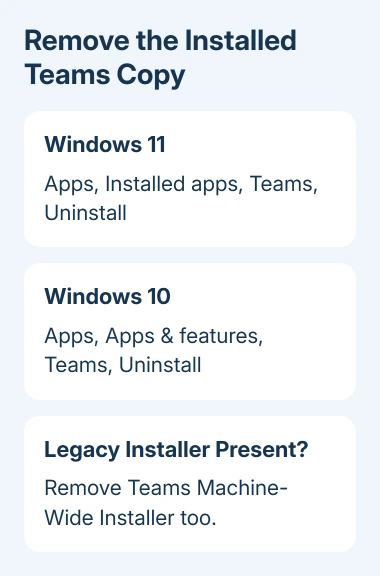
Microsoft says the legacy removal procedure needs both items removed. Current Teams also has a separate packaged-app removal route, so don't assume every computer must contain both old components.
On a work computer, check whether you're allowed to remove Teams. A managed app can return because the organization still requires it. Ask your administrator to change how Teams is installed and prevent repeated reinstalls.
Uninstall the Windows app through Settings
For Windows 11, press Windows + I and open Apps > Installed apps. Enter Teams in the search box. Open the three-dot menu beside the Microsoft Teams entry and select Uninstall.
Confirm the removal request and approve a Windows permission prompt if one appears. Wait for the app's uninstall process to finish before returning to the list and removing another Teams entry.
For Windows 10, open Settings > Apps > Apps & features. Search for Teams, select its entry, and choose Uninstall. Confirm again when asked. The Windows 10 page uses a different layout from Installed apps on Windows 11.
Search the list again when the removal finishes. If Teams Machine-Wide Installer remains, uninstall that item separately. It was used to install classic Teams and isn't removed just by deleting a Teams shortcut.
If you only removed one of two Teams apps, the other can still appear in Start. Check the name of the remaining entry before deciding the uninstall failed. A work copy and an older personal copy can be separate items.
Restart Windows if the installer requests it. After signing in, search Installed apps again. A completed removal should leave no entry for the copy you selected; a pinned icon alone doesn't mean the app remains installed.
Use the current-user command when Settings can't remove it
For current Teams on a Windows PC, Microsoft's client uninstall reference provides a PowerShell command for your own user account. Use this if Settings can't remove current Teams. It doesn't remove the old Machine-Wide Installer.
Open Start, search for PowerShell, and open it normally. Enter:
Get-AppxPackage *MSTeams* | Remove-AppxPackageThe first part finds the installed MSTeams app package for your account. The second removes it. It doesn't remove Teams from every account on a shared computer.
Return to Installed apps and check the result. If no matching package was installed, the command can finish without removing a different Teams installation. Look in Installed apps for any remaining classic Teams copy.
Leave tools that remove Teams for every user or change how it gets installed to the computer's administrator. Removing an app for yourself and removing it across user accounts are different tasks, especially on a shared work PC.
If an error appears, copy its full text for IT or Microsoft Support. Don't paste a collection of folder-deletion commands into PowerShell to force completion. The error explains which part of the supported removal route failed.
Uninstall the app on a Mac
Quit Teams from its menu or Dock first. If it won't quit, hold Option while opening the app's Dock menu and choose Force Quit. This ends the app so you can remove its application file.
Open Finder > Applications, locate Microsoft Teams, then move it to Trash. Enter the requested administrator credentials if macOS asks. Check Applications afterward for another Teams copy with a different name.
Removing the app doesn't delete your organization's Teams account. Messages and shared content held by the service don't disappear simply because the Mac app is gone. Other signed-in devices remain separate installations.
If you're replacing a damaged client, keep your account and organization's sign-in details handy for reinstalling. The Teams connection and app checks can help decide whether removal is needed for the fault you're fixing.
Avoid clearing unrelated Microsoft folders in Library as part of a routine uninstall. Word, Outlook and other apps can use Microsoft data there too. Use an administrator's specific instructions for any deeper cleanup.
Check why Teams returns after removal
Search Installed apps again after the next sign-in. If a classic Teams copy returns, check whether its Machine-Wide Installer was left behind. If it wasn't present, don't try to download that installer just to remove it.
Office repair or reinstallation can include Teams again in deployments that bundle it. On a managed PC, ask IT whether Microsoft 365 setup or device-management policy is reinstalling the client.
If your real aim was fewer interruptions, disabling startup may be enough instead. Removing the entire Microsoft Office installation just to get rid of Teams is a much broader change than this task needs.
When removal stays blocked, give support the app's exact name, Windows or macOS version, and uninstall error. Ask for help removing that Teams app or stopping it from being reinstalled, rather than deleting your Teams account.
The Short Version
Quit Teams and uninstall its app entry. Remove a legacy Machine-Wide Installer separately when present. On Mac, move the closed app to Trash. Ask IT about deployment settings if a work copy returns.
Checked November 15, 2026.
 If you have any business, I can build it online






