Photos can open HEIC files in Windows 11 with the right extensions. Try opening the picture there first. If it asks for an extension, install Microsoft's HEIF Image Extensions and HEVC Video Extensions from Store, then reopen Photos.
For a picture you only need to view once, a OneDrive browser preview is another option. For regular editing on the PC, installing the extensions saves you from converting each picture separately.
In this guide
1. Open the actual photo in Photos
Find the picture in File Explorer, right-click it and choose Open with > Photos. Use Open with when double-clicking the HEIC starts another app that can't display it.
If Photos displays the image correctly, the file doesn't need conversion simply to view it on this PC. You can continue using Photos, or choose it as the default app through the file's Open with > Choose another app options.
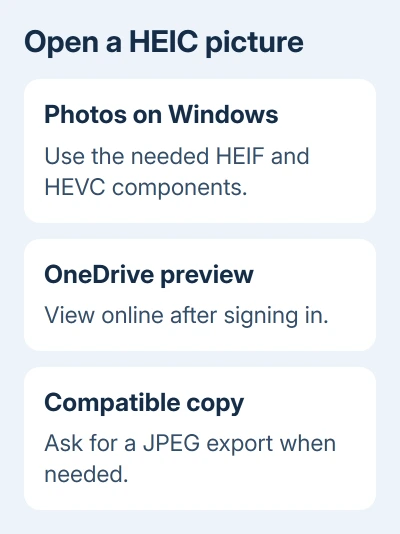
If the file has a cloud-only status, download it before checking why it won't open on the PC. In an iCloud folder, make the original photo available on Windows so Photos has the actual file to read.
Some upload forms accept only JPG or PNG. A picture displaying properly in Photos can still be rejected there because HEIC isn't accepted.
Keep the original HEIC until you've opened any converted copy and checked it. Renaming its extension from .heic to .jpg doesn't turn it into a JPEG, even though the new name makes it look like one.
2. Add the official HEIF and HEVC components
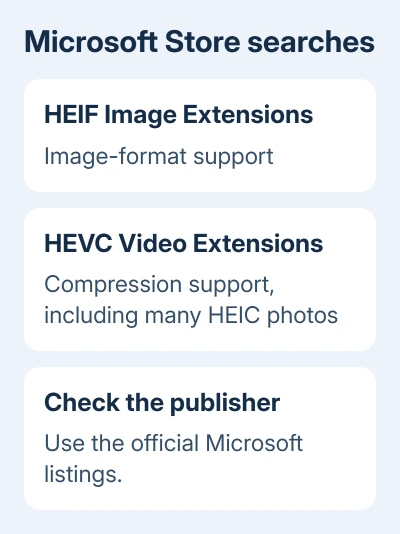
Open Microsoft Store from Start and search for HEIF Image Extensions. Open the official Microsoft listing and install it if it isn't already available. Then search for HEVC Video Extensions and check that component too.
HEIF is the image file format; HEVC is a compression method used by many HEIC pictures as well as videos. That is why a video extension can matter when you're trying to open a still photo.
Microsoft says Photos needs both extensions for this method. HEIF is listed as free; HEVC can require a purchase. Check your Store's current price before buying.
After installation, close Photos and open the HEIC again. The picture should replace the extension prompt. Reopening Photos lets it load the new extensions so you can check whether they helped.
If Store shows the component as installed already, use Library to check for app updates and update Photos and the extensions offered there. Reopen the image afterward before buying another similarly named product.
Don't choose an unrelated third-party app simply because its Store title contains HEIC. Check the publisher and listing so you know you're installing the official extension.
3. Compare a second HEIC before repairing the app
Open another HEIC that came from the same phone, then a normal JPG. If JPG works and all HEIC files fail, keep checking the extensions that let Photos read HEIC images.
If one HEIC fails but others open, get another copy of that particular file. Request a fresh original from the sender or transfer that file again. A partial download won't become a complete photo when you install another extension.
I'd compare those files before changing the computer's photo settings. The comparison helps you distinguish a damaged or incomplete file from Photos being unable to read any HEIC pictures.
For Windows 11 N editions, also check whether the Media Feature Pack is missing. These editions leave out media features included in standard Windows installations, so this extra step only applies to Windows N.
Open Settings and search for Optional features. Select View features beside Add an optional feature, find Media Feature Pack, and install it. Restart Windows afterward, then check the Store extensions and retry Photos.
The Windows N installation instructions require that restart even when Windows doesn't prompt for one. Check the edition in Settings > System > About if you're unsure whether the N steps apply.
If the pack search returns nothing, check why Media Feature Pack is missing before treating the HEIC file as damaged.
4. Preview through OneDrive when local software is restricted
An existing OneDrive account can preview HEIF and HEVC media in a browser. Sign in to your own OneDrive, upload the picture if it isn't already there, then select it to open the preview.
This can help when a workplace computer blocks Store installations. The browser preview works separately from Photos. Viewing the picture online doesn't add HEIC support to Windows.
Only upload pictures to an account you're allowed to use for those files. For work or private material, ask the sender for a compatible copy if cloud storage isn't appropriate.
Downloading the picture from OneDrive can still give you the original HEIC. Don't assume a working browser preview means every downloaded copy has become a JPG. Check the file type when choosing a file for a JPEG-only app.
Microsoft's current OneDrive instructions describe original-format uploads from iOS. Older advice that every OneDrive upload automatically becomes JPG doesn't match that behavior.
5. Request a JPEG or change future iPhone transfers
Ask the sender to export a JPEG copy when you need compatibility with an older app or an upload form. On a Mac, export HEIC as JPG from Preview rather than changing the file's name.
USB imports from an iPhone or iPad may convert HEIF to JPEG. Check the transfer options in Settings > Apps > Photos on current software. Keep Originals preserves the format rather than requesting conversion.
On older iOS versions, the Photos settings sit directly under Settings > Photos. Select Automatic for compatible transfers where offered, then repeat the import rather than expecting files already on Windows to change.
For future photos and videos, open Settings > Camera > Formats > Most Compatible where available. That uses JPEG for new photos and H.264 for new videos. It doesn't rewrite the HEIC files you've already taken.
If the same files still fail after the codecs, Windows N check and a fresh transfer, contact Microsoft support through Windows Get Help. Include the Photos version, Windows edition, exact error and whether other HEIC pictures open.
The Short Version
Try Photos with the official HEIF and HEVC components, then compare another picture. Windows N may also need its Media Feature Pack. Use OneDrive's signed-in preview or ask for JPEG when software installation isn't an option.
Checked November 15, 2026.