

A Pixel 9 Pro XL that charges but doesn't appear on a computer often needs File Transfer selected in its USB notification. Unlock the phone, connect it with a data-capable cable, then tap Charging this device via USB > File Transfer.
A missing USB notification calls for cable and port checks next. These USB steps work on Windows and Chromebook. Mac transfers work differently, so a missing Finder drive needs separate advice from a missing Windows device.
In this guide
1. Unlock the phone and select File Transfer
Disconnect the cable, unlock your Pixel and reattach the cable. Swipe down to open notifications and tap Charging this device via USB. Under Use USB for, choose File Transfer.
Google says to use that sequence for Windows in its Pixel file-transfer instructions. Keep the phone unlocked while you make the selection, then look for the file-transfer window on the computer.
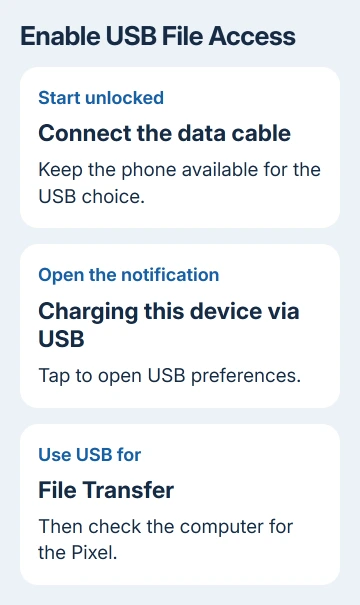
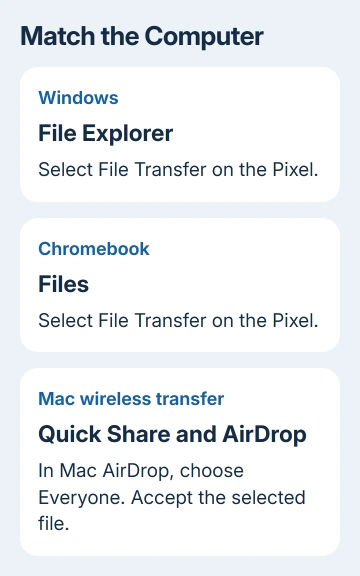
On Windows, open File Explorer > This PC if a window doesn't open automatically. Check for the Pixel there and open its shared storage. The charging indicator means the phone is getting power, even if the connection can't carry files.
Start by copying one small file rather than a large photo collection. Check the copy by opening it on your PC. Once that succeeds, continue with the folders you actually need.
If Windows can see the phone but you're searching for camera pictures, check DCIM > Camera in its shared storage. A file saved by another app can be in a different folder, so a visible phone with missing files needs a folder check next.
If the phone only charges or the USB notification doesn't appear, leave driver changes for later. The next comparison checks whether the cable can carry data at all.
2. Swap the cable and bypass a hub
Use a different USB cable that's known to transfer files. Some cables supply power without supporting file transfer, so another cable that only charges doesn't give you a useful comparison.
For this comparison, plug into the computer itself. If your normal connection goes through a dock, hub or adapter, connecting directly checks whether that extra hardware is stopping the transfer.
Unlock the Pixel and select File Transfer again after reconnecting. Check for both the USB notification and the computer's device entry. If both appear with the replacement cable, use that cable for the transfer.
Try another port on the computer if the first still gives no data connection. If bypassing the dock restores file access, complete the transfer that way and check the dock or adapter afterward.
I'd change the cable before installing anything on Windows. A quick cable swap answers a question that a charging icon can't: whether this connection carries files as well as power.
3. Compare another device or computer
Connect a different data device to the computer's USB port. If the computer doesn't detect that either, the port or computer needs attention before changing more Pixel settings.
Next, connect the Pixel to another computer using the known data cable. Unlock it and select File Transfer there too. A successful transfer on the second computer points you toward the first computer's USB or software setup.
If neither computer detects the Pixel but both detect other devices, check the phone side next. Keep these comparison results for support; they explain more than a working charging icon.
Don't reset the phone just because one computer misses it. These comparisons help choose which device needs work without removing your apps or files.
For an in-car connection rather than a computer folder, use the Android Auto cable and setup checks. Displaying phone apps on your car's screen has its own requirements; opening files in Windows doesn't set that up.
4. Restart and update the device that fails the comparison
Restart Windows through Start > Power > Restart, then reconnect and check the phone. If other USB devices also fail there, check Windows Update and the computer maker's USB support with the exact PC model.
On the Pixel 9 Pro XL, hold Power and Volume Up to open the power menu, then tap Restart. The Pixel restart instructions also cover a phone that won't respond normally.
After the phone restarts, unlock it before reconnecting. Recheck the USB notification and File Transfer selection so you're trying the same transfer mode as before the restart.
Check for Android updates through Settings > System > Software updates and open the system update check. Install any offered update through the phone's normal controls, then retry the connection after installation finishes.
On a company computer, ask IT whether device or phone-transfer rules block access. Give them the Pixel model and say whether the same cable and phone work on a personal PC. IT must change permissions if company policy blocks the transfer.
5. Use the correct route for Chromebook or Mac
On a Chromebook, connect the cable, unlock the Pixel and choose File Transfer from its USB notification. The Chromebook's Files app should open for dragging files between the devices.
If Files doesn't show the phone, use the same cable and port comparisons rather than following Windows-only driver instructions. When the phone appears, copy a file and check it before moving the whole collection.
Mac file access works differently from Windows File Explorer. For a supported wireless alternative on the Pixel 9 Pro XL, the current Quick Share instructions include sharing to macOS through AirDrop.
On the Mac, open Finder > AirDrop and enable Wi-Fi and Bluetooth. Let nearby devices discover the Mac for this transfer. On the Pixel, select the file and tap Share > Quick Share, then choose the Mac.
Accept the AirDrop notification on the Mac and check that the file arrives. Return AirDrop discovery to your preferred setting afterward. This transfers the selected file; it doesn't make the phone's entire storage appear as a Finder disk.
Get the right repair when USB access still fails
If the phone fails on two computers with a known data cable, contact Pixel Support and ask for USB data-port troubleshooting. Include whether it charges, whether its USB notification appears and the Android version installed.
If it works elsewhere, ask the original computer's maker or IT team to check USB detection and phone-transfer permissions. Leave the phone's settings as they are while they fix the computer connection.
The Short Version
Unlock the Pixel, choose File Transfer and connect a data-capable cable. Compare ports and computers before changing drivers. Chromebook uses Files; Mac can receive selected files through Quick Share and AirDrop.
Checked November 15, 2026.
 If you have any business, I can build it online






