

An idle printer is usually ready and waiting, rather than broken. If a document won't print, check that the app sent it to the right printer, then look in that printer's queue for the document.
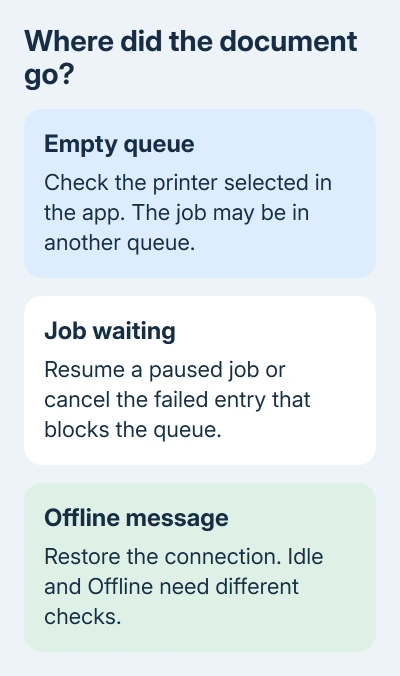
An empty queue, a paused job and an Offline message need different actions. Follow the document from the app to the printer before reinstalling anything.
In this guide
1. Check whether Idle is actually a problem
Send one short document and watch what happens. If the printer produces the page and returns to Idle, the status needs no repair. Idle describes the time between jobs; it doesn't need to remain on Printing after the page finishes.
If nothing comes out, look at the printer's own display. A paper, ink, cover or jam message matters more than a general status shown on the computer. Resolve that specific message before sending another copy of the document.
Avoid clicking Print repeatedly. Several copies can arrive together after the blockage clears. Keep one small job in view so you can tell which action made it move.
If your printer has a built-in report or copy function, follow its manual to try it without a computer. If that page fails, the problem is at the printer. If it works, continue checking how your computer sends the job.
2. Send the document to the intended queue
Open the document's print dialog and read the selected printer name. A PDF destination saves a file instead of producing paper. An old office printer or a second copy of your home printer can also be selected without being connected.
Choose the actual printer, then send the small job once. Check the model name and connection when several entries look similar. A working printer can sit idle while a different queue holds the document.
On Windows 11, open Settings > Bluetooth & devices > Printers & scanners. Select the printer, then Open print queue. On Windows 10, start at Settings > Devices > Printers & scanners and use Open queue.
On a Mac, open System Settings > Printers & Scanners. Choose your printer to reach its queue. Print Center also opens from its Dock icon while printing. Check other queues if the expected document isn't listed.
If the app reports sending a document but every queue stays empty, try another app with a small file. If only one file or app fails, check that document's print settings before changing the whole printer setup.
3. Clear the job that is holding up the line
Read the first job's status. A paused document won't start simply because another document is added after it. Resume a paused job, or cancel an unwanted or failed one, then send your short document again.
On Windows, select the failed entry in the queue and use its cancel control.
Microsoft includes this in its printer connection checks.
Some Windows 10 queue windows have a Printer menu. If Pause Printing or Use Printer Offline is selected there, clear it. Don't search for that old menu in a newer Windows 11 queue that doesn't display it.
On a Mac, use the queue's resume control for a paused printer or job. Remove the failed entry if it blocks later documents. If the queue resumes and your new page prints, the printer's Idle label was never the fault.
If a Windows job remains stuck while canceling, continue to the service restart. If the queue instead says Offline, use the Windows offline printer fixes, which cover that separate status.
4. Restore the connection before replacing software
Turn the printer off, disconnect its power, wait 30 seconds, then reconnect it and turn it on. Let its startup finish before retrying. This gives the printer a fresh connection without changing the saved queue.
For a USB printer, unplug and refit each cable end, then bypass any hub by using a port on the computer. Check that the cable is connected to this computer, particularly after moving a laptop between desks.
For Wi-Fi, check which network each device has joined. A printer left on an old router won't receive the new computer's jobs. Use the printer's network menu or report to check its connection.
For a shared printer attached to another computer, that computer must be awake and connected. An idle display on the printer doesn't tell you whether the sharing computer is awake or reachable.
After correcting the connection, retry the same short document. A successful page tells you the computer can reach the printer again. If the job stays in the queue, move to the operating system's next check.
5. Restart a stalled Windows printing service
Windows uses Print Spooler, a background service that manages print jobs. When it stalls, documents can remain queued even though the printer itself is ready. I'd restart this service before removing a working printer installation.
Press Windows + R, enter services.msc, and press Enter. Find Print Spooler, right-click it and select Restart. A workplace computer may require administrator permission for this action.
Return to the queue and retry the document. If the service won't stay running, record the error instead of restarting it over and over. Give that error and the printer model to your IT team or the printer maker.
Windows 11 also offers the printer troubleshooter through Get Help. The current printer diagnostic explains that route if the service runs but printing still fails.
6. Replace the queue only after these checks
On Windows 11, select the printer in Printers & scanners and choose Remove. Use Add device from the printer list to connect it again. Windows 10 labels these controls differently, including Remove device.
On a Mac, try adding a new queue for the same printer in Printers & Scanners. Test it before deleting the old queue. A new queue that prints points to the saved setup rather than the printer's Idle status.
If neither queue works, ask the maker for a driver or AirPrint setup compatible with your operating system and printer model. Report whether the printer's own page works, whether a job reaches the queue, and its final status.
The Short Version
Idle alone needs no repair. Check the destination, follow one document into its queue, resume or cancel the blocked job, then check the connection. Restart Print Spooler on Windows when jobs won't move; replace the queue last.
Checked November 15, 2026.






