

Excel can show Not Responding while it fetches query data or processes a large task, such as sorting rows. Let the refresh finish before clicking Refresh All again. If it stalls again, refresh connections separately to see which gets stuck.
Treat a query that finishes slowly differently from one waiting for a password, missing file or unavailable server. Start with the refresh controls, then follow the result rather than rebuilding the workbook straight away.
In this guide
1. Stop repeating Refresh All and check the running job
Look at Excel's status bar for a data-retrieval message. While Excel is busy, its window can stop responding to clicks and typing. Repeated clicks won't make the source respond sooner, and can leave you unsure which refresh you're watching.
If Excel still accepts commands, press Esc to stop a refresh. For a background refresh, double-click its status-bar message and choose Stop Refresh in the External Data Refresh Status dialog.
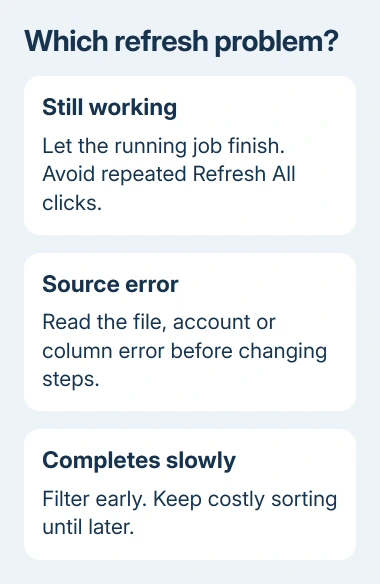
Microsoft's external-data refresh instructions describe those separate cancellation routes. The status dialog belongs to background connections; it isn't a button that every Power Query operation displays.
Once Excel responds again, save a separate copy to work on. Keep the original results until a complete refresh succeeds. Canceling a refresh doesn't tell you whether every table included in Refresh All has new data.
If the window won't accept any input, ending Excel in Task Manager loses unsaved changes. Use that only when you're ready to give up the current session, then reopen the saved copy before trying the next check.
When the stuck session also refuses to close, follow the Excel quit and recovery steps before opening the workbook again.
2. Refresh the connection that actually stalls
The connection controls here are for Windows desktop Excel. Open Data > Queries & Connections. In the Queries pane, right-click the query you need and select Refresh, rather than refreshing every connection in the workbook.
For an older external connection, select a cell in its returned data and use Data > Refresh All > Refresh. The smaller Refresh command updates the selected data; Refresh All asks the entire workbook to update.
If the old Microsoft Query command has disappeared before you can edit that connection, restore its legacy menu through Excel's Data options.
Watch which query completes and which fails. If several independent queries work but one stalls, focus on that one's source and transformations. If every connection fails, check the network and account before rewriting individual queries.
Some queries depend on other queries, so refreshing one can still run the others it needs. Look for a query that fails every time, even if refreshing it involves more than one table.
I'd do this before disabling add-ins. A named query and its exact error give you something concrete to fix, while a general Not Responding message can describe several different problems.
If Excel freezes even in a blank workbook without external data, switch to the general Excel hang checks. That's a wider application problem than a particular query refresh.
3. Repair the source, account or changed column
Read any error that appears after cancellation or refresh. A missing file, sign-in failure and missing column each need a different correction. Keep the full error text, including the query step where it appears.
For a file source, check that its recorded location still exists. Ask the owner to save changes and close the file if a lock blocks access. A renamed folder can break a working query even when Excel hasn't changed.
For an account problem, open Data > Get Data > Data Source Settings. Select the affected source and review its permissions and sign-in. Correct that connection instead of clearing credentials for every source in the workbook.
A work or school OneDrive file also needs the appropriate address and account. The OneDrive Power Query connection guide separates a cloud URL from a local synced path that exists only on one computer.
If the error names a column or table, compare it with the source. A changed heading can break a later transformation. Open the query editor and select the first failing item in Applied Steps before changing later steps.
For a database or company service that's unavailable, have the administrator check that your account can reach the running service. Give them the source name and error. Repairing Office won't bring an unavailable database server online.
4. Reduce the work inside a slow Power Query
If the source opens and the refresh eventually finishes, try reducing how much work the query does. In Queries & Connections, right-click the Power Query item and select Edit. Make these changes in your saved copy.
Filter out rows you don't need as early as the query's logic allows. Remove unnecessary columns too. With less data to carry forward, the remaining steps have less work to do.
Move steps that take more work, such as sorting, later if that keeps the result correct. A sort may need to read the entire source before showing its first result. The preview can look stuck while Excel is still processing the source.
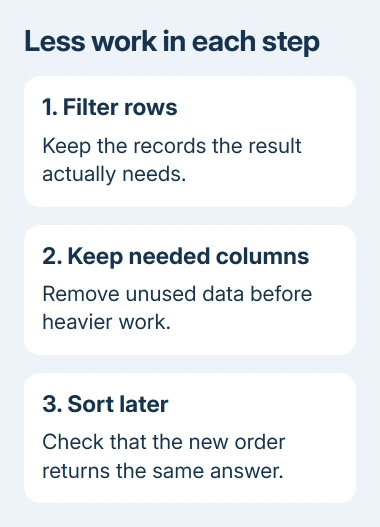
The Power Query performance guidance explains this order. Don't drag steps around blindly: a step that refers to a removed column will fail, and changing order can change the answer.
Check the resulting rows and totals against the original task. A query that refreshes quickly but drops needed records isn't repaired. Keep a change only after the refresh finishes and you've checked the data it returns.
5. Prevent an automatic refresh from taking over startup
If the workbook stalls immediately after opening, review its connection settings once you can open the copy you saved. In Data > Queries & Connections > Connections, right-click the connection and choose Properties.
On Usage, look for Refresh data when opening the file. Also check Refresh every. Temporarily clear the setting that's interrupting your work. After fixing the source or query, start the refresh yourself.
Those controls vary by connection. Background refresh isn't available for every source, including some Data Model connections. Turning it on or off changes how a supported refresh runs; it doesn't repair credentials or simplify the query.
A query that loads to a worksheet but stalls at the Data Model destination needs its load options and Office version checked separately.
If the same query still hangs, give Microsoft Support or your organization's Excel specialist the workbook copy, Excel version, connector, failing step and exact error. Remove private data before sharing outside your organization.
The Short Version
Check the running refresh and cancel it if needed, then refresh the failing query separately. Repair its source or sign-in before simplifying transformations. Review connection properties if automatic refresh disrupts opening the file.
Checked November 15, 2026.
 If you have any business, I can build it online





