

iOS 26's clear icons are in the Home Screen's Edit > Customize menu, while wallpaper and clock changes start from the Lock Screen. Start with those two screens, then arrange widgets and Control Center around the things you actually use.
No extra theme is needed. The built-in controls change icon appearance, colors, wallpaper, and shortcuts separately, so you can keep familiar app colors while trying a different clock or background.
In this guide
Change the Home Screen icons first
On a Home Screen page, press an unused background area and wait for the icons to jiggle. Tap Edit at the top, then Customize. Holding an app instead can open that app's quick-action menu, so start on the background.
Choose Clear for translucent icons, then select Light, Dark, or Auto. Auto changes with the phone's appearance. This changes how your iOS 26 icons look; it doesn't replace apps or create a second set of app shortcuts.
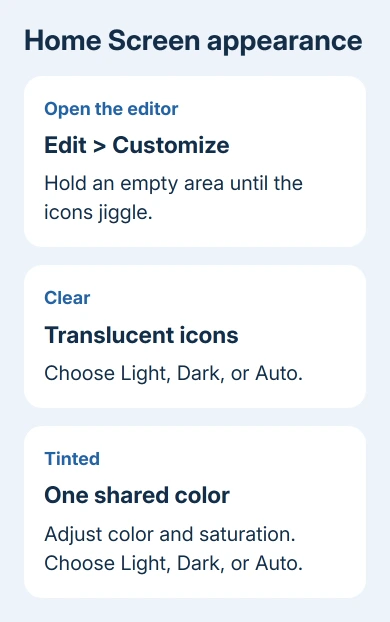
For colored icons, choose Tinted instead. Adjust the color and saturation with the sliders. The eyedropper can sample your wallpaper instead. Then choose Light, Dark, or Auto for that tinted appearance.
Choose Dark for dark app icons without a single shared tint. Use the regular light appearance when recognizing each app by its usual colors matters more than matching the wallpaper. You can change the choice again from the same panel.
The size button changes icon size. Large icons hide app names, so keep them small if you rely on labels. I'd try a new appearance with small icons first, then decide whether bigger artwork helps without the names.
Add useful widgets without filling every space
Widgets put information or a small action directly on the Home Screen. Choose one for a task you repeat, such as checking the weather or seeing your next appointment, rather than adding several just to fill the page.
- Keep a finger on the background of your Home Screen until editing starts.
- Tap Edit > Add Widget.
- Search for an app or scroll through the widget gallery.
- Tap a widget and swipe through its available sizes and styles.
- Tap Add Widget, move it into position, then tap Done.
The size preview shows what information fits before you add it. A larger widget uses more Home Screen space; choose the smallest version that still shows the detail you need without opening the app.
To change a widget's content, hold a finger on it, then choose Edit Widget when available. For example, change the selected location or account there. Changing its size or style doesn't change which location or account it shows.
Drag apps and widgets while the icons are jiggling to arrange the page. If items won't move at all, use the Home Screen editing checks before rebuilding your layout.
Make a Lock Screen that suits the photo
Wake and unlock the iPhone, then press and hold the wallpaper on the Lock Screen to open its wallpaper gallery. Swipe to an existing wallpaper and tap Customize, or tap the plus button to create another one.
You can also start from Settings > Wallpaper > Add New Wallpaper. Choose a photo or one of the wallpaper categories, then adjust the options it offers. Not every background has the same controls.
In the editor, tap the time to change its font and appearance. Drag the clock's bottom-right corner to increase its height where that control is available. Check the result with the subject of your photo and your widget row still visible.
Tap Add Widgets, or tap existing widgets, to change the information near the clock. To swap a bottom control, remove its current choice with the minus button, tap the plus button, then choose a replacement such as Timer.
Save with Add or Done, as shown. Choose Set as Wallpaper Pair to use the coordinated pair, or Customize Home Screen to choose the Home Screen background separately. This is useful when a detailed photo makes app icons harder to see.
Try a spatial photo on a supported iPhone
On iPhone 12 and later with iOS 26, certain photos can become spatial wallpapers with a 3D effect. Not every photo supports it, and older iPhones don't have this effect even if they run iOS 26.
While choosing or editing a photo wallpaper, look for the Spatial Scene button. Turn it on for an eligible picture, then preview how the subject and background work together. Use another picture if the photo doesn't offer the option.
Apple says eligible photos can become spatial scenes in its wallpaper instructions. The Home Screen's Clear icon setting doesn't turn a flat wallpaper into a spatial scene.
Keep the original wallpaper available while trying another one. Several saved Lock Screens let you compare designs without recreating the previous combination of photo, clock, and widgets each time.
Arrange the quick controls you use
On Face ID models, start at the upper-right corner and swipe down. On Home button models, including iPhone SE, start at the display's bottom edge and swipe up. These gestures open Control Center, which has its own editing mode.
Begin editing with the plus button in the upper-left corner. Tap Add a Control to open the gallery, then select a control. Drag controls to rearrange them and use a control's lower-right handle to resize it when the option is available.
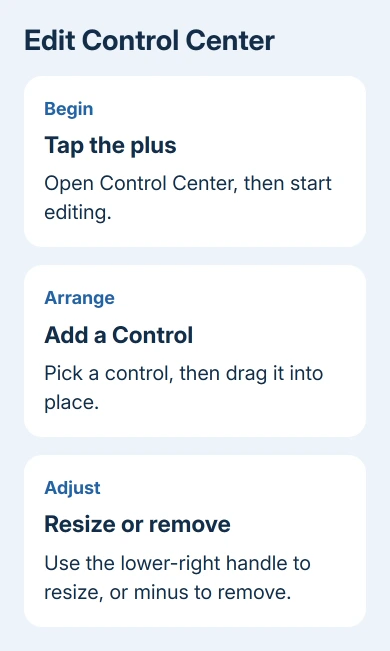
Use the minus button to remove a control you don't need. Removing it from this layout doesn't delete the feature from the phone. Finish by swiping up from the bottom center to close Control Center.
Try opening it again and using the new control. That lets you check whether it's easy to reach and use, as well as looking tidy in the editor. Keep your most frequent actions easy to reach.
Keep Focus from changing the look unexpectedly
A Focus, such as Work or Sleep, can be linked to a Lock Screen. In the Lock Screen gallery, tap Focus near the bottom of a wallpaper and choose the Focus you want to link to it.
Changing to a linked Lock Screen also changes its Focus, and activating that Focus can bring its linked wallpaper back. If the design seems to change by itself, check the wallpaper and Focus connection.
For missing controls, confirm the iOS version in Settings > General > About. If its editing screen still won't open, request help in the Apple Support app. Name the screen and the missing option.
The Short Version
Use Edit > Customize for icon appearance, and the Lock Screen editor for wallpaper and the clock. Widgets and Control Center have separate editors. Spatial wallpapers require an eligible photo and iPhone 12 or later.
Checked November 15, 2026.
 If you have any business, I can build it online






