
Deleting an iPad wallpaper starts on the Lock Screen, rather than in the Photos app. Keep a fingertip pressed against its background until wallpaper previews appear. Choose the unwanted design, then swipe up and use the trash button.
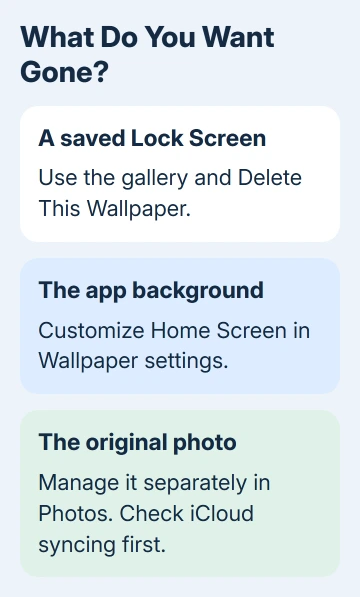
That removes a saved Lock Screen design. Changing the picture behind your apps, deleting the original photo, and stopping a wallpaper from switching with a Focus are different jobs. Choose the task that removes what you actually want gone.
In this guide
Open the saved Lock Screen gallery
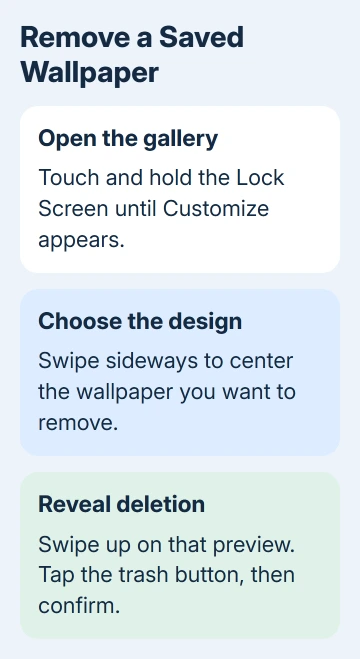
Press the top button to put the iPad to sleep, then wake it to show the Lock Screen. Touch and hold a clear area of the Lock Screen. Release once the saved designs appear. Unlock the iPad if prompted.
Apple explains deletion in its custom Lock Screen instructions. Look for Customize at the bottom and saved designs you can swipe through.
Don't hold an app icon on the Home Screen. That opens app controls instead. Similarly, opening a photo in Photos won't display the saved Lock Screen collection, even when that same photo is your current background.
The gallery is available on iPadOS 17 and later. Check Settings > General > About > iPadOS Version if the screen never offers customization. An iPad running an older release uses the older Wallpaper settings instead.
For that older interface, change the background through Settings > Wallpaper. It doesn't have the same collection of saved Lock Screen designs to delete. Installing a newer version depends on whether your particular iPad supports it.
Once the gallery opens, check which design you want to remove. Two wallpapers can use the same photograph but have different clocks, widgets, or Focus links. Those differences matter when choosing which saved version to keep.
Remove the design you no longer use
Swipe horizontally through the gallery until the unwanted Lock Screen is centered. Swipe up on that wallpaper preview, tap the trash button, then confirm Delete This Wallpaper.
The unlock gesture begins at the display's bottom edge. This swipe begins within the selected wallpaper preview while the gallery is open. The deletion control belongs to that preview.
Check the picture and widgets before you confirm. I'd keep any design with a layout you still use until you've made its replacement. Recreating a clock style and widget arrangement takes longer than selecting another background.
Once it's deleted, choose the wallpaper you want from the remaining designs. Wake the iPad again to check the result. The removed design should no longer appear when you return to the gallery.
Repeat these steps for each unwanted design. That way, you can remove duplicates while keeping a useful work or travel layout. Erasing the iPad or resetting its settings isn't needed for this task.
If the trash button never appears, confirm you're in the gallery with Customize visible. Swiping on the ordinary Lock Screen, inside a photo, or over a widget won't expose this particular control.
Change the Home Screen picture without deleting a design
For a picture you only dislike behind your apps, open Settings > Wallpaper and use the Home Screen Customize control for the current pair. Choose the background you want, rather than removing the whole Lock Screen.
The Home Screen can use a color or another photo, and Blur changes how sharp that background looks. Turn Blur off if you like the picture but it looks too soft.
When creating a new wallpaper, Set as Wallpaper Pair puts that design on both screens. Choose Customize Home Screen for a separate app background. Our iPad wallpaper setup guide covers that choice in order.
Return to the Home Screen after saving. Check the picture with your app icons showing, since a background that looks clear in the editor can make labels harder to read once the apps cover it.
Then lock and wake the tablet to inspect the clock screen separately. Checking both screens tells you whether you changed the intended part of the pair. A different Home Screen doesn't mean the Lock Screen edit failed.
Keep wallpaper deletion separate from photo deletion
Removing a saved wallpaper isn't a way to remove a picture from your photo library. Open Photos separately if the original image is what you want to delete. First decide whether you still need it for another use.
With iCloud Photos, library deletions can reach other devices using the same library. Our explanation of photos disappearing from iPhone after iCloud deletion covers that consequence.
To clean up just your wallpapers, stay in the Lock Screen gallery. Remove unused designs there, without treating the photo library as a collection of backgrounds. A photo can still be useful even after its wallpaper version is gone.
Check Focus when an old background keeps returning
A Focus, such as Work or Personal, can select its own linked Lock Screen. Changing Focus can bring back its associated design, which feels like the wallpaper change didn't stick.
Open the gallery, select the returning design, and inspect Focus near its bottom. Check which Focus is linked before deleting a wallpaper you otherwise like. Switching between linked Lock Screens can also change the active Focus.
If the gallery still won't open or deletion repeatedly fails, ask Apple Support about Lock Screen customization. Give them the model and iPadOS release. Explain which gesture didn't work and whether Customize or the trash button appears.
The Short Version
Hold the Lock Screen, select the saved design, swipe up on its preview, and confirm deletion. Use Home Screen customization for a different app background, and treat photo-library deletion as a separate decision.
Checked November 15, 2026.






