
FaceTime doesn't offer a switch to unmirror your front-camera preview on iPhone. For backward writing, show the page using the rear camera. An upside-down image needs orientation checks instead.
Ask the other caller what they see before changing settings. Your small video tile and the picture they receive are separate views. An unfamiliar-looking face in your preview doesn't tell you whether the transmitted video is reversed.
In this guide
1. Separate mirror reversal from a rotated picture
Hold up a short printed word and ask the other caller to read it. Use text rather than deciding which side your hair falls on. Writing gives both of you a clear way to describe what the camera is doing.
Backward letters mean left and right are reversed. Letters that are normal but tilted or upside down mean the image is rotated. These need different responses; changing between portrait and landscape doesn't reverse mirrored writing.
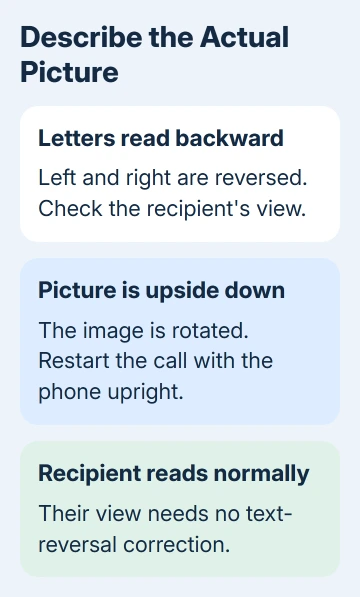
If the caller reads the word normally, the picture they receive doesn't need a text-reversal fix. Frame the call so you're comfortable with it. You don't need to keep changing camera settings because your own thumbnail looks unfamiliar.
If the caller reports backward writing, move to the rear-camera steps. If they report an upside-down picture, use the orientation checks later in this guide. Ask them to describe what appears on their screen, rather than your thumbnail.
The same distinction applies when someone else looks inverted in your main video window. Your camera controls change your camera. They won't correct the image being sent by the person you're watching.
2. Use the rear camera to show writing or an object
During the FaceTime call, tap your video tile, then tap the camera-switch button to use the rear camera. Point the back of the phone at the page or object, then ask the other caller whether the writing is readable.
If that control won't respond, check FaceTime's camera-switch failure separately from the reversed-text problem.
Apple's FaceTime camera controls describe switching between front and rear cameras this way. The button changes which camera supplies the picture. It doesn't unmirror the camera you're already using.
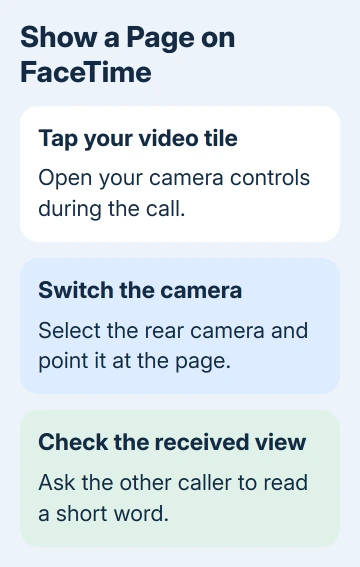
Keep the phone steady and leave enough space around the writing for the other person to read it. I'd use the rear camera for a document even when mirroring isn't the complaint. It lets you aim at the page while watching the call screen.
On iPhone 17 or later, the current guide describes Dual Capture, where a small front-camera view can remain alongside the rear view. Use Hide Front Camera if you only want to show the rear camera.
Dual Capture requires all participants to use iOS 27, iPadOS 27, macOS 27, or later. An older iPhone's ordinary camera-switch workflow shouldn't be confused with this newer two-camera feature.
When both views are showing, ask the other caller to read the large rear-camera view. Otherwise, they may keep commenting on the small view of your face while you're trying to demonstrate the page.
Switch back to the front camera to resume talking face-to-face. If your frame keeps following your movement, the separate Center Stage controls address that movement.
3. Keep Mirror Front Camera separate from FaceTime
Settings > Camera > Mirror Front Camera changes how a front-camera selfie is saved. It isn't a FaceTime preview setting. Changing it won't give FaceTime an unmirror button.
The front-camera selfie instructions describe preserving the image as it appears in Camera's front-facing frame. That's useful when the complaint is a saved selfie looking different after capture.
For that separate photo problem, select the front camera in Camera, then take a picture with your chosen setting. Review the saved photo in Photos, rather than using a FaceTime call to judge a Camera setting.
Don't confuse the camera-switch button with this setting. One selects the camera that supplies your call video. The other changes how the Camera app saves a selfie. Neither is a general control for reversing all video apps.
If a mirrored image comes from a Windows or Mac webcam in another app, follow the webcam inversion checks for that app and device. Its preview options don't automatically exist in iPhone FaceTime.
4. Restart a call whose picture is actually upside down
For a rotated image, hold the iPhone upright and steady, then hang up and make another FaceTime call. Have the other person check how this new call looks. This gives the camera a fresh start in the orientation you intend to use.
If the problem remains, restart the iPhone. On iPhone X or later, press and hold Side along with either Volume button. Once the slider is visible, let go of both buttons and swipe it. Wait for 30 seconds with the phone off.
Hold Side to power on again. Let the phone finish starting before opening FaceTime for another call.
On iPhone 6, 7, 8, and SE generations 2 and 3, hold Side alone to reach that slider. On iPhone 5 and earlier or the first SE, hold Top instead. These steps shut the phone down normally while its touchscreen still responds.
Compare the two cameras in Camera as well. Tell support whether rotation affects both apps or only FaceTime. A normal picture in Camera helps you describe the fault, though checking it won't fix the FaceTime call.
Check Settings > General > Software Update for an available update before reporting a repeatable camera problem. Explain which way the picture turns and which camera is affected, rather than saying only that FaceTime looks inverted.
For a continuing fault, ask Apple Support about FaceTime video orientation on your model. Describe backward text versus a rotated picture, the recipient's view, and whether Camera has the same fault.
The Short Version
FaceTime has no iPhone preview unmirror switch. Check text with the recipient and use the rear camera for documents. Camera's selfie setting is separate. Restart a call with rotated video and report persistent faults.
Checked November 15, 2026.






