

Mendeley Cite installs as a Word add-in, then opens from the References tab. Add it through Word's add-ins store or the official Mendeley Cite download page, then sign in to the Mendeley account that holds your references.
The newer Cite add-in doesn't need Mendeley Desktop running. A university or employer can block add-in installation. Check that restriction before treating a disabled store like a missing ribbon button.
In this guide
Check the Word version and the add-in you need
Use Mendeley Cite for this installation. The older Mendeley Desktop citation plug-in is a separate tool. Its Tools menu instructions won't help you install the newer add-in.
For the old plug-in's index-area citation error, inspect the conflicting Word fields in a separate document copy.
For the old plug-in's libc.dylib message, correct the MacIpcClient library path before treating it as a Cite store problem.
Mendeley's compatibility page lists Microsoft 365, Word 2016 and later, and Word for iPad. An older Office release can run Cite and still be past the end of Microsoft's support.
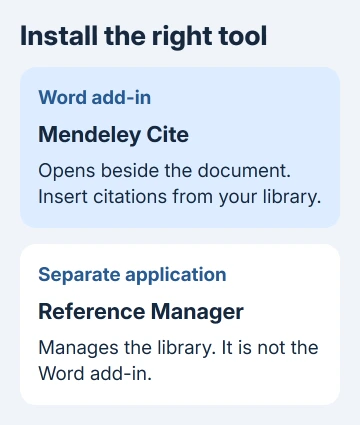
For a current Windows installation, start inside Word. On a Mac, the official download route is also useful when the ribbon doesn't match Windows instructions. Word for the web offers an alternative when desktop access is restricted.
Save your current paper before adding anything. I'd check the add-in with a spare document first, so the first successful citation doesn't land in the middle of a finished bibliography.
This is also a good point to check which account contains your references. A successful installation won't fill the panel with a library stored under a different Mendeley sign-in.
Add Cite through Word's built-in store
In current Word for Windows, select File > Get Add-ins. Another route is Home > Add-ins.
These are the current controls in Microsoft's Word add-in instructions.
Select More Add-ins if the first panel only shows a small selection. Search for Mendeley Cite, open its listing, check the product name, and select Add. Complete the displayed confirmation to add it to Word.
An older Word ribbon can instead show Insert > Get Add-ins. Use that entry if it's the one available in your installation; searching the store for the same add-in is the important part.
After installation, open References and look for Mendeley Cite near the ribbon's right edge. Select it. The Cite panel should open beside your document. A store confirmation alone doesn't show that it works in Word.
If Cite's button is missing after installation, save and reopen Word. Check the installed add-ins list in Find a missing button or handle a blocked installation. Repeated installs won't fix an organization policy.
Use the official download route on a PC or Mac
Open the Mendeley Cite page and select Get Mendeley Cite. It leads to the Microsoft store listing for the Word add-in, rather than a general download for Reference Manager.
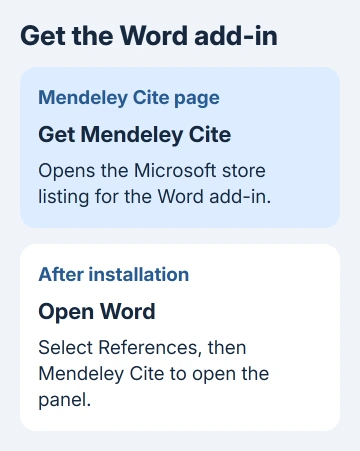
Follow the store's installation prompts for your signed-in Microsoft account. The button can be labeled Get it now, while adding from inside Word uses Add. Return to Word and open References > Mendeley Cite afterward.
Mac users need the same named add-in. Don't copy Windows-only paths such as File > Options into Mac Word. If your Mac's ribbon offers Insert > Get Add-ins, you can search there instead of using the web listing.
For Word for the web, open an editable document and use its add-ins controls to find Cite. If the account's store is blocked, follow the policy advice later in this article before trying another account.
The Word download guide helps when Word itself isn't installed.
Installing Reference Manager doesn't install the Word application or give a Microsoft account permission to use every desktop Office product.
Open the library and insert one test citation
Select References > Mendeley Cite, then sign in when prompted. Use your Mendeley credentials here. Your Microsoft account signs you into Word; your Mendeley account holds your reference library.
Check the references shown in the panel before changing your paper. An empty library can mean you're in the wrong Mendeley account; it doesn't automatically mean the Word add-in failed to install.
In a spare document, type a short sample sentence and place the cursor where its citation should go. In Cite's References tab, search for a reference already in your library, select it, and choose Insert.
The citation should appear at the cursor's position. That confirms Cite can retrieve a reference from your library and insert it into Word.
If Cite opens without retrieving your references, check its sign-in and connection instead of reinstalling it.
Keep Word's own citation tools separate from Cite. The Word references guide explains the built-in route; its Source Manager isn't the Mendeley library you just signed into.
Find a missing button or handle a blocked installation
In Windows Word, return to File > Get Add-ins > More Add-ins, then select My Add-ins. Choose Refresh if the list hasn't caught up. Look for Cite before starting another store installation.
If Cite appears in My Add-ins, it's been added to that account. Open it from the available add-in controls, then check References again. If it isn't listed, check that installation finished and you're using the same Microsoft account.
For a university or work license, an administrator can prevent access to add-ins. Ask IT to approve Mendeley Cite for your account and confirm whether Microsoft store access is allowed. Include the exact error or disabled control.
The installation guidance also suggests Word for the web with a personal Microsoft account when university or work access is blocked. Use that only for documents your organization allows in a personal account.
If installation is allowed but the panel won't load, try opening an ordinary website using that connection.
Then send Mendeley Support your Word version, Windows or macOS version, account type, and whether the problem happens in the store, at the ribbon button, or during sign-in.
Ask for help with the modern Mendeley Cite add-in. Calling it the Desktop plug-in can send the support conversation toward a different installation procedure.
The Short Version
Add Mendeley Cite from Word's add-ins store, open it from References, and sign in to your reference library. Test one citation in a spare document. A blocked university store needs administrator approval, not repeated installations.
Checked November 15, 2026.






