
A Surface Pro that isn't charging needs a charger check first, but an 80% ceiling can be intentional. Connect the correct supply directly, then check the Windows battery symbol to tell a power problem from a charging limit.
A white light on the magnetic plug means the connector has power. Check Windows to see whether the battery is actually charging. Use the percentage, charging symbol and its behavior without the charger to choose your next step.
In this guide
1. Reconnect the charger and read its light
Connect the power supply directly to the Surface and a working wall outlet. Remove the dock and power-hungry accessories for this check. If the supply has a separate USB charging socket, unplug anything connected to that socket too.
For Surface Connect, look at the small light on the magnetic plug. If it stays white, check the battery status in Windows next. If it's off or flashing, reset the power supply first.
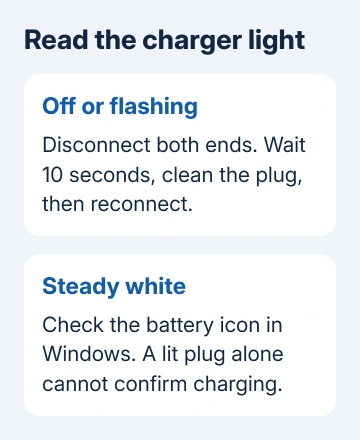
Disconnect the connector from the tablet, unplug the supply from the wall and disconnect its USB accessories. Wait at least 10 seconds. Wipe the connector with a soft, dry, lint-free cloth, then reconnect everything.
Try the magnetic plug in its other orientation and use another wall outlet if the light remains off or flashes. Replace a damaged plug or cable. Don't hold a damaged connection at an angle to make its light work.
I'd check this connection before changing a Windows driver. A driver reinstall can't repair a power supply whose connector still has no light. If the reset restores a steady light, check whether the battery percentage starts rising.
2. Match the supply to your Surface model
A charger can run your Surface without supplying enough power to charge its battery. An exclamation symbol means it isn't getting enough power. Use the supply intended for your exact model before treating this as a worn-out battery.
Find your model in the Surface app under Device information. Include details such as Pro X, 5G and the screen size when checking compatibility. Different Surface Pro generations don't all use the same charging requirements.
For a USB-C setup, check the Surface Pro model and charging requirements. Surface Pro 7 and newer support suitable USB-C Power Delivery charging; older Pro models don't gain it through a USB-A adapter.
Keep the charger connected directly for this check. If charging works directly but fails through your dock or monitor, check that connection next. Keep the working direct connection while checking the dock's power rating and cable.
If the correct supply still produces the insufficient-power symbol, choose Start > Power > Restart. A repeated warning with a known-working compatible charger is useful information for a service request.
3. Check whether 80% or 50% is an intentional limit
A heart on the battery symbol, with charging stopping at 80%, can mean Smart charging is active. This protects the battery when the Surface spends long periods plugged in or operates at higher temperatures.
Open Surface > Battery & charging and look at the controls your model offers. On supported models with a Charging mode selector, Limit to 80% holds that ceiling; Charge to 100% changes that choice.
The controls differ by model. Microsoft's Surface charging guidance explains the heart symbol as Smart charging and a possible 50% ceiling as Battery Limit.
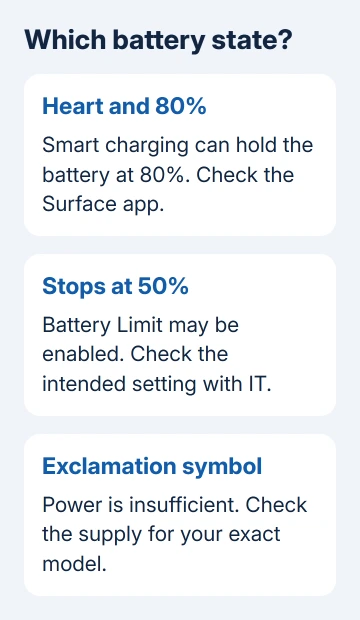
If a company Surface repeatedly stops at 50%, ask IT whether Battery Limit was enabled in its firmware settings. Don't change a managed setting just to make the percentage reach 100. Confirm the intended policy first.
A stable ceiling is different from a battery falling while connected. If the percentage keeps dropping, return to the supply requirements. If Windows doesn't recognize the battery, check the status described in the next section.
4. Restart, then follow the battery's exact status
Save your work and restart normally if Windows responds. If the Surface is stuck, use the forced restart for its generation. A forced restart interrupts anything still running, so save what you can before holding the buttons.
For Surface Pro fifth generation and later, including Pro X, hold Power until it shuts down, restarts and shows the Windows logo, about 20 seconds. Release the button when that restart completes.
For the original Surface Pro through Pro 4, press Volume Up together with Power and keep both held for 15 seconds or longer. Release both, wait 10 seconds, then press and release Power to turn it on.
After restarting, hover over the battery icon. Plugged in, not charging means Windows sees power without charging the battery. No charging symbol, despite a lit connector, means it isn't detecting the power supply correctly.
A red X means the Surface detects power but can't detect the battery. If it also switches off when unplugged, move to service rather than repeatedly resetting Windows. That combination needs the battery and its connection checked.
For a tablet that never reaches Windows, follow the Surface Pro startup checks. A completely dark device needs a power and startup check before any Windows-only step can help.
5. Refresh the battery driver, except on Surface Pro X
If charging still fails, the official steps include uninstalling the battery device and letting Windows detect it again. Do not uninstall the battery driver on Surface Pro X; restoring it can require a full system reset.
On other supported Surface models, leave the charger connected. Search for Device Manager, open Batteries, and find Microsoft Surface ACPI-Compliant Control Method Battery or Surface Battery, depending on the device.
Right-click that battery entry and choose Uninstall device. Select the computer at the top of Device Manager, then choose Action > Scan for hardware changes. Restart Windows after the battery is detected again.
Check for updates under Help & support in the Surface app. Apply any offered Windows updates and Surface firmware with reliable power connected, then check the battery's status again.
6. Ask for service with the charging results
If the correct charger and these checks don't restore charging, open Surface > Help & support > Get help. Ask for a charging and battery service assessment, giving the exact model, connector-light behavior and Windows battery status.
Mention whether another compatible supply worked and whether the tablet shuts off when unplugged. Replace the charger if only the original fails. If your tablet won't charge with either supply, it needs device service.
The Short Version
Reset an unlit or flashing charger, use the right supply and follow the battery symbol. Check intentional charging limits before changing drivers. Skip battery-driver removal on Pro X, and request service if charging still fails.
Checked November 15, 2026.





