

Generic Bluetooth Radio is a device name, not an error. For a yellow warning or driver error, update the radio's driver, then check Device status if the warning remains. A healthy generic entry doesn't need a different name.
Choose your next repair based on the error code. Missing driver software, a driver that won't load, and a device reporting a fault need different checks. Work on the radio before removing headphones already paired to it.
In this guide
1. Update the radio and read the remaining warning
Right-click Start and choose Device Manager. Expand Bluetooth, right-click Generic Bluetooth Radio, and choose Update driver > Search automatically for drivers. Restart after an installed update, then check the entry again.
If no Bluetooth category appears, look for a warning under Other devices or the USB controllers. A USB adapter whose driver hasn't loaded can appear there instead. Work on the entry that belongs to the adapter, not every unknown device.
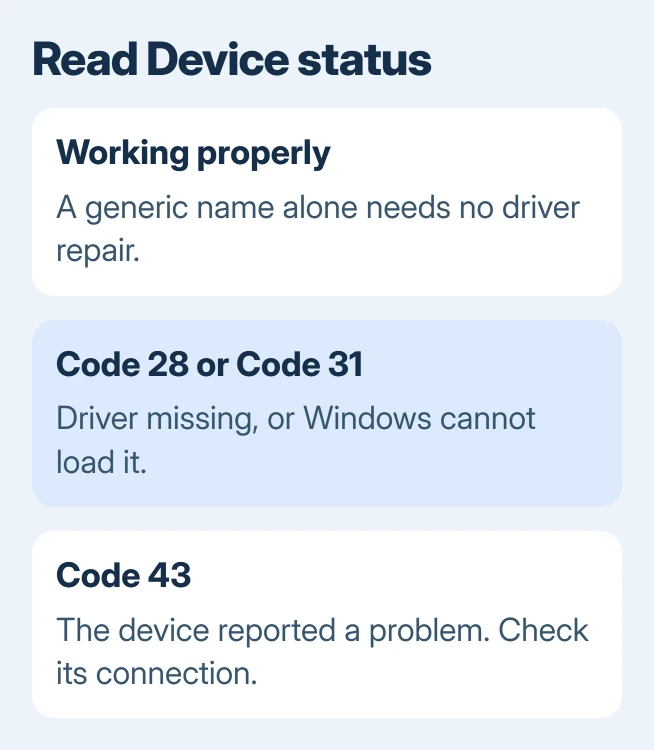
Double-click the radio and read General > Device status. If Device status reports no problem and no warning symbol appears, you don't need to fix the generic name. Check pairing or audio output if the accessory still doesn't work.
A healthy radio that still returns Try connecting your device again needs its reception and pairing checked separately from the generic device name.
Code 28 means drivers are missing. Code 31 means the drivers the device needs aren't loading. With Code 43, Windows stopped the radio after the device reported a problem. Copy the whole message before choosing the next action.
Microsoft says to try a driver update, reinstall, or rollback in its Bluetooth repair instructions. An automatic search that finds nothing newer doesn't rule out a suitable package from the PC or adapter maker.
For a new USB adapter that now reports a healthy status, continue with the USB Bluetooth setup steps. The remaining job is connecting an accessory rather than finding a differently named radio driver.
2. Look for an offered Bluetooth update
On Windows 11, open Settings > Windows Update and select Check for updates. Then check Advanced options > Optional updates > Driver updates. Install a Bluetooth package that matches your hardware if one is offered.
On Windows 10, open Settings > Update & Security > Windows Update. Check for updates, then open View optional updates > Driver updates when that link is offered. No optional packages can mean this link isn't displayed.
Restart when prompted and reopen the same radio's properties. Look for the warning to disappear and a working-radio message in Device status. The name might change with the driver, but that isn't the goal.
October 14, 2025 ended the free support period for Windows 10. Updates now depend on the edition and support coverage. If no suitable driver is offered for Windows 10, check which operating systems your hardware maker supports.
If the same code remains, stop repeating the automatic search. Use the adapter's model and hardware ID to pick a driver package, especially for a USB dongle whose brand differs from its internal chipset.
3. Identify the hardware behind the generic name
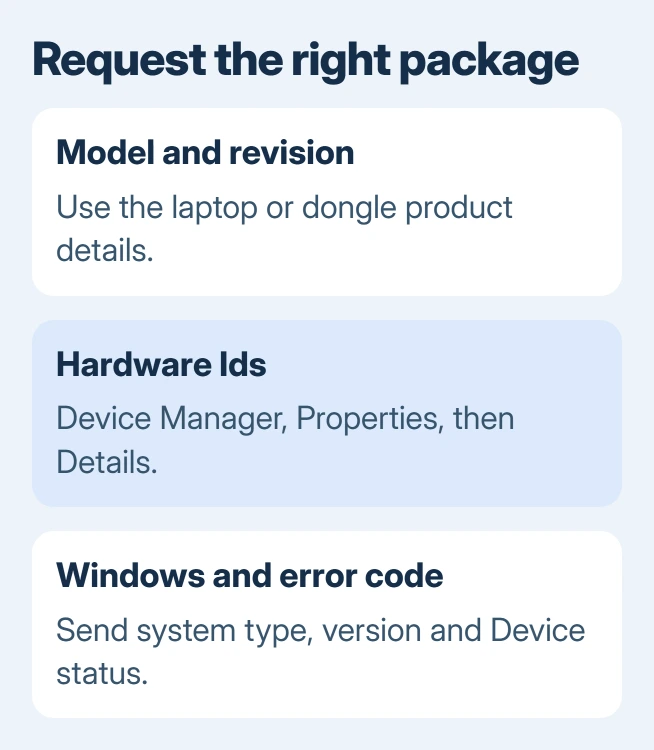
Open the affected device's Properties > Details. In Property, choose Hardware Ids and copy the first value. For a USB adapter, it normally includes VID and PID, which identify the vendor and product reported by the device.
Read the dongle's label, packaging, or purchase record for its brand and exact hardware revision. For Bluetooth built into a laptop, use the laptop's model or service identifier to locate its manufacturer's support downloads.
Check Settings > System > About > System type for the Windows architecture, such as x64 or ARM. Give that information to the maker along with your Windows version. A driver built for a different system type won't work as a substitute.
Choose the package for that model and supported Windows version. Bluetooth 5.0 or 5.4 on a box describes the wireless specification; it doesn't identify a universal Windows driver shared by every adapter with that number.
I'd use the hardware ID when asking the seller for a download. It gives them the actual device identity instead of a generic Windows label that could belong to many different products.
Follow any connection instructions supplied with an installer. For extracted files, choose Update driver, then Browse my computer for drivers. Point it to the supplied folder with Include subfolders enabled, then recheck the status.
4. Undo a recent driver change or reinstall the radio
If Bluetooth worked until a driver update, open Properties > Driver > Roll Back Driver. Complete the prompts and restart. A grayed-out rollback button means no earlier package is available through that control.
An SN30 Pro+ reconnect failure has an owner-confirmed rollback result, with an important distinction between restored pairing and working game input.
When rollback isn't available or updating hasn't helped, save the correct maker's package before removing the device. Have wired input available before this step if Bluetooth currently handles your keyboard or mouse.
Right-click the affected radio in Device Manager, select Uninstall device, and confirm. Keep the driver package for this first attempt: don't select a driver-deletion checkbox. Restart so Windows can try to detect the radio again.
If the adapter doesn't return, open Action > Scan for hardware changes. Install the saved package when Windows still can't load a driver. The Bluetooth driver reinstall guide explains the removal and redetection process.
Compare the new Device status with the code you recorded. If the same code returns, uninstalling it the same way again is unlikely to help. Move to the USB connection or the maker's support rather than deleting unrelated Bluetooth entries.
5. Check the dongle and take persistent codes to support
For a USB radio, unplug it and connect directly to another port on the PC, leaving out a hub or extension. Watch Device Manager as you reconnect it. The matching entry should disappear when unplugged and return when detected.
If it isn't detected in either port, try another compatible Windows PC when available. A dongle absent on both computers needs the seller's attention. A successful connection on the second PC points back to the original PC's setup.
For built-in Bluetooth, use the laptop or motherboard maker's diagnostics and support channel. Don't apply instructions for opening a different computer or force a driver meant for an unrelated USB dongle.
Send support the hardware ID, device-status code, PC model, Windows version, and driver version from Properties > Driver. Ask which signed package supports that exact radio and whether a persistent Code 43 needs hardware service.
If the seller can't provide a supported driver for a new dongle, ask about return or replacement. A vague promise of Bluetooth compatibility isn't a usable download or a reason to install unrelated driver bundles.
The Short Version
A generic label can be normal. Fix an actual warning with a driver update and the steps for its code. Match manual packages to the hardware identity; use rollback or reinstall when needed, then request model-specific support.
Checked November 15, 2026.






