

OneDrive issues today can be a service outage, an account problem, or a sync app stuck on one computer. Check the service status for your account type first, then compare browser access against the app before resetting anything.
Personal Microsoft accounts and accounts supplied by work or school use different detailed status pages.
In this guide
1. Check personal OneDrive on the public status page
For files held by your personal Microsoft account, open the Microsoft service status page. Look for the personal or consumer services area and the entry covering OneDrive. Read any incident details, not just the general heading.
Microsoft recommends checking Service Health for access failures through its recent OneDrive issues page. Check it before changing a computer that worked normally yesterday.
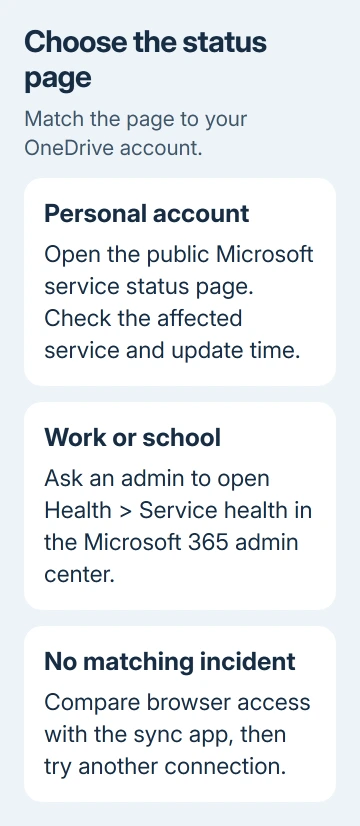
Check which service is affected, the described symptoms and the update time. A mail-only incident doesn't automatically explain a folder that won't upload. An incident affecting sign-in or several cloud services can have a wider effect.
If the listed problem matches your error, follow the incident's updates and any workaround it gives. A new local installation won't repair an outage in the service. Keep your account and folder setup intact while access is interrupted.
A healthy public status page doesn't rule out a new problem or one affecting only some users. Next, check whether you can reach your files in the browser and app before deciding the outage is widespread.
2. Ask the administrator for work or school status
For an organization account, ask an administrator to open admin.microsoft.com, then Health > Service health. Their admin account needs permission to view service health; your regular account may not have access.
The overview lists services, incidents and advisories. Ask them to inspect OneDrive for Business and any related service named in your error or incident. Open the incident to see who's affected and what's being done to restore access.
Ask for the incident ID, its latest update time, and whether your organization is affected. A screenshot of someone else's personal account status isn't a substitute for the information shown for your employer or school.
If no matching incident is listed, the administrator can use Report an issue in Service health. Give them the exact error and the approximate time it began. Reporting the failure time gives IT something concrete to check.
When signing into the admin center also fails, the public service page can show known access problems. Keep in touch with the help desk through another channel, since a sign-in outage can affect the usual support tools too.
3. Compare the web, the app and one other connection
Visit onedrive.com. For sign-in, use the account connected to the affected app. Try opening an existing file. This checks access to that account's stored files without depending on the desktop sync app.
If the web copy opens while the Windows or Mac app is stuck, the next job is local sync troubleshooting. The OneDrive sync guide covers that separate branch, including file restrictions and when a reset is appropriate.
If both fail, note where you get stuck: before sign-in, when the file list loads, or when opening one item. Report where you get stuck. A shared file you no longer have permission to open isn't the same as losing access to OneDrive.
When shared folders alone show an invalid-view message, check the invitation route and the historical incident separately.
Compare access using a second device or an alternative connection. For example, compare your phone's mobile connection with the laptop's Wi-Fi. Use your normal account access rather than sending private work files to an unrelated account.
If that connection works, check the first network, browser or device. If it fails on both devices and connections, check the account or service next, especially if colleagues have the same problem.
If only a sharing link fails, open OneDrive directly and check whether the item is available there. Ask the owner to verify access for your exact account. Don't request a public link for private material to bypass permissions.
4. Keep working with files that are already local
On Windows, a blue cloud beside a OneDrive file means it's online-only. File Explorer can list its name before downloading its contents. During an outage, seeing the filename doesn't mean that file is usable offline.
A white check inside a solid green circle identifies an always-available file. Files marked Always keep on this device are downloaded and kept locally. That preparation has to finish while OneDrive can still reach the service.
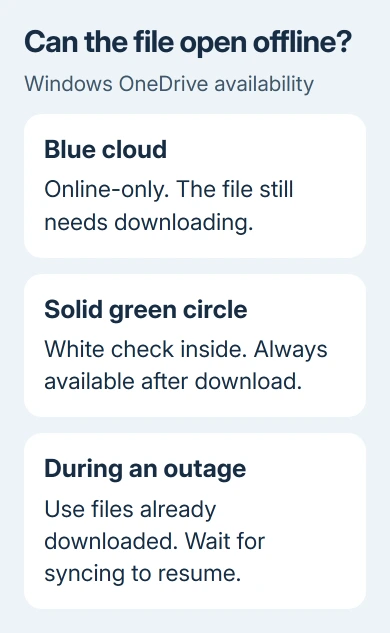
Open a file that is already downloaded if you need to continue working. Save important changes carefully and remember that colleagues won't receive them until syncing resumes. Saving a file offline doesn't upload your changes to OneDrive.
Don't use Free up space on the files you need during the interruption. That changes local availability. Choosing Always keep on this device now also can't download a missing file from an unreachable service.
For planned offline work later, our OneDrive setup guide explains the desktop account and folder. Check file access before unlinking your account and going through setup again.
5. Confirm recovery or send a useful support report
After the incident update says service is restored, try opening the web file again. Then check the sync app and a file you've recently changed. Read its status instead of assuming a recovered website means every queued upload has finished.
If your local edit and the web copy differ, keep both copies until you've reviewed the contents. Avoid deleting a version simply because its timestamp looks newer. A colleague could have edited the cloud copy while you worked offline.
For a personal account, open the OneDrive help menu or use Contact Microsoft Support, choosing OneDrive and the affected Microsoft account. For an organization account, send the report to the administrator who checked Service health.
Include the error text, account type, incident ID if available, start time with time zone, and the web-versus-app result. Mention whether another connection worked. Never include passwords or sign-in codes in that report.
I'd wait to reset OneDrive until the service works and the problem only affects the sync app. That keeps an outage from turning into an unnecessary download and account setup job on your computer.
The Short Version
Check public status for personal OneDrive or ask an admin about work-account service health. Compare the web with the app and another connection. Use local files, then verify uploads after recovery or report the remaining error.
Checked November 15, 2026.






