

OneDrive's error The specified view is invalid affected shared folders in a confirmed 2016 service fault. Switching to the classic view let affected owners open those folders, and Microsoft marked the incident resolved on September 9, 2016.
For the same message today, try the owner's sharing link first. The old classic-view workaround applies only when that option actually exists; a current error needs its own access and service checks.
In this guide
1. Open the folder from its original invitation
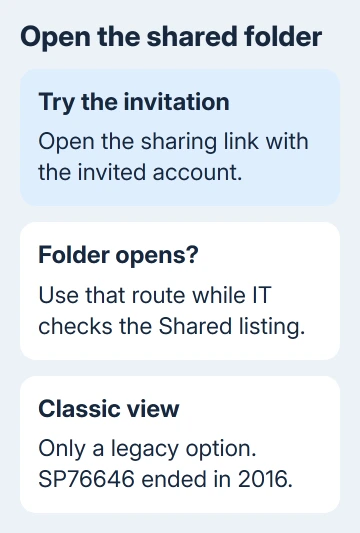
Find the folder invitation in your email or messages. Open its link using the organization account it was sent to, then try a file inside the folder.
This tells you whether the folder opens when you skip the broken Shared with me list. Save any error the link shows, too. A permission request means you need to check access, rather than troubleshoot the invalid-view message.
Ask the owner for a fresh sharing link if the original message is unavailable. They can select the folder and use Share or Copy link. They should send a sharing link, rather than the address from their own open folder.
The folder-sharing steps explain the audience and permission choices. Keep the folder private while checking the broken listing.
Check the account shown when the link opens. Your personal Microsoft sign-in can be the wrong identity for a work invitation. Sign in with the invited account rather than asking the owner to send the same invitation again.
If the invitation opens the folder and its contents, keep using that route while the listing is checked. You can open your files this way even while the Shared page is still broken.
If the link instead says access is denied, move to the owner check in section 3. When several shared folders produce the same invalid-view message, the service check in section 4 becomes more useful.
2. Use classic view only on the older affected interface
In the September 2016 version of OneDrive for Business, affected users could switch back to the classic experience. The asker and another owner both reported that shared folders opened there while the new experience failed.
Look for an available Return to classic OneDrive option in that older interface. Select it, return to the shared-folder list, and open the same folder. If it works, you'll see the folder's files instead of the error page.
The original incident discussion identifies the fault as SP76646. The incident prevented people from opening folders shared through OneDrive for Business.
Individual files could still open while folders failed, which made the fault look like a problem with particular invitations. That difference was part of this incident, not a sign that every owner had set the wrong permissions.
Microsoft's final update marked SP76646 resolved at 17:00 UTC on September 9, 2016. The earlier workaround wasn't a permanent requirement to keep using an older interface.
If your current OneDrive doesn't offer classic view, stop looking for that switch. Don't install an old sync client or alter the folder URL to imitate the archived interface. Continue with the account and service checks instead.
I'd keep the working invitation handy while reporting the broken listing. It gives the administrator a direct comparison between a folder you can open and the route that produces the error.
3. Have the owner check this folder's access
Ask the owner to open the same folder in their account. If it opens for them, have them select it, open Manage access, and check whether your invited identity still has access through a person entry or sharing link.
The supported sharing controls distinguish viewing, editing, named recipients, and wider links. Check the permission that fits the intended collaboration.
A folder can still appear in Shared after you've lost permission to open it. One owner in the 2016 thread could still see folders after their sharing permission had been removed. Seeing it in the list didn't mean they could open it.
If access has ended, the owner needs to restore the appropriate permission or confirm that the removal was intentional. Reinstalling OneDrive on your laptop can't restore permission that the folder owner removed.
Ask whether other recipients can open this folder. One recipient failing while others succeed calls for checking that person's account and invitation. If several recipients get the error at the same time, tell the administrator that too.
Be clear about whether the problem affects the folder or a file inside it. Tell the owner whether the folder page fails before its contents appear, or whether only one document refuses to open after the folder loads.
4. Ask IT to check for a matching service incident
Have your organization's administrator check Health > Service health at admin.microsoft.com. Ask specifically about shared-folder access in OneDrive and related SharePoint services.
Have the administrator compare your account and error with the users and symptoms listed in the incident. An old search result naming SP76646 doesn't mean that incident is happening again.
For an empty list with working links, check next-day Shared listing loss, which had a different historical search-related incident.
For the broader account-status routes, use the OneDrive service availability checks. Keep this report focused on the invalid-view message and whether the invitation still works.
If an active advisory matches, follow its workaround and updates. If none matches, ask IT to submit a service request for the continuing error, rather than waiting for a ten-year-old incident to change status.
Include the full error text, the time and time zone, the affected folder link, and whether the owner and another recipient can open it. Share those account details privately with your organization, rather than posting them publicly.
When only Shared fails but a direct invitation works, say that in the request. When both fail, include both results. Those differences tell support more than a general report that OneDrive is broken.
The Short Version
Try the original folder invitation and confirm the invited account. Classic view worked for the confirmed 2016 fault, which was later resolved. For a current failure, have the owner check access and IT check a matching service incident.
Checked November 16, 2026.






