

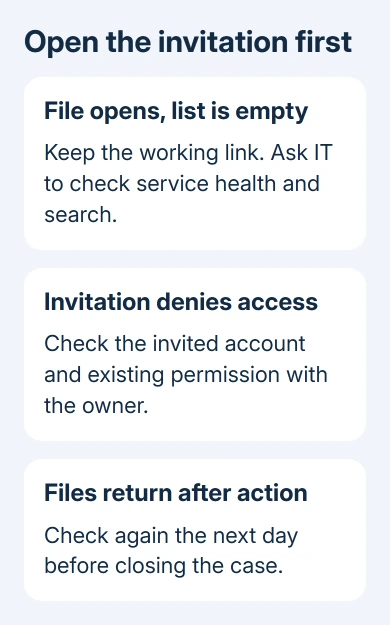
OneDrive Shared with me files can disappear from the list even while their sharing links still work. Keep using the working invitation and ask your work administrator to check the service and search index, which helps build the list.
Repeatedly re-sharing the file didn't last in the original report.
If the invitation also denies access, check the recipient account and permissions first. Fixing a missing list entry takes different steps from restoring access to a document.
In this guide
1. Open the invitation before changing permissions
Find the original sharing message and open its link with the account that received the invitation. Open a document from that folder as well. A working folder page alone doesn't confirm that the file opens.
If it opens, your immediate route to the file still works. Keep that invitation handy while the missing list is checked. Don't download a separate copy and assume your edits will automatically reach the shared original.
The original disappearing-files discussion involved OneDrive for Business.
The owner could still share working links, but documents vanished from recipients' Shared with me view the following day.
That distinction matters: an empty view doesn't necessarily mean the owner deleted the files. Ask the owner whether they can still open the originals before starting deleted-file recovery.
If the link instead requests access, check which account you're signed into in your browser. Your personal Microsoft account and work account are separate, even when they show similar names.
Ask the owner for a current invitation to the intended account if you don't have one. The OneDrive folder-sharing controls explain named recipients and viewing or editing permission.
Once access works, revisit Shared to see whether this item now appears. A working link plus an empty list is useful information for the administrator. An access error belongs with the owner-permission check next.
2. Have the owner check the existing access
The owner can check the affected item through Manage access. Have them check your account and the person entry or sharing link that gives you access.
Ask them to restore permission only if it's missing and they still intend to share the item.
In the historical report, the owner checked permissions, watched recipients use the correct accounts and tried different browsers. The shares still disappeared the following day.
Those checks ruled out a simple wrong-login explanation for that case.
The owner also tried re-sharing. It made the file appear for the day, but it disappeared again. Don't treat another invitation as a lasting repair when you already have the same pattern and a working direct link.
Keep the file shared only with its intended recipients. Deleting all unique permissions can change access for other collaborators, so don't reproduce that old troubleshooting instruction just to refresh one person's listing.
If the owner intentionally removed access, the missing item isn't a search-repair problem. Agree on whether permission should be restored. If the owner still sees the file and your link opens it, continue with the organization-wide check.
For a folder that appears but opens an invalid-view error, use the separate OneDrive invalid-view checks. That is a different screen from a Shared list with nothing in it.
3. Check service health before requesting a reindex
Have an administrator check Health > Service health inside the Microsoft 365 admin center. Have them review OneDrive and SharePoint advisories and compare their listed symptoms with your working link and missing view.
The service-health instructions explain the required admin roles and incident details.
You'll need an authorized work account to open this dashboard; being a recipient of a shared file may not give you access.
The 2016 thread later identified incident SP75239, which included an empty Shared with me section and other search-dependent features.
That incident number explains the archived report, not the current status of your organization's service.
If several recipients lose files shared by the same owner, tell IT which owner is affected. If many unrelated owners and recipients are affected, include that wider pattern too. It helps IT compare the right users with an advisory.
Follow an active matching advisory's workaround and updates. When nothing matches, have the administrator use Report an issue on Service health or open a support request rather than wait for an old incident to change.
I'd check this before asking anyone to rebuild permissions. A service problem can affect a whole listing while the original sharing arrangement remains correct.
4. Let the administrator assess the search index
One owner restored all affected files to the list by re-indexing; they confirmed the files were still visible the following day. It worked for that owner, though the thread also mentions the wider service incident.
Re-indexing asks SharePoint to read content again for search. It doesn't create new copies of the documents. In that older OneDrive for Business experience, the shared-file view depended on search information.
The current site reindex procedure is Settings > Site settings > Search and offline availability > Reindex site.
Some sites show Site information > View all site settings before Site settings.
Your administrator can check whether that path is available on the affected site, then read the warning before deciding whether to confirm the request.
The search service reads the content during its next scheduled crawl, so pressing the button won't necessarily bring the list back right away.
Reindexing can put a heavy load on search. Current guidance says to use it for changes that need reindexing, such as changes to the rules that control search.
Have IT or support assess the site before requesting it, rather than repeating it for every missing share.
If the controls aren't available, let your administrator take over from there. Personal OneDrive doesn't provide this SharePoint site-administration procedure.
Don't hunt for a hidden equivalent in the phone app or reset the desktop sync client for a web-list problem.
Check tomorrow before closing the case
After the administrator's action, check that an affected file returns to Shared and that its original link still opens it. Because the reported fault returned after a day, check the listing again the following day before calling it fixed.
If it disappears again, send IT the owner and recipient accounts, file link, first missing time and time zone, and whether direct access still works. Include any matching service advisory and the time a reindex was requested.
Keep these details in a private support request. Ask IT to review SharePoint search indexing and the Shared listing for the affected owner, while preserving the existing sharing permissions.
That is more useful than another desktop reinstall.
The Short Version
Use the working invitation, verify existing permission, and have IT check service health. Reindexing restored the historical owner's listing, but an administrator should assess it first. Check again the next day before closing the case.
Checked November 16, 2026.






