

The HiBy R1's Bluetooth audio connection and its HiByLink phone connection do different jobs. For control from a Pixel 9 Pro, start with HiByLink inside HiBy Music, instead of selecting the R1 as a Bluetooth speaker.
A failed USB connection needs a different setting on the player. First, match the connection to what you want: controlling the R1's music, sending sound to headphones, or connecting the phone by cable.
In this guide
1. Choose the connection that matches the job
For remote control, the Pixel runs the HiBy Music app and the R1 plays the music. HiByLink lets the phone browse and control the player's library. It doesn't send every Android app's sound to the R1.
The R1 manual lists Bluetooth audio output to headphones or speakers. It doesn't provide a Bluetooth-receiver procedure for playing Pixel audio through the R1. Don't use instructions for a different HiBy player that has a receiver mode.
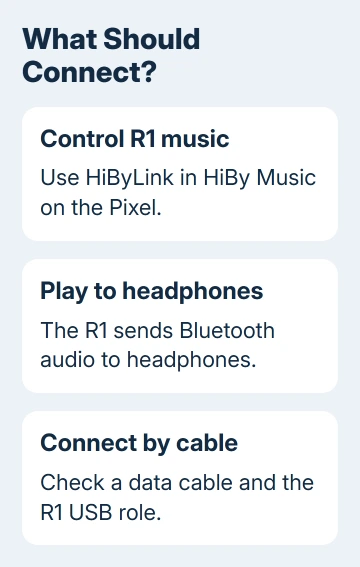
For a cable connection, the manual describes a separate USB Device mode for a phone or computer. Start at section 5 for that case. A USB problem won't be corrected by repeatedly deleting a Bluetooth pairing.
I'd settle this choice before resetting anything. Your phone can find the R1 even when it can't use the audio connection you expected. Seeing the R1 in a device list doesn't mean it can act as your phone's speaker.
2. Check that the R1 has HiByLink
Open About on the R1 and read Model, firmware version. The official R1 firmware history lists HiByLink as an addition in version 1.3. An earlier version needs updating before you can use that feature.
Use the R1's own online update option with the player connected to Wi-Fi, then follow its prompts. Its manual specifies 2.4 GHz Wi-Fi, so a network offering only 5 GHz won't provide that connection.
Keep the player charged while it updates. Use firmware intended for the original R1, rather than a package for an R1MIDI or another HiBy model. After restarting, look for the HiByLink entry again.
Version 1.3 added the feature; it isn't necessarily today's newest firmware. Use the version offered for your exact player. If the update fails, record its message for HiBy rather than trying unrelated firmware files.
3. Start the remote connection inside HiBy Music
Turn Bluetooth on on the Pixel and the R1. On the R1, swipe down for the quick controls; holding the Bluetooth control opens its Bluetooth settings. Open the player's HiByLink entry as well.
In HiBy Music on the Pixel, open HiByLink and enable the phone's client or controller option. Select the R1 from that app's device list and accept a pairing request when it appears.
HiBy's own HiByLink instructions describe starting the connection from the controller inside the music app. The working result is the player's song list appearing on the phone, with playback controlled from there.
Try a track stored on the R1 and watch whether the player's playback changes. If that works but another phone app's audio doesn't reach the R1, the remote-control connection is already doing its job.
If the R1 doesn't appear, check the Pixel's app permission next. Without access to nearby devices, the app can fail to find your player even when Bluetooth is on.
4. Restore discovery permission and a stale pairing
On the Pixel, open Settings > Apps > See all apps > HiBy Music > Permissions. Allow Nearby devices if listed. The names depend on your app and Android version; allow the access the app requests to find nearby devices.
Return to HiBy Music and try its HiByLink list with the player nearby. If the R1 appears, pair there and check whether the library loads.
For an old pairing that refuses to reconnect, open Settings > Connected devices on the Pixel. Find the saved R1 entry, open its settings, and choose Forget. This removes that pairing, not the music stored on the player.
On the R1, its Bluetooth settings show Matched devices. The manual describes pressing and holding a saved device name to delete it. Remove the old Pixel entry, then connect again through the app.
Google recommends forgetting and pairing an accessory again in its Bluetooth troubleshooting steps. Restart both devices if a fresh attempt fails, then retry.
For the Pixel's button sequence, use the Pixel restart instructions. Note whether discovery fails or the R1 appears and then rejects pairing.
5. Change the USB role when a cable won't connect
For USB, connect the phone and player using a data-capable cable. A charging-only lead supplies power without carrying data. Try a known data cable before changing advanced Android settings.
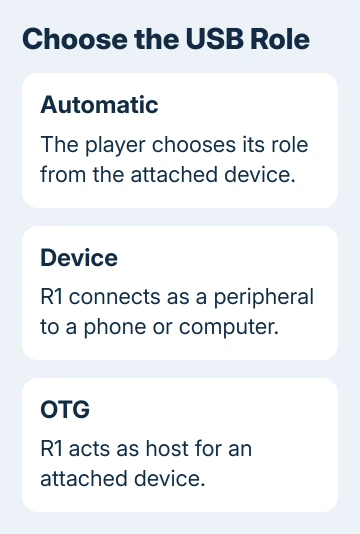
On the R1, open System > USB working mode. Its Automatic setting chooses a role from the attached device. Device makes the player a peripheral for a phone or computer, including its documented USB-drive and USB-decoder uses.
Choose Device for that phone-to-player connection and reconnect the cable. OTG makes the R1 the host for an attached peripheral, so it does a different job. It isn't a stronger version of Device mode.
Check the result for the job you selected: a recognized data device or a working decoder connection. The role setting alone doesn't choose the source app, guarantee every cable works, or turn a Bluetooth output into an input.
If files are the goal, the USB connector guide explains how charging and data connections differ. When reporting the fault, describe what happened with the phone connected to the R1.
6. Send HiBy the connection details if it still fails
Use store.hiby.com > Contact Us and ask whether your intended Pixel-to-R1 connection is supported. Include the R1 firmware, Pixel Android version, HiBy Music version, how you connected them, and the error wording.
For HiByLink, say whether the app sees the R1 and whether its library loads. For USB, give the cable and Device-mode result. Ask for original R1 instructions rather than accepting a receiver procedure for another model.
The Short Version
Use HiByLink in HiBy Music for remote control and check that the R1 has firmware supporting it. Restore nearby-device access or a stale pairing when discovery fails. For a cable connection, check a data cable and the R1's USB Device role.
Checked November 15, 2026.






