No, Microsoft Edge doesn't always send website lookups to a separate Microsoft DNS server. It normally uses the current DNS service, but Secure DNS settings or a work policy can choose an encrypted provider for Edge's lookups.
Check Settings > Privacy, search, and services > Security to see the choice in your browser. A provider selected there can explain why Edge behaves differently from another app using the same Wi-Fi connection.
In this guide
Check the DNS choice in Edge first
Open Edge on your computer. Select the three-dot Settings and more menu, then Settings > Privacy, search, and services. Open Security and find Use secure DNS to specify how to lookup the network address for websites.
Menu grouping can vary between Edge releases. Search Settings for secure DNS if Security isn't immediately visible. Check which choice your current profile uses before changing anything.
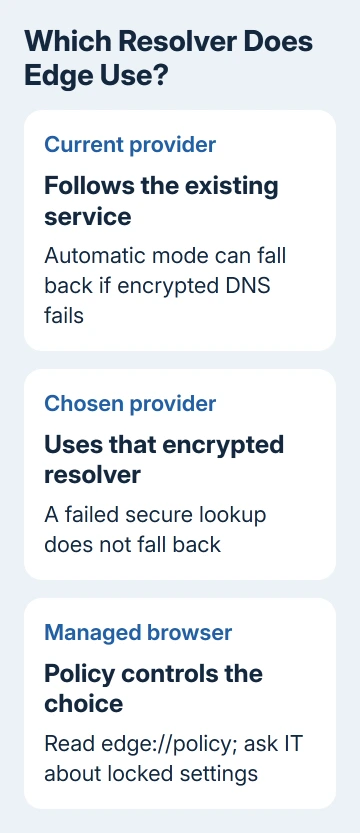
Microsoft's Edge security instructions describe this setting. DNS lookups turn a site's name into the network address your browser needs to connect. This switch controls those requests.
With the current provider selected, Edge uses the DNS service you already have. A specific secure provider replaces that choice and doesn't fall back to ordinary DNS if its encrypted lookup fails.
Save the current provider's name or address in a note. Restore that entry if the replacement prevents a website from opening. Compare one setting at a time; leave the router unchanged during this browser check.
Understand what Secure DNS changes
Secure DNS can send those lookup requests over HTTPS, the encrypted connection method also used by secure websites. The DNS provider still has to answer the request. Encryption doesn't remove the need to look up the website's address.
This setting can change which service receives Edge's lookups and how they travel. It doesn't turn the browser into a VPN, choose a different internet connection, or make all other programs use the same DNS provider.
Check both Edge's provider choice and your computer's network settings. A browser can behave differently from a mail app even though both are connected through the same router.
An HTTPS padlock or site-security indicator doesn't tell you which DNS provider Edge used. The connection to the website and the earlier lookup are related parts of browsing, but they have separate settings.
If the question started because one site won't open, keep the site's exact address for your comparison. Use that same address for each check so a different site's behavior doesn't confuse the result.
Tell automatic fallback from a required encrypted service
Edge has policy modes named off, automatic, and secure. These names matter when a work policy controls the browser, even if the normal Settings page presents the choices more simply.
In off mode, Edge doesn't use DNS over HTTPS for those lookups. Automatic mode tries encrypted DNS when it can and permits an unencrypted fallback if the encrypted attempt fails.
Secure mode requires encrypted DNS and can't look up the site's address if that connection fails. It doesn't quietly turn the failed request into an ordinary unencrypted lookup. This mode needs a working encrypted DNS provider selected.
The DNS-over-HTTPS policy reference describes those differences. They explain why two managed computers can react differently to the same unavailable encrypted provider.
For a personal browser, choose the option shown in Settings rather than adding registry policies just to copy a policy-mode name. A policy is an administrator's control, and it can make a setting harder to change later.
If you just want to understand your current setup, read the setting first. Changing to a new provider isn't necessary to answer whether Edge currently follows the system or uses a chosen encrypted DNS provider.
Compare Edge with the computer's configured DNS
On Windows, press Windows + R, enter cmd, and run ipconfig /all. Find the active Wi-Fi or Ethernet adapter and its DNS Servers lines. Ignore disconnected adapters when identifying the connection you're using.
The address can be the router's local address rather than a public resolver. In that case, the router forwards requests using its own configuration. The computer's list won't tell you which DNS service the router then uses.
A router or Pi-hole that filters lookups can also stall Edge sync, and the Setting up sync fixes name the addresses to allow.
That command shows the adapter's DNS configuration. It doesn't display which Secure DNS provider Edge selected inside its own settings, so compare both places before deciding that they disagree.
Open the website that fails in both Edge and another browser. If it fails only in Edge, check Edge's DNS provider and restrictions. If several apps fail, use the DNS server troubleshooting steps for the connection.
On a work connection, check internal sites too. A public DNS provider may not know the addresses for your company's internal services. Ask IT which provider the managed computer is supposed to use instead of forcing a public service.
Handle a managed or unavailable DNS setting
If Edge says the setting is managed, check which policies are controlling it. Enter edge://policy as the address. Look for DnsOverHttpsMode and DnsOverHttpsTemplates. Read the entries without editing policies.
The mode determines how Edge uses encrypted DNS. The templates policy supplies the address or addresses of the encrypted DNS provider. These policies can lock the control or select a provider you didn't choose.
For a company or school computer, send IT the policy names, their displayed values, and the site that fails. Ask whether the encrypted resolver and the organization's internal names are configured to work together.
For a personal computer unexpectedly marked managed, the managed Edge Secure DNS guide covers that particular condition. Follow its ownership checks before removing a policy that may belong to security software.
If sites still won't open after you restore the intended settings, use Edge's Help and feedback > Send feedback or Microsoft Support. Include its version, the failed address, DNS choice, and the result in another browser.
Support can use this information to check for a failed connection, an unavailable encrypted DNS provider, or a policy that changed the lookup. Record the result of each change instead of changing several addresses together.
The Short Version
Check Edge's Secure DNS choice to see whether it follows the current provider or uses a chosen encrypted DNS provider. Compare that with the adapter and browser policies. Automatic mode permits an unencrypted fallback; secure mode doesn't.
Checked November 15, 2026.
 If you have any business, I can build it online