

A Google Pixel black screen can mean the phone has frozen, its battery is empty or its display has failed. Try wired charging, then keep Power pressed for about 35 seconds. Call the Pixel once it's had time to restart.
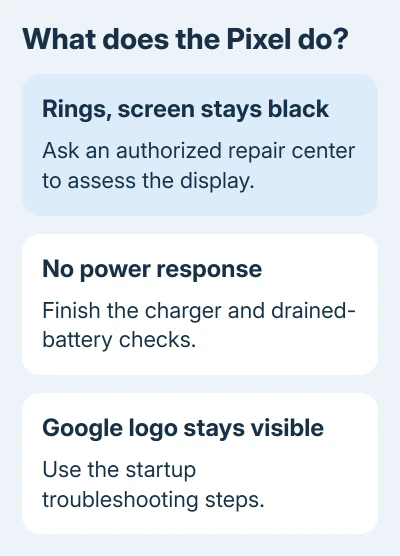
Ringing with a blank screen points toward a display problem. No response needs charging checks too, especially if the battery was empty for a long time. Keep your data on the phone while you check which problem you're dealing with.
In this guide
1. Charge through a working cable and wall adapter
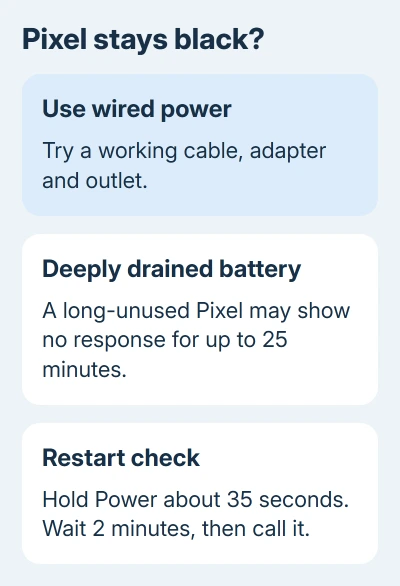
Remove the case if it interferes with the charging plug or presses a button. Connect the Pixel directly to a working wall charger and cable. Wired charging makes this check simpler than trying to line up the phone on a wireless pad.
Test the outlet with another device, such as a lamp. Check that the cable is firmly seated at both ends, then compare a different compatible adapter and cable. A charging symbol on another phone only checks that particular combination.
Google's Pixel power troubleshooting recommends a USB Power Delivery adapter rated 15 W or more, or a suitable programmable power supply (PPS) adapter rated 30 W or more. Speed depends on the Pixel model.
Look for lint or damage inside the USB-C port. If the plug won't fit normally, have the port checked; don't force it. Check charging before changing software settings if you notice liquid, damage or a blocked connector.
A battery icon after a minute means the Pixel is off but charging. For a very low battery, allow at least 10 more minutes on the charger during the remaining checks. The display can remain dark initially.
A Pixel left unused with a fully depleted battery may remain dark and silent for up to 25 minutes on wired power. Allow that interval before judging its response to a working charger.
2. Restart, wait, then call the phone
With the phone charged or still connected to power, press Power continuously for roughly 35 seconds. The blank-screen restart needs this long hold, so keep pressing instead of letting go after a few seconds.
Wait about two minutes, then call the Pixel from another phone. Listen for its ringtone and check for a vibration or any image. Look closely at the screen too, because an extremely dim image can be hard to notice.
If it rings but the display stays black, ask a local authorized repair center to check the screen. Tell them the phone receives calls after a restart. That tells them the phone is running even though you can't see anything.
Silence alone doesn't settle the question. The phone may be muted, offline or unable to receive that call. Combine the call result with the charging behavior and any vibration or logo you noticed during the restart.
If the display comes back, unlock the phone and check whether it stays on during ordinary use. I'd make a backup before spending time adjusting settings, particularly if the blackout has already happened more than once.
For normal restart controls after the screen returns, use the Pixel restart guide. The everyday power menu differs between older models and newer Pixels; this long Power hold applies to the blank-screen check.
3. Handle a visible startup screen differently
A Google logo that stays on screen means the display is producing an image. That is a startup problem, so use the Pixel stuck on the Google screen steps instead of following the dead-display branch.
If the phone shows an Android robot with Start, don't select unfamiliar recovery options. The screen troubleshooting instructions say to press Volume down until Power off appears, and confirm that selection with Power.
After that shutdown, give the battery at least 30 minutes on the charger. Then hold Power for a few seconds to turn it on. If the screen returns, use its normal Restart option to check that the next startup completes.
Don't use this menu to unlock the bootloader or reinstall the phone's system software. A visible service menu gives you a way to power off safely; it doesn't tell you the system is damaged or that erasing the phone will fix it.
4. Check recurring trouble after the display returns
When the display returns, check Android's update controls in Settings. Menu wording can vary by Android version: look under System for Software updates or System update, then follow the update prompt.
Notice when the blackout happens. A problem that appears only in one app deserves that app's update and support checks. If the display goes black on the Home screen, during calls and in Settings, have the phone itself checked.
Charging diagnostics are available on Pixel 6 and later, including Pixel Fold devices. They check issues such as temperature, liquid, debris or an incompatible charger and suggest next steps.
Use Settings search for Charging diagnostics if the Battery menu wording differs on your version. This check requires a usable screen, so it belongs after the display returns, rather than as an instruction for a phone that remains black.
Tell support if disconnecting wired power repeatedly shuts the phone down. Record the adapter model and any charging warnings too. The adapter details and warnings help support check for power trouble behind the black screen.
5. Protect the data before deciding on repair or reset
A factory reset erases the phone. It isn't the first choice when the device rings with a dead display, because a screen fault can remain while the stored files are removed. Ask for display and power checks before agreeing to erase it.
Use Google Store repair support or an authorized Pixel repair center if charging and restarting don't restore a response. Provide the model, any liquid or damage history, and what each check changed.
Ask whether the repair process will erase data, what backup is needed and whether warranty coverage applies. If the screen returns even briefly, use that chance to preserve important information before handing the device over.
The Short Version
Check wired power and give a deeply discharged Pixel time to charge. Keep Power held around 35 seconds, wait two minutes, then call the phone. A ringtone with no picture calls for display service; a visible stuck logo needs startup checks.
Checked November 15, 2026.
 If you have any business, I can build it online






