A second iCloud email account can share iPhone Mail with your current inbox. Add it through Mail Accounts, keeping the phone's main Apple Account signed in. Both inboxes will then be available in Mail.
Decide what you need from the second account. Mail setup adds email access; the phone won't gain another complete iCloud Photos library or another device backup account.
In this guide
Add the second account through Mail settings
Keep the existing account signed in. Apple says to add additional inboxes through Mail's account settings, separate from the main account shown under your name.
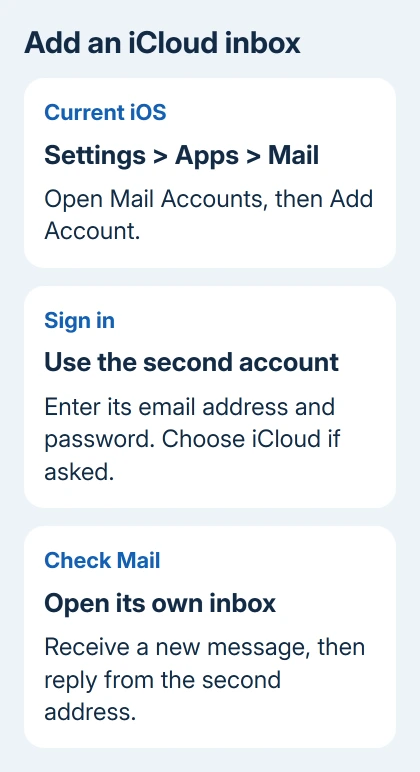
On current iOS, including iOS 18 and later, open Settings > Apps > Mail > Mail Accounts > Add Account. Enter the second account's email address, then follow the sign-in prompts. Choose iCloud if a provider list appears.
On iOS 17 and earlier, open Settings > Mail > Accounts > Add Account, then choose iCloud. The Apps section isn't part of that older route. Both routes add the mailbox through Mail settings.
Enter the second account's password, not the password for the phone's existing account. Follow any verification prompts using that account's trusted device or phone number. Tap Next or Save if the setup screen offers it.
Keep Mail on when choosing which account services to use. Check any other services offered before turning them on. For an email-only setup, don't turn on additional contact or calendar syncing just because the option is available.
Once verification finishes, the account should appear in the account list. Open Mail and check Mailboxes for its inbox. The Settings entry confirms the account was added; its messages confirm that Mail can reach the mailbox.
Check the new inbox separately
Open the second account's inbox instead of checking All Inboxes. That combined view mixes accounts, so an older message from your first address can look like the second account connected successfully.
Send a short message to the second address from a different account. Pull down in its inbox to refresh, then open the message when it arrives. This checks incoming mail without changing any of the phone's main account settings.
Next, reply to that message and confirm it reaches the other address. Receiving and sending are separate checks. An inbox can still show old downloaded messages even when you can't sign in again or send a new message.
For an empty inbox, confirm the address used during setup. An Apple Account can have a different sign-in address from its iCloud Mail address. Adding it needs an existing iCloud mailbox; it won't copy another account's mail.
I'd test sending and receiving before changing the default sender. Once both work, any remaining confusion is about which address Mail chooses, rather than whether the second account connected.
Choose which address a message comes from
Start a new email and check the From address before sending. Tap the address fields if necessary to reveal From, then tap that field and choose the second account. The recipient will see the address selected there.
Replying within an existing conversation and starting a new message aren't the same test. Check your choice of sending account in a new message, and make sure the selected address is the one you intended.
For a default sender, open Settings > Apps > Mail and look for Default Account when you've added more than one mail account. On an older iPhone, start at Settings > Mail instead. Pick the mailbox you want for new messages.
Default Mail App is a different setting. It chooses the email app used for mail links, such as Mail or another installed app. It doesn't choose between two iCloud addresses inside Mail.
Separate signatures can help prevent mistakes when both addresses are active. In Mail settings, open Signature and choose Per Account if offered. Keep a personal signature on one address and a different one on the other.
Keep the main iCloud account separate
The account shown under your name in Settings controls the phone's main Apple services. Adding an inbox keeps that account signed in. Leave its Sign Out control alone when adding another email address.
A MacBook uses different account controls for purchases, email, and private desktops, so choose the matching route when setting up both devices.
That matters especially when the phone already syncs photos, passwords, or device information. Changing the main account is a much larger job than adding email, and it can bring prompts about keeping or removing existing data.
For a second photo library, don't expect another Mail account to add it to Photos. Check which account holds the pictures and use the appropriate iCloud photo access route instead of changing accounts by trial and error.
The main account also matters when you're setting up another device. Syncing an iPhone and iPad depends on the main iCloud account and the services enabled on each device, rather than the number of inboxes in Mail.
An email alias is different again. It gives an existing mailbox another address; it isn't another independent Apple Account. Decide whether you need a separate inbox or simply another sending address before creating more accounts.
Fix a sign-in or missing-mail problem
If verification stops setup, use the second account's recovery options or trusted number. Repeatedly entering the first account's password won't help, even when that account works perfectly elsewhere on the phone.
If setup finished but Mail doesn't show the account, return to Mail Accounts and open its entry. Check the mail switch offered there. An account can remain saved while email access is turned off.
For messages delayed until Mail opens, inspect Mail Accounts > Fetch New Data. Accounts without Push use a fetch schedule. The Automatically fetch option downloads new data when the iPhone has both charging power and a Wi-Fi connection.
Choose an available timed schedule if those conditions don't suit your use. A delayed fetch isn't the same as a rejected password, so check whether pulling down to refresh the inbox brings in new messages before changing the schedule.
If the second account still won't verify, contact Apple Support about adding that specific iCloud Mail account to iPhone Mail. Give them the iOS version and the exact message at sign-in, without sharing the password or verification code.
The Short Version
Add the second address through Mail Accounts and test receiving and sending. Choose From when composing. Keep the main Apple Account signed in unless the goal is to move the entire phone to a different account.
Checked November 15, 2026.