

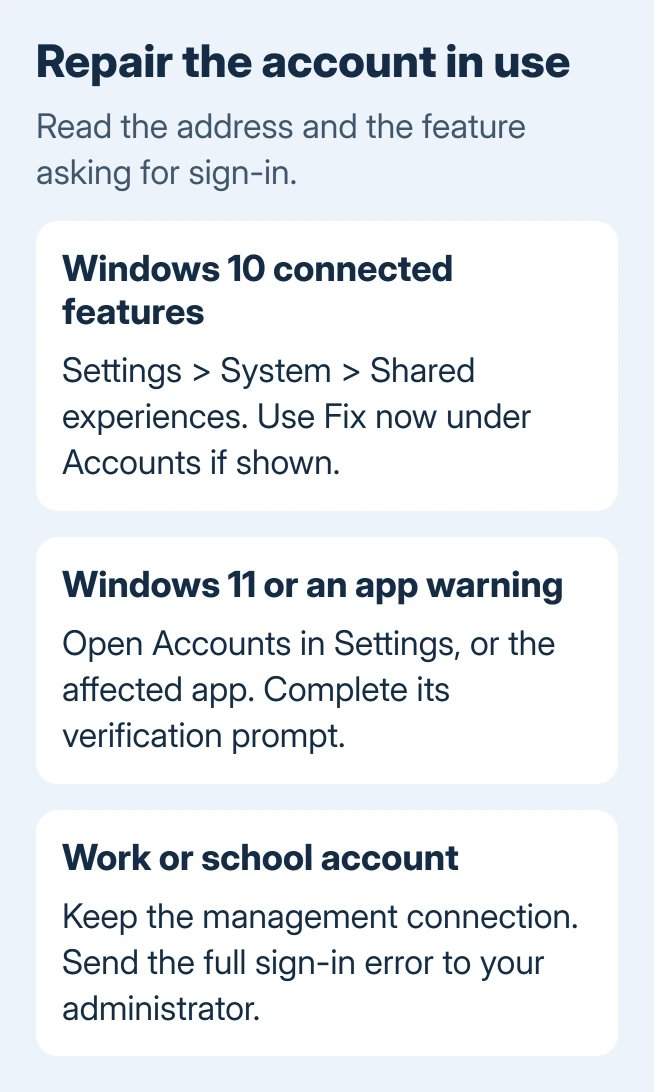
The Microsoft account problem notification can appear when a connected Windows feature needs you to verify your account again. On Windows 10, check Settings > System > Shared experiences, then Fix now under Accounts.
For a Windows 11 warning, follow the account prompt in Settings. Its screen can differ from the older Shared experiences page.
The warning doesn't by itself mean your password was changed or your account was stolen. Check which account and feature need attention before changing passwords or removing accounts from the PC.
In this guide
1. Open Settings and identify the affected account
Press Windows+I to open Settings yourself. This gives you a known place to check the warning, rather than following a link in an email or a browser page that resembles a Windows alert.
On Windows 10, go to System > Shared experiences and inspect Accounts. If Fix now appears, select it and complete the verification prompt. Enter the sign-in details or complete the verification it requests for the account shown there.
Microsoft says to use Fix now under Accounts in its Phone Link troubleshooting instructions. This repairs the account's connection instead of just hiding the alert.
Read the address in the prompt carefully. A PC can have one account for Windows sign-in and another for mail or an app. Signing in with a different address won't repair the connection that triggered the warning.
If the prompt completes, return to the affected feature and try it again. A notification that remains in notification history isn't the same as a fresh warning appearing after the repair. Check the next actual sign-in or sync attempt.
2. Use the account controls available in Windows 11
Windows 11 may lack the old Shared experiences page. Open Settings > Accounts and use any verification action shown with the affected account. A Windows 10-only menu path won't fit every current PC.
For an app-connected account, open Accounts > Your accounts. Older Windows 11 builds call this Email & accounts. The rename began rolling out with the October 2025 preview update.
For an organization-managed connection, check Accounts > Access work or school. That's a separate connection, even when the address looks like a personal account.
Choose the account with the warning and check its available actions. Complete any verification prompt, then reopen the failing app. Check the options, but don't choose Remove.
If only one app needs attention, continue with that app's sign-in controls. An Outlook banner or OneDrive notification isn't automatically the old Shared experiences problem, and its repair shouldn't start by changing Windows account types.
The Microsoft account creation guide explains the distinction between an existing personal Microsoft account and another email address. Creating another account isn't a repair for an existing account that needs verification.
3. Use the current password when verification asks for it
A Windows PIN and a Microsoft account password are different credentials. A PIN can still unlock this PC while an online account connection needs its password again. Check what it asks for: a password, PIN, or code.
A verification window stuck on 0x80860010 and repeated requests needs a browser comparison before choosing an app-preserving Windows repair.
If you recently changed the Microsoft account password, use the new password in the affected app or account prompt. Don't keep trying the old one because Windows still accepts your usual PIN at the lock screen.
For a forgotten password, use the sign-in prompt's recovery options. Receive its code through a recovery phone or address you still control. Repeated guesses won't restore access to a lost recovery method.
I'd finish this verification before removing a saved account. The app keeps its setup, and you can check whether a fresh sign-in clears the warning.
If the verification itself fails, copy the full error message and account address. A generic account warning and a specific sign-in error need different help, so keep the second message for the next step.
4. Repair an app connection when Windows sign-in works
Open the app that can't sync or sign in. For OneDrive, inspect its notification-area icon and sign-in request. For Outlook, follow its own account warning rather than changing an unrelated Windows account.
If Phone Link is affected, check the account in Phone Link > Settings and in the Android Link to Windows app. They need to use the same Microsoft account for the connection described in the support instructions.
Android manufacturers can use different app layouts. Open Link to Windows itself to check its account, updates and sign-in controls. Changing the phone's Google account won't fix this Microsoft account connection.
Retry the failed action after correcting the connection, such as opening a synced item. If another app still requests credentials, check its account separately. Signing in successfully to one service doesn't necessarily update the others.
If a sign-in button does nothing rather than rejecting credentials, the unresponsive account-switching checks address that different symptom. A password reset doesn't fix a button that never opens its sign-in window.
5. Keep work or school accounts under their own support
Work access can require a new password, more verification, or a device that meets your organization's rules. Identify the organization in Settings > Accounts > Access work or school and report its error to your administrator.
Don't disconnect an organization account as a trial fix. It can be used for device management and work access, and reconnecting it can require the organization's help. Use the available sign-in or account-repair request first.
Tell IT whether Windows sign-in, Office, email or only one connected feature fails. Include when it began and any earlier password change or verification request. They can check the account's access requirements.
Silencing notifications can leave sync broken. Adjust alerts after the account works if you want fewer of them. A verification request that repeatedly fails still needs account repair.
Take a persistent failure to the right support route
For a personal account, use the failed prompt's help options or Microsoft account support. Include the error, affected address, Windows version and app that isn't working. Don't share a password or verification code with support.
If account recovery is required, use the Microsoft account recovery instructions before making a replacement account. An organization's administrator handles sign-in failures for its company or school addresses.
The Short Version
Verify the account named by Settings. Windows 10 may offer Fix now in Shared experiences; Windows 11 can show another account prompt. Use the credential requested, then handle app-only or organization failures separately.
Checked November 15, 2026.






