

Files can be copied between OneDrive accounts, but the accounts and their storage don't merge. For transfers between personal and work storage, connect both accounts to the desktop app, then copy and paste between their folders.
Two personal accounts need a different route because the desktop app accepts one personal account at a time. Download from the first account in a browser, then upload to the second. Keep originals until the destination copies open.
In this guide
Choose the route for your two accounts
Check the email address for each account before moving anything. A private Microsoft login can resemble an employer's Microsoft 365 login, but they hold separate files and have separate storage allowances.
If Samsung keeps restoring the wrong mobile account, disconnect its OneDrive account link before choosing the transfer destination.
Microsoft's account transfer instructions recommend copying and pasting through File Explorer or Finder when both accounts are set up. That leaves the originals available while the copies upload.
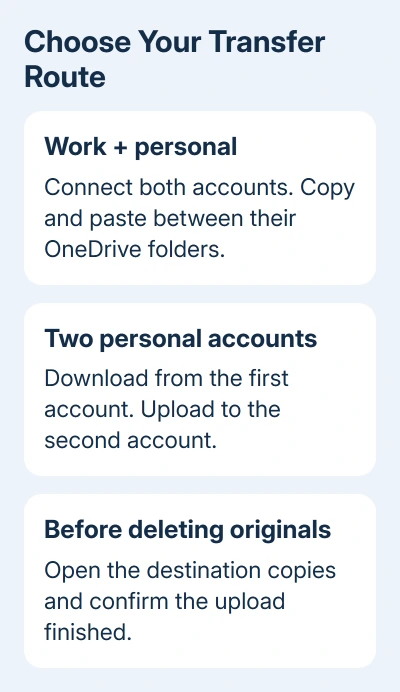
For two personal accounts, use the browser route later in this article. Trying to add the second personal account to the desktop app won't remove its one-personal-account limit.
Compare the destination's free storage with the size of the folders you're keeping. Extra storage on the source account doesn't follow the files to their new home. A transfer that exceeds the destination allowance won't finish uploading.
For work or school files, copy only material you're allowed to retain. Ask the organization before taking shared business documents or confidential files into a personal account, especially when leaving a job or school.
Connect both account types to the desktop app
In Windows 11 or 10, click the taskbar's OneDrive cloud icon. Open Help & Settings > Settings > Account > Add an account, then sign in to the account that's missing.
On macOS, click the menu bar's OneDrive cloud icon. Open its menu, choose Preferences, then Account > Add an account. Follow the sign-in prompts for that account and finish choosing its local folder.
The desktop app lets you add work or school accounts alongside one personal account. After setup, look in File Explorer or Finder for the separate OneDrive locations. Open each one and check which account it belongs to.
Don't judge the account by a familiar folder name such as Documents. Both accounts can contain a Documents folder. Use the account information in OneDrive's settings to confirm which location is the source and which is the destination.
If the account won't connect, stop at the sign-in error. A blocked organizational account needs the organization's IT team. Repeatedly creating new folders won't give the desktop app permission to access that account.
Copy a small folder before the full collection
Open the source OneDrive folder in Explorer or Finder. Pick a small folder with a few ordinary documents first. I'd check that those files arrive safely before copying a whole school or work archive.
- Select the source folder and choose Copy. In Windows, Ctrl+C does this; on Mac, use Command+C.
- Open the destination OneDrive folder. Give the copied collection its own clearly named destination folder if needed.
- Choose Paste, or press Ctrl+V in Windows or Command+V on Mac.
- Open the destination OneDrive cloud menu and let its upload activity finish.
Copying is safer than dragging between similar folder windows because a misplaced drop is easier to miss. A folder appearing locally is only the start: its contents still need to reach the destination's online storage.
Online-only source files need to download as part of this work. Leave the internet connection available and allow enough local storage for the files being copied. A network interruption can leave the transfer unfinished.
Once the small folder has uploaded, open a few destination documents. Then continue with the remaining folders in groups you can recognize. This makes a failed folder easier to retry without starting the entire collection again.
Use download and upload for two personal accounts
Sign in to the source account on the OneDrive website. Check the account shown there before selecting files. Select what you want to keep, then use Download to save a local copy.
A folder download can arrive as a ZIP archive. Extract it before uploading if you want the destination to contain the original folder and individual documents. Uploading the ZIP itself stores an archive rather than rebuilding its contents.
Sign out, then sign in using the destination login and confirm its address. Open the destination folder and select Upload. Choose the saved files in the file picker, then click Open.
Chrome and Edge also offer Folder under the Upload menu for uploading a whole folder. Choose the extracted folder for that route rather than its ZIP archive.
Leave the upload running until it finishes. For a large collection, work in smaller groups that fit your available local storage and are easy to check afterward.
OneNote notebooks can't be downloaded with ordinary files. A folder ZIP containing a notebook can include an error text file instead. Arrange the notebook's separate transfer before closing the source account.
Check the copies and rebuild sharing
Open the destination account on the web and check the transferred folders. Open a few documents there, including some in folders within other folders. That checks the uploaded copies rather than the local originals still on your computer.
Transferred work or school files are treated as new files in personal OneDrive. Details such as Date created and Modified By don't carry over in the same way. Existing shared files also need to be shared again from the destination.
Send new sharing links only after checking the copies. An old link still points at the old account's file. Keeping the same filename in the new account doesn't redirect people who already received the original link.
If moving the same account's local folder to another disk was the actual goal, use the OneDrive folder relocation steps instead. That changes the disk location without copying into a different account.
If a transfer stays in the queue, check the error shown by the destination cloud icon. If syncing stays stuck, the OneDrive sync checks help you work out what's stopping the upload.
Ask the organization's IT team about denied work files. For a personal account upload failure, open Contact Microsoft Support from the transfer help page and give the error, file type, and account type.
The Short Version
Copy and paste between synced OneDrive folders for work or school and personal accounts. For two personal accounts, download from one website account and upload to the other. Check the destination online before deleting originals.
Checked November 16, 2026.






