

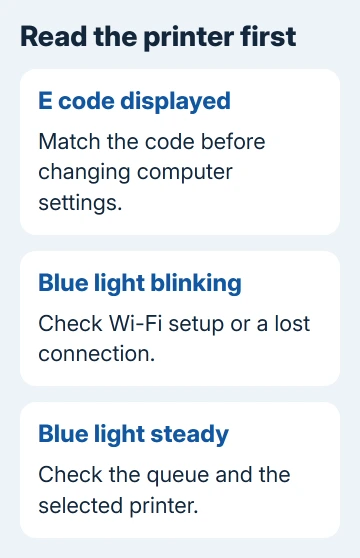
A disconnected HP DeskJet 2855e needs its Wi-Fi restored; an E code means you need to clear that error first. Check the display and blue light: steady blue means connected, while blinking can mean setup mode or disconnection.
If paper comes out blank or unreadable, the checks are different from those for a job that never starts. Print the printer's own information page to see which path fits, then work through the matching repairs.
In this guide
1. Read the display and clear the error it names
Look for an E followed by a number on the small control-panel display. Write it down before pressing buttons. The 2855e belongs to the DeskJet 2800e family, so use that family's controls rather than an OfficeJet touchscreen procedure.
E1 and E2 point to paper-size or paper-length mismatches. Check the loaded paper against the document's Print settings. Select the actual size, such as Letter or A4, instead of leaving a photo-paper size from an earlier job.
E3 means the cartridge carriage is stalled, and E4 identifies a paper jam. Follow the model's jam-clearing instructions for the affected area. Don't pull the carriage across the printer by force.
The guide lists E5 for scanner failure and E6 for a general printer error. For those codes, switch off the printer, then start it again. If the same code returns, keep it for the service request rather than repeatedly clearing the queue.
An E0 or ink alert needs the cartridge message in the HP software. Read that message before buying ink. A warning about an unusable cartridge differs from an empty cartridge estimate.
2. Print an information page without the computer
Load plain paper and press the printer's Information button, marked with an i. It prints a summary of printer settings and status. The printer creates that page itself, so it can print even when the computer's queue isn't working.
If the information page prints clearly, paper handling and ink delivery are working. Read its connection information and keep it beside you for the next step. A computer job that still fails needs the connection or queue checked.
If paper feeds but the page is blank or incomplete, skip to the cartridge checks. Reconnecting Wi-Fi won't put ink onto an internally generated page that already came out blank.
For another local check, set an original on the glass, then press Black and White Copy or Color Copy. If the information page looks good but the copy doesn't, check how you placed the original and whether the scanner is working.
I'd use the information page as the main comparison. It checks printing without adding the scanner or the computer to the job, and it gives you useful details for support if the repair doesn't hold.
3. Restore the wireless connection when blue isn't steady
HP says a solid blue wireless light means the printer is connected. A blinking light can mean the printer is disconnected or waiting for setup. The light alone doesn't confirm that it joined the same network as your computer.
For a dropped connection, restart the printer and let it reconnect. Compare the network on its information page with your computer's Wi-Fi choice. Use a home network that lets your devices communicate with each other.
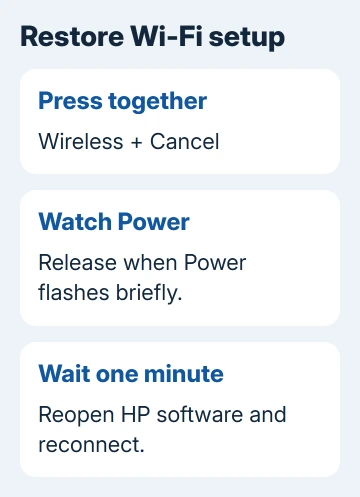
If it doesn't reconnect, restore Wi-Fi setup mode. On the 2800e controls, press Wireless and Cancel together, watch for the Power button to flash briefly, then release. The wireless light should blink blue.
Wait one minute, close and reopen the HP setup software, then add or reconnect the printer. Follow the prompts for your intended Wi-Fi network. This clears the saved wireless setup, so have the current network password ready.
The HP wireless setup guide compares other HP families. Keep the 2800e instructions for this printer; button timings and touchscreen menus from other models aren't interchangeable.
For mobile setup, enable the Bluetooth and location services requested by the HP software so it can discover the printer. During computer setup, a VPN can block local discovery; pause it on your trusted home network if needed.
4. Fix the computer queue when the local page works
In your document, choose Print and select the installed DeskJet 2800-series entry for your 2855e. Check whether several copies of that entry exist. An old USB queue won't become a working wireless queue just because the names look alike.
In Windows 11, open Settings > Bluetooth & devices > Printers & scanners. Choose the HP and open its queue. In Windows 10, use Settings > Devices > Printers & scanners to reach the same printer choices.
Cancel failed and duplicate jobs, resume a paused queue and send a fresh one-page document. If it still reports Offline, follow the Windows Offline repairs while keeping the information page's working connection details.
The Windows printer repair instructions also cover removing and reinstalling a printer when the existing installation won't work.
For macOS Ventura or newer, find the HP under System Settings > Printers & Scanners and open its queue. On Monterey and earlier, use System Preferences > Printers & Scanners. Resume or cancel the stalled job there.
For USB use, the 2800e reference guide says to complete the first setup with HP software and an internet connection. USB printing can be used afterward. Check the cable and selected USB queue if that is how you normally print.
5. Check cartridges when internal output is missing
Open the ink access door and wait for cartridge movement to stop. Check that both cartridges are installed securely. For a new cartridge, remove its protective tape before inserting it into the matching slot until it clicks.
Do not touch the contacts beneath the tape. Close the access door after reseating the cartridges, then repeat the information-page check. If the ink alert stays on, read the specific cartridge message in the HP software.
Use that software's print-quality tools when the page has missing text, faded areas or streaks. Follow its cleaning and report prompts for the detected 2800-series printer rather than searching for a Tools menu on the 2855e's small display.
Keep the before-and-after pages. If output improves, stop once the report is usable; if a cartridge remains unrecognized, cleaning ink nozzles won't resolve the recognition message.
For a persistent E code, failed paper feed or blank pages from the printer itself after cartridge maintenance, contact HP support for the DeskJet 2855e. Give the serial number, display code, wireless-light state and information-page result.
Ask for a cartridge or hardware warranty check based on that result. If internal pages print well but every device fails to connect, ask support to check setup and network access instead of replacing working cartridges.
The Short Version
Clear the displayed E code, print an information page and read the wireless light. Reconnect a disconnected printer, repair the computer queue when local printing works, and check cartridges when the printer's own output is missing.
Checked November 16, 2026.
 If you have any business, I can build it online






