

The HP OfficeJet 3830 can stop printing because jobs can't reach it or the cartridges aren't putting ink on the page. Try a copy from the glass: clear output points to the computer or connection; a blank page needs ink checks.
When the screen shows a jam, cartridge error or open door, clear that message first. Cleaning cartridges won't help a document that's still waiting in a disconnected computer queue.
In this guide
1. Try copying the same kind of content
Put Letter or A4 sheets in the tray. Position the original against the marked scanner corner, with its printed side against the glass. Close the lid. From Home, tap Copy and select a black or color copy.
Use an original with dark text and a little color if both are missing from your printouts. Watch whether paper feeds, whether the page has marks, and whether black and color are both present.
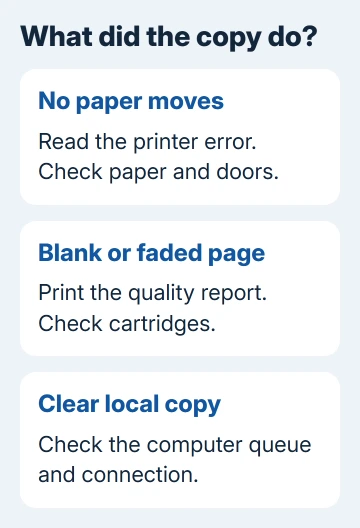
A complete copy confirms working paper feed and ink delivery. Move to the computer queue and connection. If paper feeds but the copy stays blank, go to the cartridge checks, even when the ink display looks full.
If no paper moves, read the screen for the reason. Load a small, straight stack, adjust the guides without bending the paper and close the access doors. Follow the displayed jam instructions if it reports one.
I'd keep that first copy beside the failed document. Comparing those two pages helps you avoid changing unrelated settings and gives support a clear picture of what's wrong.
2. Send a fresh job to the correct OfficeJet queue
Bring up Print in the document, then choose HP OfficeJet 3830. Check for several similarly named entries, especially after changing between USB and Wi-Fi. A job sent to an old entry can wait while the printer sits ready.
In Windows 11, go to Settings > Bluetooth & devices > Printers & scanners, select the OfficeJet and open its print queue. In Windows 10, start at Settings > Devices > Printers & scanners.
Remove the failed document and unwanted duplicate jobs. If the queue is paused, resume it. The Windows printer Offline guide covers the computer-side status controls when the printer itself is ready.
For Ventura or newer macOS, use System Settings > Printers & Scanners, select the OfficeJet and open its queue. For Monterey and older releases, find printers through System Preferences instead.
Resume a paused Mac queue or cancel its stalled document, then print a one-page file. Apple's Mac printing checks also cover jobs sent to a different printer.
If the new page prints, reopen the original document and try a single page from it. If just one app or file fails, focus on that app or file instead of replacing another cartridge.
3. Repair the 3830 connection
For wireless printing, touch Wireless on the 3830, then Settings > Print Reports > Wireless Test Report. Read the result and network details. This report checks the connection without using the computer's queue.
If the report names the wrong network or shows no connection, open Wireless > Settings > Wireless Setup Wizard. Choose your router's network and enter its current password. This matters when a new router or Wi-Fi password breaks printing.
Choose that home network on the computer as well. Guest networks can prevent devices from reaching one another. If the router uses separate network names, compare the printer report with the computer's selected connection.
For further setup trouble, the HP wireless connection checks explain how to use a failed report. Keep the 3830's touchscreen route rather than holding buttons meant for a different DeskJet model.
For a USB job, unplug and reseat the cable plugs. Bypass the hub by using a port directly on the computer. Check that the selected queue is the USB connection. Then send one page through that entry.
If local copies work and the connection report passes but computer jobs still fail, remove and add the printer through the operating system's printer settings. Keep the working connection details so the new entry uses the same printer.
4. Read the quality report before buying ink
When pages feed but print blank, faint or with a missing color, load plain paper and open Setup > Tools > Print Quality Report on the printer. Examine the black text and color areas for missing or broken output.
The 3830's ink icons show estimates. A cartridge can contain ink yet fail to deliver it, so compare the printed report with the display rather than assuming a full icon rules out the cartridge.
Open the access door with the printer on and wait for the carriage to stop. Check both cartridges sit in their slots and any protective plastic tape was removed during installation. The tri-color cartridge sits left; black sits right.
Do not touch the copper contacts or ink nozzles while checking a cartridge. Remove only its shipping tape, reseat it in the matching slot and close the door before printing another report.
If the report looks complete but a computer document loses color, check that job's grayscale or black-only setting. Choose color for a color document and match the selected paper type to the paper loaded.
5. Clean failed cartridges and decide what to replace
For defects on the printer's own report, load plain paper and open Setup > Tools > Clean Cartridges. Let the process finish and follow the screen's instructions. Compare the new output with your earlier report.
HP recommends this cleaning procedure in the OfficeJet 3830 manual. It avoids relying on an old computer utility whose menus may differ from the software currently installed.
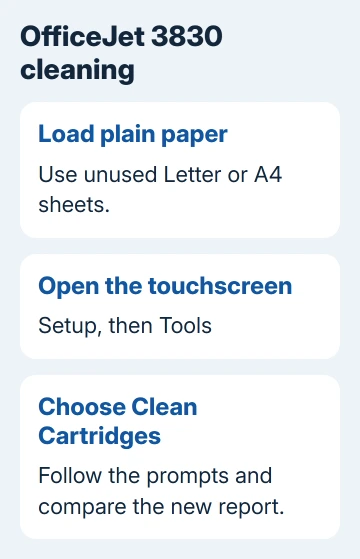
If the black section returns or the color areas print completely, ink is flowing again. Stop when the report is good. If the screen offers another cleaning stage for a poor result, follow that prompt instead of endlessly restarting cycles.
If one cartridge still produces no usable output after cleaning and reseating, ask HP support about replacing that cartridge and checking its warranty. Keep the report and the cartridge details to help them work out which cartridge failed.
If cleaning and cartridge replacement don't restore local printing, ask HP to check for a hardware fault. Give support the serial number, screen message and whether copies and internal reports show the same defect.
The Short Version
Try the 3830's Copy control first. Good copies lead to the queue and connection; blank or incomplete printer reports lead to cartridge seating and Clean Cartridges. Keep the failed report when arranging cartridge or printer service.
Checked November 16, 2026.
 If you have any business, I can build it online






