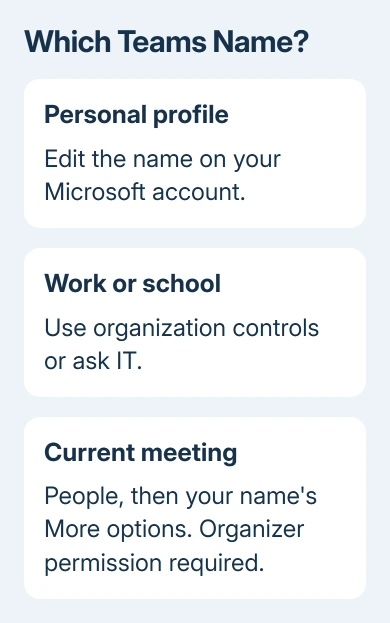
The way to change your Microsoft Teams name depends on which account you're using. Personal Teams uses your Microsoft account name; a work or school name may need IT to change it. Meeting-only names have a separate control.
For personal desktop Teams, open the profile picture and choose My Microsoft account, then Your info > Edit name. For a temporary meeting label, use People > Edit display name when the organizer allows it.
In this guide
Choose a permanent name or a meeting-only label
Your profile name appears across the services that use that account. A meeting display name is the label other attendees see during that meeting. Changing a label for one call doesn't necessarily correct your account profile.
Check the email address and organization in Teams' profile menu. One device can have both personal and workplace Teams accounts signed in. Editing your personal account won't change a name controlled by your employer's account directory.
I'd check that account menu before signing out or clearing app data. The wrong account is a simpler explanation when a saved name change appears in one Teams profile but leaves another unchanged.
The Windows account-name guide explains the related Microsoft account distinction.
Renaming a local Windows account won't rename a separate Teams identity, even when both appear on the same PC.
Update a personal name from desktop Teams
In Teams for personal use, select your profile picture near the top. Under your name, choose My Microsoft account. The account page opens in a browser, where you can check which email address is signed in.
Select Your info, then Edit name. Enter the name you want, complete the verification challenge if shown, and choose Save. Check that the account page now displays the new name.
Microsoft explains this desktop account route in its personal Teams profile instructions.
Changing a profile picture uses a different control inside Teams; it won't rename the account.
The name belongs to your Microsoft account, so expect the change to reach other services displaying that Microsoft identity. This isn't a separate nickname saved only for your Teams chats.
Return to Teams after saving. If it still displays the old name, check the account address again and allow time for the change to spread. Allow as long as 24 hours for the account name to reach every service.
These account settings apply whether you use Teams on Windows or Mac. Both use the signed-in account's name. Using another device doesn't give you a separate personal profile name.
Change a personal name in the phone app
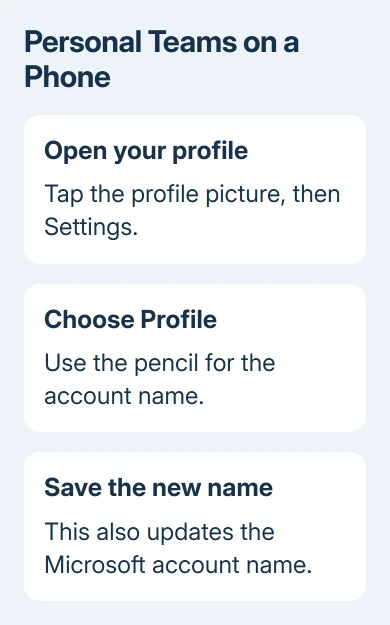
In the iPhone or Android version of personal Teams, tap your profile picture, then Settings > Profile. Use the pencil control for the account name, replace the name, then save your edit.
Keep the name edit separate from Edit image. The image controls are for taking, choosing, viewing, or removing a profile photo. They don't change the text other people see as your name.
The phone edit updates your Microsoft account name too. Before saving, check that you're editing the personal account you intend to use.
A phone with several signed-in Teams accounts can show a different profile after switching organizations.
After saving, reopen the profile to check the spelling. If the phone shows the new name but desktop Teams doesn't yet, compare their account addresses before repeating the edit on both devices.
Avoid changing the name several times while waiting for the first update. Keep one intended spelling and check again after the account update has had time to reach the other app.
Correct a work or school account name
Your organization can control your displayed name through its account directory. Open your work or school account's profile information and check whether name editing is offered.
Some organizations let users make changes; others reserve them for administrators.
If you can't edit the name there, ask your IT team to update your display name. Give them your account's sign-in address and the exact spelling you want. Mention whether the error appears in Teams, Outlook, or both.
For a legal-name change, ask whether they also need to update related directory fields. The display name and the sign-in address are separate details. Changing one doesn't mean the other automatically changes to match it.
The account-name instructions give updates a window of up to 24 hours and explain the organization restriction.
A work account without an edit control isn't fixed through a personal Microsoft account page.
Once IT confirms the correction, check the profile of the same work account in Teams. If it remains wrong after the update period, send IT a screenshot of the incorrect name and the organization selected, with sensitive information hidden.
Ask them to check the directory record supplying that Teams account. Clearing files or reinstalling Teams before the directory name changes won't correct the original account information.
Edit the name for the current meeting
In a Teams meeting on a computer, select People in the meeting controls. In the Participants pane, point to your own name and open More options > Edit display name. Enter the meeting label and choose Save.
This control requires the organizer to enable Let people edit their display name in meeting options. If Edit display name isn't offered, ask the organizer whether that option is allowed for the meeting.
The edited name lasts only for that meeting. Use it for something temporary, such as adding a pronunciation aid or the role you're filling in the call, rather than expecting it to rename your company account.
For a guest joining without a Teams account, the joining screen can ask for a name when the organizer allows that kind of access. Enter the intended name before joining. Some meetings require account sign-in instead.
The Teams meeting entry guide covers that guest route.
Joining as a guest to type a different name also changes what you can access in the meeting. Use your work account when the meeting requires it.
When the old name keeps returning
Check whether the old text appears in your profile, the current meeting, or an older conversation. Compare the same signed-in account after the update period, rather than using a different profile as the test.
For a personal account, use Microsoft account support if the saved account page itself won't accept the correction. Give support the error and whether the problem occurs while saving or only when Teams displays the result.
For a work account, tell IT the corrected directory name and what Teams still shows incorrectly. For a missing meeting-only edit, the organizer is the first person who can check the meeting option.
The Short Version
Edit the Microsoft account name for personal Teams, use your organization's account controls or IT for a work name, and use People > Edit display name for a permitted meeting-only change.
Check the account address and give profile updates as long as 24 hours.
Checked November 16, 2026.