

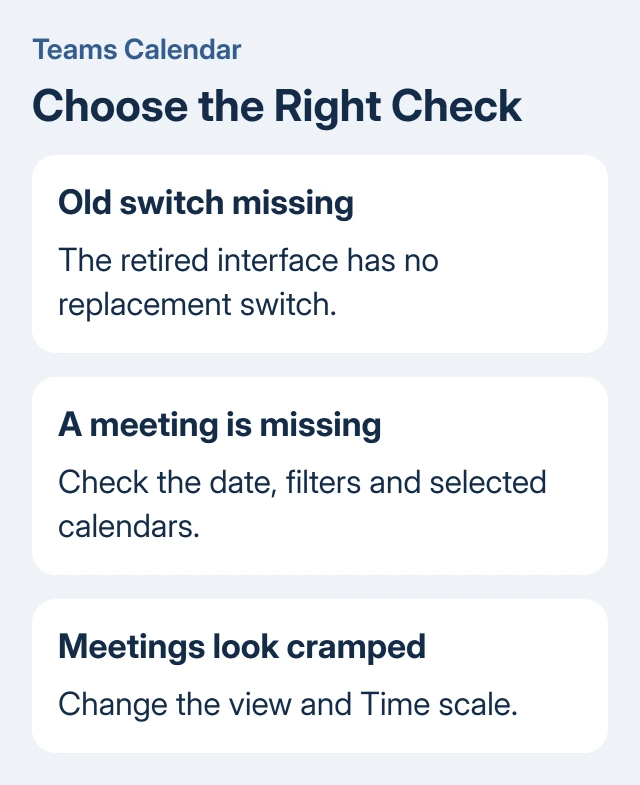
The old Teams calendar switch was removed for organizations receiving the new calendar. There isn't a replacement setting to turn it back on. Use the new calendar's view, time-scale, and filter controls to make your schedule easier to read.
A changed layout is different from missing meetings. If events have disappeared, check the selected account, date, calendars, and filters before recreating anything. You might find the missing events without sending duplicate invitations.
In this guide
Why the old calendar switch disappeared
Microsoft replaced the legacy calendar with the calendar experience shared across its newer scheduling apps. The switch between the two interfaces was removed as part of that change, rather than moved to a different settings page.
The worldwide rollout ran from mid-January through late February 2026. Its February announcement excluded GCC, GCCH, DoD, USSec, and USNat organizations from that schedule, so government accounts shouldn't assume the same dates apply.
Administrators didn't have to enable the replacement. Reinstalling Teams or clearing its cache can't bring back the organization's retired switch. Work with the controls in the calendar your account now receives.
These controls apply to the new work or school calendar. Personal Teams and older layouts used by some organizations can look different. If a label is missing, give IT your account type and app version to check the available layout.
Choose the days you actually need to see
Open Calendar in Teams. At the top, select the current calendar view, such as Work week. Choose the view that includes the days you need rather than leaving the default unchanged.
Work week is useful for a weekday schedule, but it can hide the day containing a weekend event. Switch to a full-week view before assuming a Saturday or Sunday meeting has vanished.
Read the displayed date as well. Even with the right settings, the calendar can look empty if you're viewing the wrong week. Navigate to the event's date and compare its start time with the invitation.
Microsoft's calendar customization instructions explain the view, filter, and time-scale controls. These controls adjust the current calendar; they don't restore the retired interface.
If an event is present but its details are cramped, keep the same date and view while you change the time scale next. Keeping that meeting visible lets you judge the extra space without searching for it again.
Change the time scale when meetings look cramped
Select the current view at the top of Calendar, then select Time scale. Choose an interval that makes sense for your schedule. The calendar updates immediately after you choose it.
A larger interval fits more of the day into the screen, with less room for individual meeting details. A smaller interval gives short meetings more space but shows fewer hours at once. Choose the interval that helps you read your schedule.
For a day full of short appointments, a closer view can make adjacent events easier to distinguish. For checking whether an afternoon is free, fitting more hours on screen can be more useful than displaying each description.
Open a meeting to read its full details when the calendar block is too small. A compact block doesn't mean the event lost its description or joining information. Check the event before making a replacement invitation.
I'd adjust this control before changing display scaling for the whole computer. It changes the calendar's use of space without making every other application larger or smaller.
Restore events hidden by filters or calendar selection
At the top of Calendar, select Filter, or open More options and select Filter there. Review which event types are included. If an event type isn't selected, those events can disappear from view without being deleted.
Restore the types you need, then return to the date containing the missing event. If it reappears, the filter was hiding it. Leave the event itself untouched and correct the view you normally use.
Next, select Show navigation pane near the top left. Under the small month calendar, check which calendars are selected. Select the required calendar to display its events, or deselect an extra calendar you don't want to see.
Removing an extra calendar uses a different control from hiding it. Neither brings back the legacy interface. You can hide an extra schedule while keeping the main calendar as it is.
For a Google Calendar event, remember where it was created. The Teams add-on for Google Calendar adds meeting links but doesn't copy those events into Microsoft calendars.
Separate multiple calendars and save a useful view
If several selected calendars make the day difficult to read, open the current view menu and select Split view. Each calendar appears separately. Deselect Split view to combine their events in one calendar again.
In split view, scroll horizontally to reach calendars outside the visible area. They appear in the order you selected them. In combined view, colors distinguish events belonging to different calendars.
Once the filters, calendars, and other choices suit your work, open the view menu. Select Saved views > Save current view, enter a name, and select Save. Name it for the schedule you want to revisit.
To reopen it later, use the view menu, select Saved views, then choose the saved view. This is a useful replacement for repeatedly adjusting the same filters every morning.
Saving a view doesn't create another calendar or copy your meetings. If a saved view is no longer useful, open Saved views and use Delete beside that view. Check that you're deleting the saved view itself, not a meeting.
Escalate missing events as an account problem
If an event still doesn't appear, confirm the work or school account shown in Teams matches the invitation's account. Opening a different organization's Teams account can show a different schedule even on the same computer.
Ask the organizer to confirm your invited address and date. Send IT those details, your Teams version, and whether the event is visible in Outlook for the same account. IT can use that information to check the account and calendar involved.
For a past meeting's video, use the event or meeting chat and the Teams recording instructions. A calendar layout change doesn't mean the recording was saved to your own computer.
If the new interface is harder to use, tell IT which task has become difficult, such as reading short meetings or comparing calendars. Ask for a supported way to do that task instead of an installer for the retired interface.
The Short Version
The replacement removes the legacy-calendar switch. Adjust the view and time scale, then check filters and selected calendars for missing events. Save a useful view. Send IT account and event details if meetings stay missing.
Checked November 16, 2026.






