Yes, the Microsoft Word iPad app opens, creates, and edits Word documents without a Windows computer. Whether you can edit for free depends on your iPad model, the features you need, and the account or subscription you're using.
The free download isn't a promise of free editing on every model. Check that distinction before starting a long document, especially on a larger iPad or an iPad Pro.
In this guide
Check editing access before buying a subscription
Word separates viewing from editing. Word can let you open a file without letting you change and save it. A subscription prompt can appear after installation even though downloading the app was free.
Microsoft's mobile subscription requirements say a qualifying plan is needed for devices larger than 10.1 inches, business storage access, and premium features.
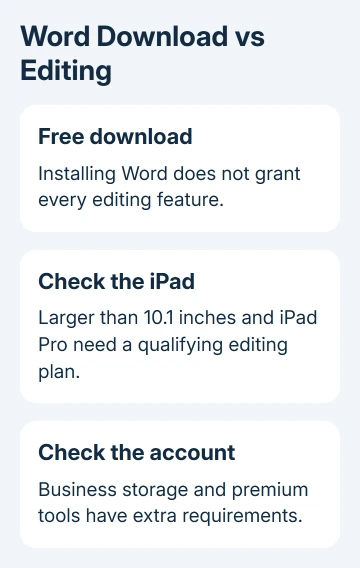
Core editing is available free on eligible iOS devices with screens measuring 10.1 inches or less. The mobile-app requirements also say you'll need a qualifying subscription to create and edit Word files on iPad Pro.
An iPad's generation name doesn't tell you its screen measurement. Look up the exact model through Settings > General > About > Model Name, then check its specifications. Don't round a larger display down to the free-editing limit.
For work or school, check with the organization's Microsoft 365 administrator before buying a personal plan. Your account may already let you edit, or its license may not cover the editing you want.
I'd open a short test document with your existing account first. Confirm that you can type and save a change. That is more useful than assuming another subscription is necessary just because Word displays an upgrade offer.
Install the Word app and sign in
Open the iPad's App Store, tap Search, and search for Microsoft Word. Check that the developer is Microsoft Corporation, then use Get or the download control to install it.
The current Word listing requires iPadOS 26.0 or later. Open its Compatibility section to check for later changes. Buying Microsoft 365 won't help an iPad whose system can't run the required version.
Check Settings > General > Software Update for an available iPadOS update. An older model that can't reach Word's required system version can't install that current app release.
After installation, open Word and use the account attached to your Microsoft 365 subscription. For an organization's license, use the address provided by work or school. Complete that account's normal sign-in checks.
Check Word's profile address if you have several accounts. Your Apple Account handles the App Store download. Inside Word, your Microsoft account controls editing access; downloading the app doesn't give that account a license.
A subscription bought through Apple's billing also needs to be recognized correctly by the app. Before purchasing again, check the existing purchase and signed-in account through Word's subscription help or the relevant billing service.
Create a document and check that it saves
Use Word's new-document control on its start screen and choose a Blank document. Tap where you want to type on the page. Type a brief sentence using the onscreen keyboard or a connected one.
Select some text, then use Home to adjust its font, size, bold formatting, or alignment. If the display hides commands, expand the ribbon or use its tab selector to reach the tool you need.
Name the document and choose a storage location you can identify later. Use a personal OneDrive folder for a file you want across your own devices, or an approved work location for an organization document.
Leave the document, return to Word's file list, and reopen it. Check that your document's name and sentence are still there before starting the real work. This confirms the file location as well as editing access.
For an existing computer document, follow the Word-to-iPad transfer steps. Keeping one shared file in OneDrive avoids the confusion of editing a separately emailed copy on each device.
Before changing an important original, make a separate Word copy. Choose a clear name so the working version and the untouched document are easy to distinguish in the file list.
Prepare documents for working without internet
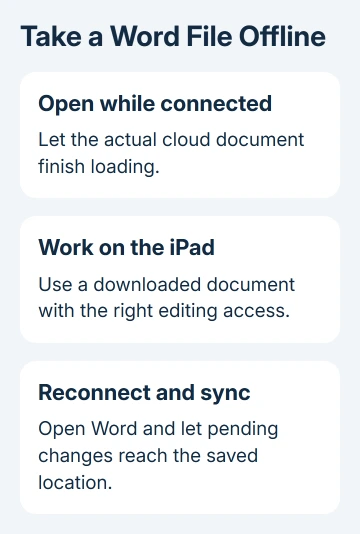
Open the files you need while the iPad is connected. For a cloud document, let it finish opening and downloading before disconnecting. Seeing a file's name in the recent list doesn't mean its contents are saved on your iPad.
The offline editing instructions allow creating a blank document and opening files stored on the device. Cloud files need to have been opened online before working on them offline.
Keep Word installed with the account signed in for the journey. Try your document without Wi-Fi before leaving. If it requests a download, reconnect and open the full file so its contents are available locally.
When internet access returns, open Word and let pending changes sync. Check the file from its normal storage location before assuming another device has the latest version. Don't delete the local app while it still holds unsynced work.
Offline access isn't a way around an editing-license requirement. A file that only allows viewing because of your account or device won't become freely editable just because Wi-Fi is off.
Check the tools your work depends on
Word on iPad is a mobile editor with its own feature set. Before a deadline, try a typical document from your work and check the tools you'll need: tables, page layout, comments, and revision controls.
Premium features include tools such as page orientation, columns, and different headers or footers for different pages. Even when your account lets you edit, advanced desktop commands won't all appear where you'd expect them on iPad.
Keep a file moving between devices in .docx unless its recipient needs another format. Review page breaks, tables, and fonts on the iPad. Missing fonts or changed layout can matter even when the document opens.
When an installed family fails only in Word, compare the iPad custom-font checks before substituting fonts throughout the document.
If a required command isn't available, use Word's iPad help to check support for that task. Keep access to desktop Word for work the mobile app can't complete, rather than rebuilding a complicated document in a different format.
Resolve a subscription or installation block
For an install failure, compare the iPadOS version with the App Store requirement and update the iPad when supported. For an editing prompt, check the iPad model, signed-in Microsoft address, and plan rights.
Send work-account problems to your administrator with the exact message. For a personal plan, use Microsoft's Word for iPad help to ask about account activation. Mention whether Apple billed the subscription.
The Short Version
Install Word from the iPad App Store and check your editing rights. Larger iPads, iPad Pro, business storage, and premium tools can need a qualifying plan. Open cloud files before going offline, then sync after reconnecting.
Checked November 16, 2026.
 If you have any business, I can build it online