

Macros that vanish after Word 2010 closes are often stored in a template that isn't being saved, or in a document that isn't open next time. Check the macro's storage location, then save the file that actually contains it.
Turning on every macro security option won't make missing code reappear. Check whether the list contains your macro. A listed macro that won't run needs different attention from missing code.
In this guide
1. Look in the document and template that hold the macro
Open Word 2010 and the document you used when recording the macro. Press Alt + F8 to open the Macros dialog. Use Macros in to check the open document and each available template.
A macro is a saved set of commands, such as formatting a heading or replacing repeated text. Its code belongs to a document or template. A button or keyboard shortcut is only a way to run that code.
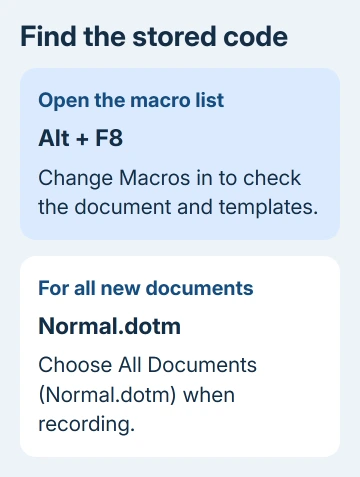
If the macro appears when its original document is open, it hasn't disappeared. It was saved with that file. Decide whether it should stay there or be available when you work in other documents.
When recording a macro for general use, choose View > Macros > Record Macro and set Store macro in to All Documents (Normal.dotm). Normal.dotm is Word's default template for new blank documents.
Microsoft's macro recording instructions show that storage choice. Changing it for a new recording doesn't move a macro you've already recorded.
If the name is present but running it produces a security warning, the storage check has done its job. Ask the macro's author or your administrator about that warning instead of rebuilding the template.
2. Save Normal.dotm and check a complete restart
For a macro stored in Normal.dotm, open File > Options > Advanced. Scroll to the Save section and select Prompt before saving Normal template. Choose OK.
Use a disposable document and record a macro with All Documents (Normal.dotm) selected. Give it a recognizable name without spaces. Choose OK, type a short word, then choose View > Macros > Stop Recording.
Close every Word window normally. If Word asks to save changes to the Normal template, choose Save or Yes, according to the prompt. Saving the open document alone isn't the same as saving its template.
Reopen Word from Start, create a blank document, and press Alt + F8. Look for the new macro under Normal.dotm. If the macro is still there after this full restart, Word saved it successfully.
The prompt lets you see when Word wants to save template changes; it doesn't fix a saving problem. Without that setting, Word can save Normal automatically. With it selected, a missing prompt after a changed macro needs closer checking.
The historical discussion includes an owner who enabled the prompt and still wasn't asked to save. They mentioned EndNote X5, but didn't confirm it caused the failure.
Don't remove a specific add-in based on that unanswered report. Use the comparison in step 4 to see whether your installed tools change what happens when Word closes.
3. Keep document macros in a format that can save them
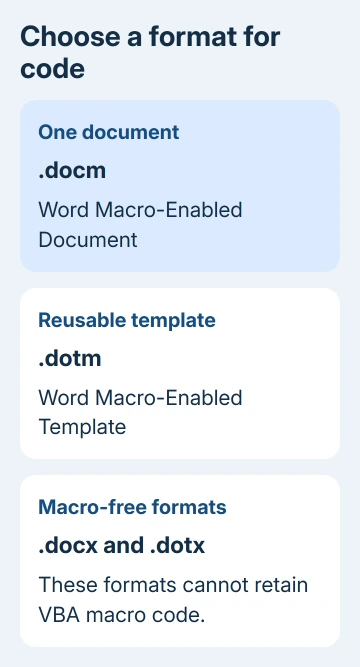
A macro intended for just one document needs a macro-capable file. In File > Save As, choose Word Macro-Enabled Document (*.docm) for a modern Word document containing code.
For a reusable template containing macros, choose Word Macro-Enabled Template (*.dotm). Ordinary .docx documents and .dotx templates don't store VBA macro code. VBA is the language used by these desktop Word macros.
Use a separate filename while correcting the format. If Word warns about saving code in a macro-free format, cancel that save and choose the macro-enabled type rather than accepting removal of the code.
Close the file and reopen the same saved copy. Check Alt + F8 with Macros in set to that document. This tells you whether the file format is the problem or Word is failing to save its Normal template.
A .docm document doesn't need to become your default template to retain its own macros. Keeping a project-specific macro with its project can also make it easier to understand which file you need open.
Word for the web can't run these desktop macros. Check in desktop Word whether your macro code remains in the file and runs. A browser editing session can't tell you that.
4. Compare add-ins when Normal changes aren't retained
If the macro is stored in Normal.dotm but won't survive closing Word, inspect File > Options > Add-ins. Write down the checked entries so restoring your add-ins afterward is straightforward.
Set Manage to COM Add-ins, then choose Go. Clear the checked add-ins temporarily, close Word, and start it normally again. Repeat the small recording and full restart from step 2.
If the macro now stays, restore the add-ins individually and repeat the comparison until the failure returns. Ask the maker of that add-in about a compatible version or a fix for saving Normal.dotm.
Use the desktop add-in controls to distinguish installed COM tools from modern Office store add-ins. They aren't managed through the same list.
If the COM comparison changes nothing, restore the original choices. Word template add-ins can also load at startup; on a managed computer, ask IT to inspect those rather than deleting template files blindly.
For the named Avery AZ Wizard compile error, locate its leftover startup template before changing Normal.dotm.
I'd keep the small recording as the comparison instead of repeatedly recreating a whole library of useful macros. It makes a failed save obvious without putting more work at risk.
5. Protect existing customizations before replacing Normal
Don't delete Normal.dotm as a first response. It can contain macros, shortcuts, and default formatting you still need. The default-font troubleshooting also covers template write permissions.
Open File > Options > Advanced > General > File Locations and check User templates. This identifies the configured folder, which can differ from the usual location on a company computer.
Ask IT whether the folder is writable and whether a company policy replaces Normal.dotm at sign-in. A template that saves locally and gets replaced later needs that policy checked, rather than another macro security change.
If a fresh template is needed, have IT back up the existing one with Word closed and transfer your macros. Office 2010 no longer has vendor technical support; use your Office specialist or a supported installation.
Give them the macro's storage location, its file type, whether the save prompt appeared, and the result with add-ins disabled. With those details, they can check the part of the saving process that's failing.
The Short Version
Find the macro with Alt + F8, save its actual document or Normal.dotm, and check it after closing every Word window. Use .docm or .dotm for code, then compare add-ins and template permissions if saving still fails.
Checked November 16, 2026.
 If you have any business, I can build it online






