

Word's VBA InsertFile error 5097 was linked to an update-related bug in 2022. Update first: the reporter confirmed version 2302 fixed it in March 2023. A current PC shouldn't need a rollback to July 2022 for that old bug.
For 5097 in current Word, check the build and compare manual insertion with the VBA call. Try another source document too. The results help you distinguish the old bug from a path, document or automation problem today.
In this guide
1. Install the supported Word updates
Save your work and open Word without running your document-combining macro. Select File > Account and note the version under Product Information. Use About Word for the full build details, including whether your edition is 32-bit or 64-bit.
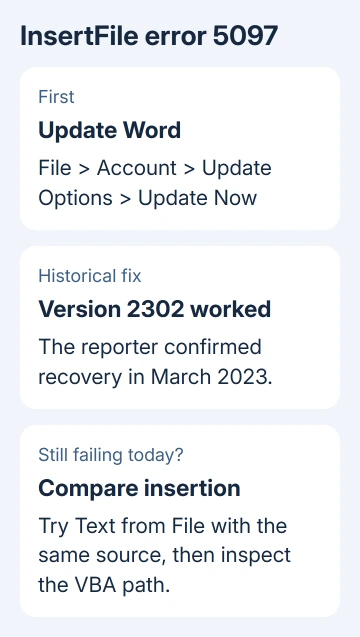
Choose Update Options > Update Now. If Enable Updates appears, enable updates before checking again. Allow the installation to finish, reopen Word and rerun the smallest example that previously failed.
Microsoft's Office update procedure also explains missing update controls. Organization-managed installations can require the help desk to install the update for you.
In the forum thread, Range.InsertFile returned 5097 and Word said it had encountered a problem. The owner could still insert the same file through Word's ribbon, and older Office builds worked with the existing macro.
The reporter confirmed that version 2302 fixed it on a couple of computers on March 1, 2023. Archived preview notes also list the DOCX InsertFile fix. That confirms the old repair, not a reason to install that unsupported version today.
If the updated installation still fails, note its actual version and move to the comparison using the same file. An error number alone doesn't show that a years-old defect has returned.
2. Compare the VBA call with manual insertion
Work on copies of both the document you're inserting into and the file you're inserting. Open the receiving copy and place the insertion point where the macro would append the file.
In Word for Windows, choose Insert > Object > Text from File. The command is normally reached through the small menu beside Object in the Text group. Browse to the exact source document used by the macro and insert it.
If manual insertion works but the VBA call fails, record that difference. It closely matches the original report, but it also gives support a concrete comparison to reproduce on your current build.
If both methods fail, open the source separately. If the source won't open normally, fix that document before checking how Word inserts it.
Try a second, simple DOCX file through the same macro. Keep the receiving document and insertion point unchanged. If that file works, the failure depends on the original source rather than every use of InsertFile.
Results differed across computers and files. Some documents inserted for one participant but failed for another on a similar build. The old bug didn't affect every DOCX on every computer.
3. Check the path and the Range arguments
Pause the macro just before the InsertFile call and inspect FileToInsert, or whatever variable your code uses for the source path. In the VBA editor, a breakpoint on the call lets you inspect that value before Word tries to insert the file.
Use the source's full path while checking. Without it, Word looks in its current folder, which may differ from your template library. Browsing to the file yourself doesn't tell you which path the macro is using.
The Range.InsertFile reference describes the required FileName argument. It also explains that the optional Range argument names a bookmark when the source is a Word document.
That argument isn't the VBA Range object marking where the text will go. If your code supplies a bookmark name, check it in the source document. Don't replace it with a page number or destination range to work around error 5097.
To add the file at the end, check that the receiving Range is collapsed to its end, so it marks an insertion point rather than selected text. The original reproduction used this arrangement:
Set DocRng = ActiveDocument.Content
DocRng.Collapse Direction:=wdCollapseEnd
DocRng.InsertFile FileName:=FileToInsert, ConfirmConversions:=False, Link:=False, Attachment:=False
Here, FileToInsert must already contain your source's full path. The excerpt focuses on the insertion call; the surrounding macro must supply the path.
If Word blocks the macro before this line runs, address the macro warning separately. Use the Word add-in checks when the automation comes from an installed template or add-in rather than changing global macro security.
4. Use manual insertion for an urgent document
When Text from File succeeds, use that menu to combine a few urgent documents while you're getting the macro checked. Check the combined document, particularly its section breaks, page layout, headers and footers.
The original owner also confirmed that saving a failing source as a legacy DOC file allowed the macro to insert it. That was a workaround during the 2022 defect, not a reason to convert an entire template collection today.
If you need to try that workaround, use File > Save As > Browse, give the copy a separate name and choose Word 97-2003 Document (*.doc). Keep the original DOCX intact and review the compatibility warning before continuing.
Older formats can change document features and formatting. Check the inserted result before relying on it. The DOCX save guide explains the format distinction if the compatibility copy creates confusion.
I'd use manual insertion for a handful of documents before converting a production library. It preserves the source format and gives you a working comparison to send support.
5. Give support a reproducible document pair
For an organization, request a Microsoft 365 case through your IT team or software supplier. Provide the Word version and update channel, Windows version, exact error, and whether the same files insert through the ribbon.
Include the smallest macro and two documents that still trigger the error, with private information removed. Leave out unrelated library files. State whether a plain DOCX works and whether the failing source opens on its own.
The supplier of your document-assembly software needs those comparisons more than old rollback instructions. Ask support to reproduce the current failure before changing the company's update channel or rewriting every template.
The Short Version
Update Word first: version 2302 fixed the 2022 InsertFile defect. If 5097 remains, compare manual insertion, inspect the full path and arguments, and send support a small reproduction. Convert only a separate copy to a legacy format.
Checked November 16, 2026.
 If you have any business, I can build it online






