

A CH340 device that appears only as USB-Serial may still need its driver, but the name can stay generic even after installation. Check Device Manager for a warning and an assigned COM port before replacing the driver again.
If the device never appears at all, start with its USB connection. If it has a working COM port but your app can't connect, choose that port in the app. Those problems need different fixes from a driver installer that reports an error.
In this guide
1. Check what changes when the device connects
Open Device Manager through Start's right-click menu. Expand Ports (COM & LPT) if that category is present, and also look under Other devices. Keep this window open as you unplug the CH340 device and plug it back in.
Watch which entry disappears when you unplug it and returns when you reconnect it. A typical installed entry includes USB-SERIAL CH340 and a port number such as COM4. The number is an example; use the one Windows assigns on your PC.
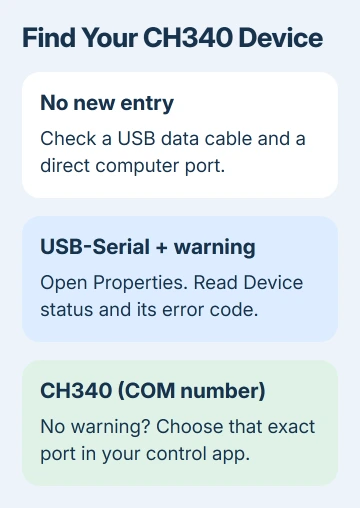
Double-click that entry and read Device status on the General tab. Copy any error code. A yellow warning with an installation error needs driver work. An error-free port points you toward the app's connection settings next.
Microsoft says Device Manager can update or reinstall the selected device's driver. Make sure it's the entry that changed when you connected your hardware.
If nothing changes anywhere in the list, continue with the connection check. Repeatedly running an installer won't make a charge-only cable carry data.
2. Give Windows a working USB data connection
Plug the device straight into your computer, without a USB hub or switch. Use a cable that has already transferred data with compatible hardware, even if the original cable turns on the device's power light.
Try another USB port and watch Device Manager again. Power and communication aren't the same thing: a board can light up while Windows never receives the information needed to identify it.
If another cable brings the entry back, use that cable and read Device status again. If another port works, keep it connected there while checking USB drivers. Once it's connected, check each later change separately to see what helps.
For a device showing Unknown USB Device with a port-reset error, use the port reset troubleshooting steps. That's an earlier connection failure than an app choosing the wrong COM port.
If the hardware also fails to appear on a second computer with a working cable, ask its seller to check the device or connector. At that point, a Windows-only installation procedure isn't the useful next move.
3. Install the package supplied for the CH340 hardware
Use the device maker's support package or WCH's CH340/CH341 serial driver package. CH340 is the USB-to-serial chip; its driver gives Windows a serial port that the lighting controller, board utility, or development app can use.
SparkFun's CH340 installation guide links the chip maker's download and shows the Windows installer. Its Windows pictures cover Windows 7 and 10, so its old archived driver version isn't a requirement for Windows 11.
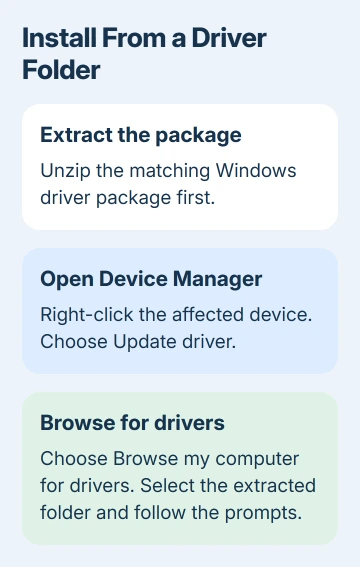
Get the recommended Windows package for your device. Extract a ZIP archive before selecting driver files. If the package includes an installer, close the device's control app and follow the installer's prompts.
For an extracted driver folder, open the affected device's shortcut menu in Device Manager. Choose Update driver > Browse my computer for drivers, select the extracted folder, and follow the prompts.
After installation, reconnect the device and inspect Ports (COM & LPT) again. The useful result is a usable COM port without a device error, followed by a successful connection from your app.
If Windows rejects the package or says it can't find a compatible driver, keep the exact message. Don't disable driver-signature protection to force an unrelated package onto the device.
4. Check the hardware identity and other device warnings
Open the affected entry's Properties > Details tab. Choose Hardware Ids from the property list. Copy those values and send them to the device maker so they can match your hardware to a compatible driver package.
A product advertised as a CH340 device can still need its seller's help if the supplied driver doesn't match. The product listing and USB-Serial name don't tell support the same thing as the hardware IDs.
I'd send the IDs and the installer error together before trying a collection of old driver downloads. Those details let support match the detected hardware without guessing from the product name.
Also look for warnings on the computer's own USB or chipset devices. If the trouble began after replacing a motherboard, get the matching chipset and USB packages from that motherboard's support page or its supplied support utility.
A warning on several motherboard devices needs attention alongside the serial adapter. Those warnings don't all have to share a cause, and they don't mean the CH340 itself is defective.
Restart after installing a package that requests it, then check the CH340 entry again. If only that device still has a warning, return to its own status code rather than reinstalling every motherboard driver.
5. Select the assigned port in the control app
Once Device Manager shows a working port, open your lighting or board-control app and select the same COM number. Close any other program using that device before retrying the connection.
For Arduino IDE, the port selection is under Tools > Port. Select the port that appeared when the board connected. Its board selection is a separate setting, so follow the board maker's instructions for that too.
A successful driver installation doesn't automatically configure another application's connection. If Windows has COM4 and the app is still trying COM3, rerunning the driver installer leaves the app pointed at the wrong place.
If an upload or connection still fails, copy that application's complete error. A missing port, an access error, and a failure after communication starts need different follow-up advice.
For broader USB failures affecting several devices, compare the Windows USB connection checks before blaming one serial adapter. Keep storage-formatting advice separate from this controller problem.
When installation still fails
Send the seller the model, Windows release from winver, hardware IDs, Device status code, and driver filename. Include your second-computer result and any difference with another cable.
Ask which signed Windows driver supports those exact IDs. If the port works but their app refuses it, ask for the app's correct serial-port settings instead. That directs support to driver installation or the app's connection settings.
The Short Version
Watch the CH340 entry as you reconnect it. Repair an absent USB connection, install its matching serial driver for a warning, then choose the assigned COM port in your app. Keep any installation or connection error.
Checked November 16, 2026.
 If you have any business, I can build it online






