Regular Windows 11 Home and Pro don't list Media Feature Pack separately because they include those media technologies. Check Settings > System > About first. The optional pack is for editions whose name ends in N.
An app asking for media components doesn't necessarily mean you have Windows N. If the edition doesn't end in N, check the app's requirements and Windows Media Player Legacy instead of trying to force the N-edition package to install.
In this guide
1. Read the edition, not just the version number
Open Settings > System > About. Find Windows specifications, then read Edition. Windows 11 Pro and Windows 11 Pro N are different editions, even when their version and build numbers match.
The version, such as 23H2 or 24H2, identifies the Windows release. It doesn't tell you whether Windows came without those media components. Searching for a pack matching that version won't solve an edition mismatch.
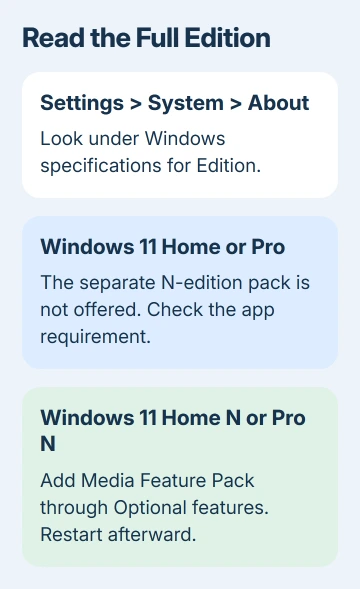
If the edition ends in N, continue to the installation section. If it says ordinary Home or Pro, skip to the section about an app still asking for the pack. Its absence from the list is expected in those editions.
Microsoft says the Media Feature Pack requires an N edition of Windows 10 or 11. The package restores media technologies excluded from those editions.
This distinction also explains why a command copied from an N-edition guide may fail on regular Pro. That error doesn't automatically mean your Windows installation is damaged.
I'd read that edition name before touching Optional features. That short check tells you whether a separate pack belongs on this PC.
2. Add the pack through Optional features on Windows N
Open Start and search for Optional features, then open that Settings page. Searching by its name avoids differences between Windows 11 releases that place the page under Apps or System.
Select View features beside Add an optional feature. Search the available list for Media Feature Pack, select its checkbox, then follow Next and Install to add it.
Let the installation finish before testing the app again. Then restart Windows, even if no restart prompt appears. The restart completes the pack's installation.
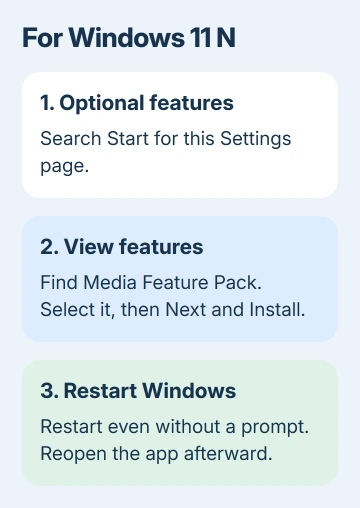
After signing back in, reopen the app that needed the media components. If its warning disappears, the app needed those missing Windows N components. Check any remaining playback or device error separately from the installation warning.
Don't use the old standalone Windows 10 pack download as a substitute for Windows 11's Optional features list. The intended route for Windows 11 N is through Settings, rather than a package selected by its name alone.
If the feature isn't offered on a confirmed N edition, record the edition and build, then use the missing-feature section later in this guide. Repeating the search with different capitalization won't change the edition Windows is running.
3. Regular Home or Pro: follow the app's actual requirement
Return to the error message in the application or its installer. Record the complete wording and the app version. A request for Windows Media Player isn't always a request to install Media Feature Pack.
The original missing-pack report involved a PS Remote Play installer on regular Windows 11 Pro. The app's warning didn't mean Windows Pro should offer a separate N-edition download.
For an app that specifically requires Windows Media Player Legacy, run optionalfeatures from Windows + R. This opens Windows Features. Expand Media Features and inspect the checkbox for Windows Media Player Legacy.
Some releases label it Windows Media Player without Legacy in that dialog. Use the player listed under Media Features, rather than assuming that the newer Media Player app satisfies an older application's requirement.
If the checkbox is available but off, turn it on and select OK. Let Windows finish applying the feature and restart when requested. Run the application's installer again and compare the message.
If the player is already enabled and the same warning remains, send the edition and error to the app's support team. Don't keep installing different media packages without checking which component that version actually needs.
4. Separate codecs and player apps from the pack
A codec is software that lets an app read or write a particular audio or video format. Installing the Media Feature Pack on Windows N doesn't supply every separate codec or every media app someone might use.
Additional Store components can still be needed after the pack, depending on the format and app. Choose the component your file needs rather than installing a bundle of unrelated codec packages.
For a photo that won't open, the HEIC opening guide explains the HEIF and HEVC components. An image-format error that remains after the N-edition restart needs that format checked next.
Likewise, a presentation rejecting one video needs the PowerPoint video compatibility checks. A file using unsupported encoding can fail even when Windows media components are installed correctly.
Try another file you know works in the same app. If it plays, copy the error for the failing format. If no media feature works on Windows N, return to whether the pack finished installing and Windows restarted.
Installing a newer player app also doesn't change the edition name in About. Check which part the error refers to: your Windows edition, an optional component, the app, or the file format.
5. Handle a missing entry or failed installation on N
Confirm Edition again before reporting the missing feature. Take note of the Windows version and build from the same About page. Include whether the pack is absent from available features or installation begins and fails.
If it appears in installed features, restart and test the original app before attempting removal. An app still asking for a component needs its exact requirement checked, rather than another search for an already installed item.
On a managed PC, have your IT team check whether optional Windows components are allowed. Include the feature error and full N-edition name when they review the organization's update setup.
On a personal PC, open Get Help from Start and request help installing Media Feature Pack on the named N edition. Include the Settings error and whether other optional features can install.
If the pack installs but one app still won't run, send that app's support staff its version number and the Windows feature name. Ask them to check the remaining app error, rather than look for a pack that's already installed.
The Short Version
Read the edition in About. Home and Pro already include the media technologies; N editions need the optional pack and a restart. A legacy-player requirement or one unsupported format can need a different component.
Checked November 16, 2026.