

A Kobo that charges but doesn't appear in Windows 11 may be using a charge-only cable or waiting for Connect on its screen. Start with a data cable plugged directly into the PC.
If Windows detects the reader but can't use it, check its Device Manager entry next.
One owner got Windows 11 to recognize the reader by removing and reinstalling its USB device drivers. Try that when the same Kobo works on another computer. Remove the entry that belongs to your Kobo, rather than every USB controller.
In this guide
1. Get the Computer detected prompt on the Kobo
Wake the reader and make a direct USB connection with the computer. Watch the Kobo screen for Computer detected, then tap Connect. Windows can't browse your books just because the battery symbol shows charging.
Kobo's USB connection instructions start with the reader's prompt, cable and port. A cable must transfer data, rather than only supply power.
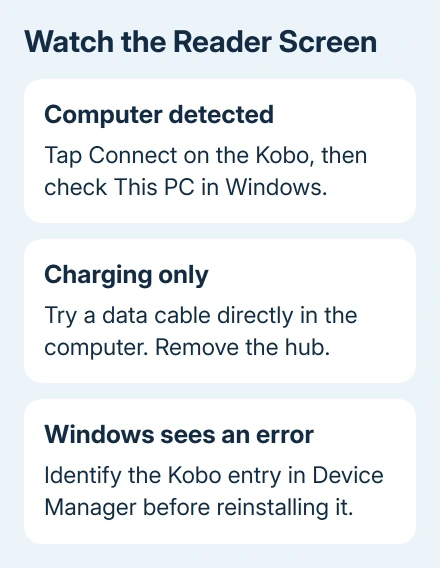
Use a second cable that you know transfers files. A cable can fit the socket and charge your Kobo without being able to transfer files. Remove hubs, docks and monitor USB extensions during this check.
Older readers such as Kobo Glo use micro-USB; newer models may use USB-C. Match the reader's socket without forcing a connector or assuming all Kobo cables are the same.
If the prompt appears and you tap Connect, open File Explorer > This PC. Look for the Kobo as a connected drive. If it's there, the basic USB connection is working; a separate app failing to list it needs that app checked next.
2. Check power and the physical connection
If the Kobo doesn't wake or show the connection prompt, give it at least an hour connected to power. The maker's troubleshooting page allows three hours for a full charge before checking whether an unresponsive reader turns on.
Inspect the USB socket for blockage, looseness or damage. A connection that drops when the plug moves needs physical attention. Don't push metal tools into the port to try to make Windows detect it.
Plug the Kobo directly into a different USB port on your PC. Then restart Windows through Start > Power > Restart and reconnect the reader after Windows finishes signing in.
The result matters: no prompt on any port points toward the cable, reader or connection. If the prompt appears but Windows shows a warning, check the reader's entry in Device Manager next.
I'd make the cable comparison before any driver changes. It takes less work, and reinstalling software can't add data wires to a charging-only lead.
If several unrelated USB devices fail on that PC too, use the broader USB device recognition checks. Keep the Kobo-specific steps for a reader that's the only device missing.
3. Find the reader's actual Device Manager entry
Right-click Start and choose Device Manager. Connect and disconnect the Kobo once while watching which entry appears or disappears. That helps identify the reader without guessing from a long device list.
Where it appears depends on the model and what's going wrong. Check storage-related categories and any Other devices or Universal Serial Bus controllers entry carrying a warning. Don't assume every unknown USB entry is your Kobo.
Right-click the matching entry, select Properties, and read Device status on the General tab. Save its full status message, including the error code, before making changes.
Seeing a can't-start error gives you a device entry to check. If nothing appears at all, the next checks are different. A reconnect that adds nothing to Device Manager sends you back to the cable, port and reader comparisons.
For a device that appears but has no drive in File Explorer, check whether Disk Management lists it. Open the Start button's right-click menu and select Disk Management. Read the listed disk status without changing it.
Don't initialize or format a reader just because Windows offers the buttons. That can erase its storage. A status such as Not initialized belongs in your support notes, not an instruction to rebuild its partitions.
4. Reinstall only the device that belongs to the Kobo
With the reader identified in Device Manager, right-click its matching entry and select Uninstall device. Follow the confirmation, then restart Windows.
After the restart, Windows attempts the device-driver reinstall. Reconnect the reader if needed.
Leave any option to remove a driver package unchecked unless the manufacturer specifically asks for it. Start by removing just the device entry. Deleting driver packages or all USB hubs changes more of your PC's setup.
Reconnect the Kobo, tap Connect, and check This PC again. A newly working drive is the useful result. A brief refresh in Device Manager alone doesn't mean books can now be transferred.
The original thread's owner said repeated USB driver removal and reinstallation finally worked. Safe Mode hadn't helped them.
They didn't name a special Kobo driver package. Their result doesn't show that repeated uninstall attempts are necessary on other PCs.
If Windows brings back the same error, keep its code. Check Settings > Windows Update > Advanced options > Optional updates for a relevant driver, rather than downloading a driver pack from an unrelated source.
5. Compare another computer and update the reader
Connect the same Kobo and data cable directly to another computer when one is available. In the original case, the Kobo worked on Windows 10, so the reader wasn't completely dead.
A working second computer points toward the first PC's connection or software. If it fails on both computers, the reader or cable could still be responsible. Neither comparison requires erasing the books.
If the reader works over Wi-Fi, sync it to check for Kobo software updates. On supported Kobo home screens, open Sync and choose Sync now. Let any offered update finish, then try the USB connection again.
Kobo lists a factory reset after its connection checks, but that removes downloaded content and settings. Before taking that step, contact Kobo Support with the model, software version, Device Manager message and second-computer result.
If Windows sees a healthy storage device but File Explorer still omits it, the missing external-drive guide explains the display and drive-letter checks. Keep formatting out of the recovery plan unless Kobo directs it.
The Short Version
Get its Connect prompt working with a data-capable cable. Find its matching entry in Device Manager before trying the driver reinstall that worked for the owner.
Compare another computer before deciding whether the reader needs a reset.
Checked November 16, 2026.
 If you have any business, I can build it online






