OneDrive error 0x8004de85 can mean an account mix-up, especially when personal and organizational accounts share an address. Check the account in OneDrive settings, then connect the account holding your files.
Watch for a missing password prompt, too. Owners in the original report got syncing working by making OneDrive ask for their work password again instead of signing them in automatically.
In this guide
1. Match the connected account to the missing files
Click OneDrive's notification-area cloud, open its settings control, and choose Settings > Account. Expand the hidden notification icons if the cloud isn't visible. Read the connected address and organization name.
Microsoft's error-code guidance lists missing accounts and personal/work account mismatches for this code. Start with the account rather than trying to repair individual files.
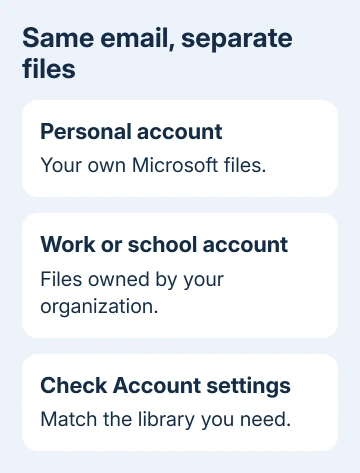
Check that the files you're looking for belong to that account. Personal and company libraries stay separate even when their addresses look identical. Seeing personal documents doesn't mean the business library has disappeared.
For company files, pick Work or school account when asked which type to use. For personal files, choose Personal account. Use the password belonging to that account, which can differ from the password for the other account.
If the correct organizational account is missing, use Add an account in OneDrive's Account settings. The second-account setup steps explain the separate folder you'll see afterward.
Keep a working personal connection while adding work storage. Connect the missing library without replacing the account that already syncs. If adding it immediately returns the error, compare the sign-ins next.
2. Check whether the same work account opens online
Open your organization's usual Microsoft 365 website in a private browser window. Enter the full work address yourself. Complete its password and verification prompts, then open OneDrive from the app launcher.
Check for a familiar work folder. Signing in isn't enough; look for the files you're trying to sync. A different collection of files points back to the account selection, even when sign-in succeeded.
If the browser rejects the password or account, stop changing desktop settings. Have IT check the work sign-in name and OneDrive access. Include the browser message as well as the desktop error code.
For the different code 0x8004deb2, compare Windows work sign-in components and keep its older registry workaround separate from this account mismatch.
If work files open online, your account can reach its library. That narrows the problem to the desktop sign-in: the same account works when you sign in fresh in the browser.
An account recently renamed by your employer needs the domain-change checks. A changed sign-in address needs different checks from two account types sharing the same address.
3. Clear the automatic work sign-in through its account page
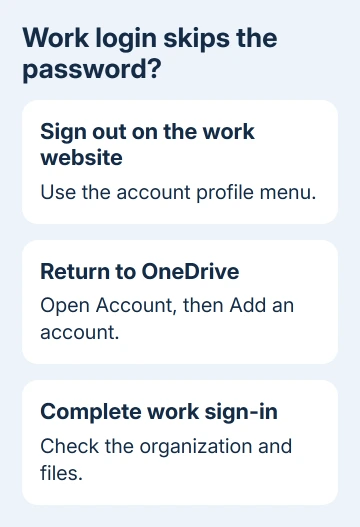
In the original owner reports, the app skipped the work password prompt. One owner signed out through their organization's account website, then added the account again and syncing resumed.
Their Windows route was Settings > Accounts > Access work or school, selecting the work account and opening Manage your account. That opened the organization's account website, where they signed out through the profile menu.
On a current PC, the available account-management buttons can differ. If that management link isn't shown, open your organization's Microsoft 365 website directly and use its profile menu to sign out of the work session.
Return to OneDrive's Settings > Account > Add an account and enter the full work address. Complete the work password and any verification request. Watch whether setup now moves past the point that previously produced 0x8004de85.
Don't use Windows' Disconnect button to imitate a website sign-out. It changes the device's work connection and can affect other services. The reported fix used the website profile menu instead.
If the app still skips the prompt and fails, tell IT exactly that. It gives them a sign-in problem to check without deleting your OneDrive folder on a guess.
4. Keep the historical password trick in perspective
Another successful report combined a personal password change, OneDrive reinstall, and a fresh work password prompt. That owner entered only the username first, then the full address after an invalid-email response.
That was a workaround for the sign-in screens available in 2017. Current screens can reject an incomplete address without offering the same route. Use your full address for setup; an invalid-address message doesn't mean the fix worked.
I'd try the account-page sign-out before changing a working personal password. It targets the skipped prompt without changing credentials on other devices. Matching personal and work addresses don't require a password change.
Recover a forgotten password through that account's sign-in page. Changing the personal password won't reset an employer-controlled work password. Your work administrator can't recover the personal account for you.
Once setup finishes, check the organization name and watch its folders begin syncing. Open a small familiar document from that library. Successful sign-in should lead to the expected files, rather than an unfamiliar account.
5. Give IT the failed sign-in details
If the error continues, ask your administrator to review failed work sign-ins and your OneDrive access. Provide the code, work address, approximate failure time, Windows version, and OneDrive version.
Explain whether the work library opens in a private browser window and whether the desktop app ever asks for the password. Mention a matching personal address or a recent account rename if either applies.
For personal files, choose Get help on the OneDrive support page. Explain which account appears in settings and which owns the missing files. Hide passwords and verification codes in any support screenshot or message.
The Short Version
Match the connected account to the missing library. If work files open online but desktop login skips the password and fails, sign out of the work website and add the account again. Take persistent work-account errors to IT.
Checked November 16, 2026.