An old Word bug stopped custom fonts working on iPads after iOS 11, even when those fonts worked in other apps. Update Word before reinstalling fonts: two owners confirmed that a January 2019 update restored their fonts.
That history matters when an old search result tells you to wait for a fix. If fonts aren't working today, check Word, the installed font, and your document rather than assuming the 2017 bug was never fixed.
In this guide
1. Update Word before changing the font installation
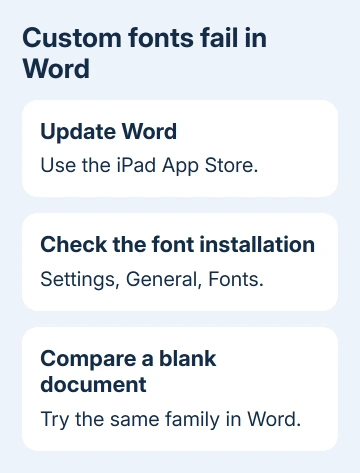
Open the App Store, tap your profile picture, and look for an available Word update. Tap Update beside Word, or Update All if you're ready to update the other listed apps too. Reopen Word after the update finishes.
Microsoft's mobile update instructions use that App Store route. An iPad doesn't use the desktop Office updater, so instructions involving File > Account > Update Options don't apply here.
Duplicate the affected file, open the copy, and look at a line that uses your custom font. Check letter shapes and line wrapping as well as the toolbar name. Read the actual characters too; a listed name isn't enough.
If the App Store offers Open instead of Update, it has no update available for that app on your device at that moment. That doesn't tell you whether your iPad can run the newest Word release available on newer hardware.
On an older iPad, check Settings > General > Software Update and Word's App Store compatibility details. If the device can't run the required app, use a supported computer for files that need the custom font.
2. Is it the old error or a missing font today?
The old error blamed memory or disk space and said Word couldn't display the font. Owners could still use those fonts in other apps. Repeated storage cleanup didn't match that specific pattern.
The later replies in the original thread changed the outcome. One owner reported the January 2019 update working, and another confirmed it worked for them too.
Those replies don't give a build number, so don't hunt for an old installer based on a guess. Install the available Word update, then check whether the font works in your affected document.
If the message is different now, note its exact wording. A font absent from the list, a document that won't open, and a storage warning affecting every app need different checks. Use the message you're seeing now to decide what to check.
If Word also fails with its regular fonts in a blank document, move away from custom-font repair. Save your work elsewhere and report the broader Word failure through its help or feedback controls, including the app and iPadOS versions.
3. Check that iPadOS knows about the font
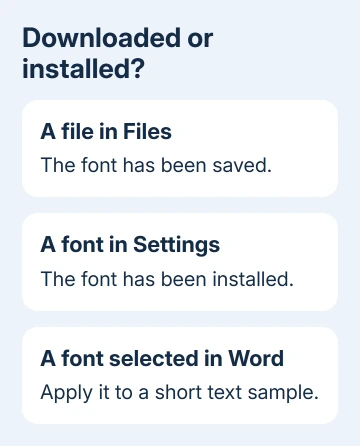
On current iPadOS, open Settings > General > Fonts. Look for the family you installed. This list shows installed fonts. A font file saved in the Files app isn't the same thing.
Complete the installation process in the App Store font app you used. A TTF or OTF download isn't installed for document apps just because it appears in Files. Follow the provider's installation instructions.
Use a font from its original provider. If it arrived as part of a company's branding package, ask for the intended mobile installation instructions and the correct family and style names before replacing it.
Older iOS 11 instructions can refer to font profiles instead of the current Fonts screen. Don't remove an organization's management profile to repair a typeface. Have the administrator review font deployment on that older device.
The Word font installation guide covers computer installation separately. Installing the font on your Mac or PC doesn't automatically install it on the iPad that opens the same document.
4. Try the family in a separate Word document
Start a new blank Word file and type a short sample. Select that text, open Home, tap the font name, and look for your installed family. Choose the required style if the family offers several.
Turn the iPad sideways if the formatting controls are cramped. The wider ribbon makes the font box easier to reach. Use the text selection handles so the font change applies to the sample, rather than only to text you type afterward.
If the font works there, reopen a copy of the original document. Compare which family and style that file requests. A similarly named regular face isn't the same as a separate light, condensed, or bold font supplied with a template.
If it fails in the blank document too, compare another installed font. This separates trouble with one font family from Word failing to use custom fonts at all. Keep the sample small enough to send to the font provider or support.
I'd keep the original document unchanged while making this comparison. Replacing every font can change page breaks, tables, and spacing. Then it's harder to tell which changes came from the font problem and which came from your edits.
5. Use an available font for urgent edits, then report the failure
When the layout can change, save a separate working copy and choose an available font from Word's font list. Check headings, tables, and the last line of each page before sending the file. Substituting a font can move text.
When the layout must stay exact, finish the document on a computer with the proper font installed. The iPad Word guide helps distinguish mobile editing access from features that your desktop workflow requires.
One older reply succeeded after converting a font to TTF. I wouldn't upload a company typeface to a random converter. Ask the provider for an authorized compatible file, especially when the license limits modification.
If a current Word release still rejects a correctly installed family, send support the exact error, iPad model, iPadOS and Word versions, and a small document showing the problem. Say whether that font works in another document app.
The Short Version
Owners confirmed that a later Word update cleared the iOS 11 font failure. For a current problem, check installed fonts and try a blank Word file. Keep the original unchanged while comparing a separate copy.
Checked November 16, 2026.
 If you have any business, I can build it online