
A grayed-out OneDrive Sign Out button on a Samsung phone can come from a Microsoft sign-in linked through Samsung. Disconnect that account link first, then reopen OneDrive and remove the unwanted OneDrive session.
This is different from simply switching between accounts. In the original reports, the wrong personal account kept returning even after owners cleared OneDrive's data, while a school account could still sign out normally.
In this guide
1. Check whether this is the Samsung account problem
Open OneDrive and read the unwanted account's address. Open its account or settings controls and look at Sign Out. Note whether it's disabled or whether signing out succeeds but the account returns.
For that pattern on Samsung, open Settings and find your Samsung account. Older layouts used Accounts and backup > Accounts > Samsung account; newer One UI versions can put it directly on the main Settings screen.
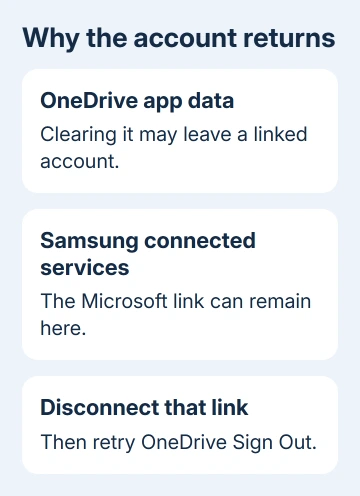
Don't confuse your Samsung account with work or school accounts in Android's list. The fix worked by removing the personal Microsoft link inside Samsung's services, without removing every Android account.
On another brand, skip the Samsung controls. For an unavailable sign-out option on a managed work phone, ask IT whether a device management app controls OneDrive. Include the account type and exact screen.
When a new employee sees only shared libraries, check whether their own OneDrive has been created rather than unlinking a personal Samsung account.
An app refusing sign-in with a connection warning needs the Android no-internet checks instead of Samsung account unlinking.
The account-switching explanation also separates changing the account you use from moving files between accounts. Signing out doesn't transfer an existing library into the account you sign in with next.
2. Disconnect Microsoft inside the Samsung account
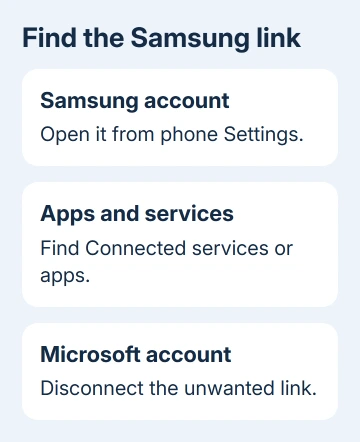
Within your Samsung account settings, open Apps and services, then look for Connected services. Find the linked Microsoft account and choose the control to disconnect or unlink it.
Some older phones call that page Connected apps instead. One owner in the original discussion used it to disconnect Microsoft and found that OneDrive's Sign Out button became available afterward.
Read the address before confirming. Disconnect the unwanted personal Microsoft account, keeping any separate service accounts you still need. If Microsoft isn't listed, check the connection from its account page next.
Close OneDrive and open it again after unlinking. Select the unwanted account and try Sign Out. Then sign into the personal account you intended to use and check its address before opening or uploading files.
Keep photo backup paused until the correct account is selected. Otherwise, new photos could go to the library you were trying to stop using. Check the destination account before turning backup on again.
If the unwanted account stops returning, the link was the problem. Stop clearing the app once sign-out works. Continue if the account is still linked or the button stays disabled.
3. Check the Microsoft side of the connection
Microsoft's Samsung account disconnection instructions also describe removing Samsung as a sign-in connection in your Microsoft account's Additional security options.
Open Additional security options while signed into the Microsoft account linked to Samsung. Find Samsung account and choose Remove, if present. Then remove the Microsoft link in Samsung's connected services too.
Sign in to see these settings; a search result or the site's opening page won't show your account's link. Check the signed-in address, especially when the browser remembers another personal account.
Complete security verification using your own recovery methods. Keep verification codes private, including when someone offers to help unlink the account.
Reopen OneDrive once both sides are disconnected and try the unwanted account's sign-out control again. If it remains disabled, record which links were present and which you removed. Give support those details before reinstalling again.
4. Use camera backup for today's photo setup
The old posts were about Samsung Gallery sync, which has since changed. New links stopped on May 1, 2026. Existing users were directed to OneDrive camera backup for continued backup after September 30, 2026.
Don't follow an old instruction to recreate Gallery sync after removing the unwanted account. Once the correct account is active, use OneDrive's current camera backup controls and confirm that a new photo reaches the intended library.
Account disconnection and photo deletion are separate actions. Leave existing photo collections alone while fixing sign-in. Deleting a folder isn't required to make the sign-out button work and can create a second problem.
For a library you need to clean up later, the OneDrive deletion guide explains the difference between cloud files and other copies. Finish the account correction before deciding what to remove.
Check several older photos as well as a new one after enabling backup. New photos going to the right account doesn't mean your past uploads are there too. The old account can still hold files missing from the new one.
For images listed in the correct account that refuse to open, compare OneDrive photo viewing across devices before repeating account removal.
5. Avoid a full Samsung sign-out unless support needs it
Several owners solved the original problem by signing out of their whole Samsung account. Later replies offered the narrower connected-services route, which lets you target the Microsoft link instead of removing the entire Samsung sign-in.
I'd use that narrower route first. A Samsung account supports other phone services, so signing it out changes more than OneDrive. Save a full account sign-out for a case where the relevant connection can't be removed normally.
If the account keeps returning, contact Samsung Support about the Microsoft connected-service link. Include your phone model, One UI version, the unwanted account type, and whether unlinking made the Sign Out button available at any point.
If Samsung is disconnected but Sign Out stays disabled, use OneDrive's help controls. Include your app version and a screenshot with the address hidden. Ask whether an account policy prevents removal.
The Short Version
On Samsung, unlink Microsoft in the Samsung account's connected services, then reopen OneDrive and sign out. Check the Microsoft security connection if needed. Choose the right account before enabling today's OneDrive camera backup.
Checked November 16, 2026.






