

Disabling the Dropbox badge fixed an Excel for Mac fault that put cross-sheet formulas in the wrong cell. Try that when a Dropbox workbook sends a formula to the source sheet as you click, instead of keeping it in the destination.
This older fault affected entering formulas, not the hyperlink command. A typed reference such as =Sheet2!A1 lets you check the reference without switching tabs while you change the badge setting.
In this guide
1. Turn off the Dropbox badge
Save the workbook before changing the setting. Click the Mac menu bar's Dropbox icon. From its account menu, choose Preferences. Find Dropbox badge and set it to Never show.
Older Dropbox versions used a gear menu to reach Preferences. In current versions the account menu can show your photo or initials. Change the badge preference and leave your file-sync settings alone.
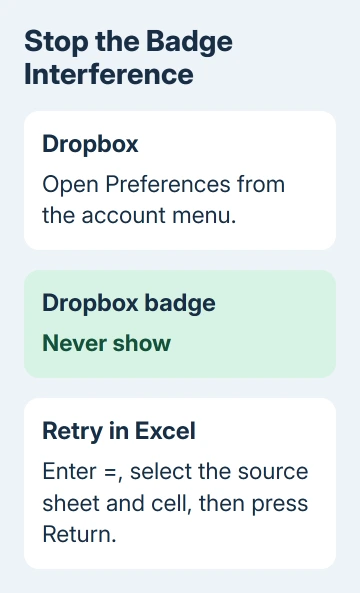
Dropbox's badge controls still describe the Never show option. Hiding the badge only changes how it's displayed; you don't need to unlink your account or move the whole Dropbox folder to try it.
Return to Excel and repeat the original operation in a spare destination cell. Type =, click the other worksheet's tab, click its source cell and press Return. Check that the formula remains in the intended destination.
The badge workaround was reported working by owners in the worksheet-linking thread. One also reported the problem in Excel 2011 for Mac, including links to another Dropbox workbook.
The thread's later summary said a Dropbox release appeared to have fixed the issue. It didn't name a specific version you could rely on, so don't hunt for one particular old installer or downgrade Excel to match the report.
If hiding the badge restores correct formula entry, keep it hidden while you check for Dropbox updates. If the same cell-switching continues, try the typed reference next.
2. Enter the worksheet reference without switching tabs
Select the destination cell on Sheet1. Type =Sheet2!A1 directly, then press Return. This example assumes your source tab is named Sheet2 and the value you want is in A1.
Excel's worksheet reference instructions use the worksheet name followed by ! and then the source address. Change those parts to match your own workbook.
For a sheet named Sales Data, enter ='Sales Data'!A1. The straight single quotes tell Excel that Sales Data, including the space, is one sheet name. Don't type the example's name unless that is actually your worksheet's name.
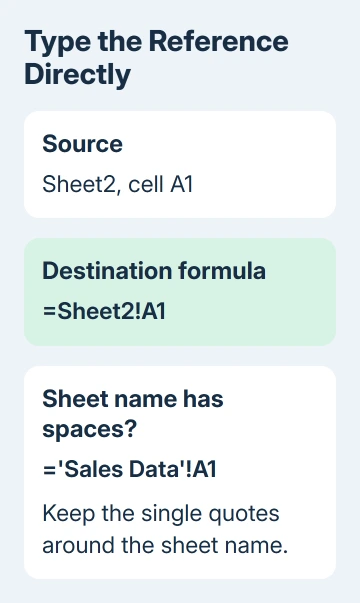
Select the destination cell again and read its formula bar. The reference belongs there, with the source value displayed in the cell. A formula appearing on the source sheet means the misplaced-entry problem remains.
Change the source value in a spare test workbook and check the destination updates. That confirms you're looking at a working reference rather than a pasted value that only happens to match.
I'd use a typed reference for a small urgent edit. It avoids the tab-switching action that triggered the reported problem and lets you finish without rearranging the workbook.
For a large workbook, correct the badge problem before creating many more links by clicking. Checking one reference is manageable; reviewing dozens of formulas that landed in unexpected cells is much harder.
3. Compare Dropbox storage with a separate local copy
Make a separately named copy outside Dropbox and open that copy in Excel. Keep the original intact so the comparison doesn't replace a shared workbook or create uncertainty about which file colleagues should use.
Repeat the same simple link in the local copy. If it works locally but fails in Dropbox with the badge enabled, report that exact difference to Dropbox support along with your Excel and Dropbox versions.
If both copies fail, create a new blank workbook with two sheets. Put a recognizable value in A1 of the second sheet, then build a reference to it from the first sheet.
If that works, the trouble is with your original workbook or its setup. If clicks select unrelated cells even before you start a formula, follow the Excel selection checks.
Inspect the formula before altering existing links. Insert > Hyperlink creates a clickable destination, rather than displaying another cell's value. That command won't repair a formula placed in the wrong cell.
Likewise, Break Links removes certain external workbook connections. Don't use it for this fault; removing a working connection changes the workbook without fixing what happens when you click cells to build a formula.
4. Separate bad entry from an existing broken reference
A cell showing #REF! after a sheet was deleted or moved needs its formula repaired. That differs from Excel placing a newly entered formula in the wrong cell as you click between tabs.
An existing formula with a Mac directory joined to a Windows source needs the mixed-path Excel repair.
If the problem is an unwanted connection to a separate workbook, the Excel external-link checks cover those connections. A link between two sheets in one workbook isn't the same kind of external link.
Record the Excel build from Excel > About Microsoft Excel, plus the Dropbox version in its settings or About information. Use each app's normal update option, then try linking the cells again.
Mac Office 2016 support ended October 13, 2020. On that edition, ask IT about a compatible supported Office version instead of expecting a fresh Office 2016 repair.
When hiding the badge and the local-copy comparison don't help, send support the smallest example that shows the fault. Describe the intended destination cell, source cell, storage location and where the formula actually appears.
Remove private data from that example first. Tell support whether typing the reference directly works. They'll need to know whether the formula goes into the wrong cell or Excel can't calculate it.
The Short Version
Hide the Dropbox badge and retry the cross-sheet formula. A typed reference helps with an urgent edit; a local copy helps compare storage. Choose a repair that matches formula entry, hyperlinks or an existing broken connection.
Checked November 16, 2026.
 If you have any business, I can build it online






