

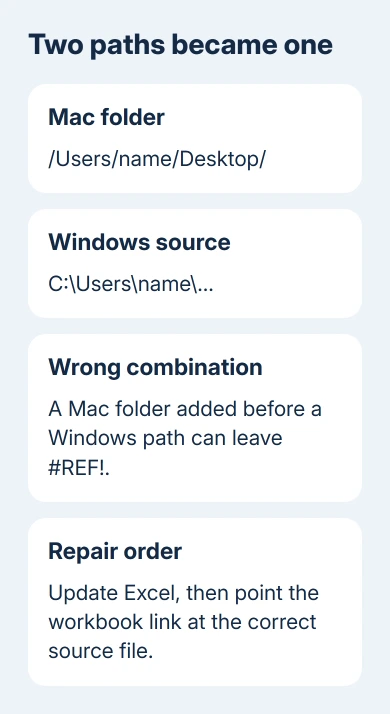
An old Excel for Mac bug joined a Mac folder path to a Windows workbook link, causing #REF! errors. Owners have reported that an update fixed it. Update supported Excel first, then repair any source links that remain wrong.
Check whether the error is in a formula that pulls in data or a link you click to open a file. A formula containing both /Users/ and a Windows drive path matches the old report. Missing source files and deleted sheets can also cause #REF!.
In this guide
1. Update Excel before repairing more links
Open Excel > About Microsoft Excel and note the version. The original fault affected Excel 2016 for Mac when opening workbooks shared with Windows users. The same workbook could work on Windows while failing on the Mac.
For a supported Office installation supplied by Microsoft, choose Help > Check for Updates. Install the offered updates, close Excel when requested, then reopen it. The store-supplied copy updates through App Store > Updates instead.
Two accepted owner replies in the original path-error discussion say an update solved it. Neither identifies the exact version that fixed it. Don't install a guessed historical build to match the report.
Office 2016 for Mac reached end of support on October 13, 2020 and gets no new repairs. Ask IT about a supported Office version compatible with your Mac rather than waiting for another 2016 update.
After updating, open a copy that hasn't been saved with damaged references. Compare the same cells on Mac and Windows if available. If that original now works after updating, the older Excel version was likely mishandling its links.
An update doesn't mean every previously changed formula will repair itself. If the saved file still contains a mixed path, continue with the source-link repair instead of repeatedly checking for updates.
2. Inspect one failing formula before changing the workbook
Save a separately named backup copy before editing links. Work on the copy, especially when the workbook is shared with colleagues. Link changes can affect many dependent cells at once.
Select a cell showing #REF! and read its formula bar. An external reference normally identifies another workbook, a worksheet, and a cell or range. In the reported fault, Excel added a Mac directory before an existing Windows path.
A reference containing /Users/yourname/Desktop/C: mixes a Mac folder path with a Windows drive path. These are example fragments, not text to paste into a formula. Check whether the Mac added its folder ahead of the source path.
Ask the sender which workbook supplies the data and where that file is stored. The error message won't reveal whether its source moved, access was removed, a sheet was deleted, or the old path-conversion bug occurred.
If Excel shows a working formula but clicking between sheets puts a new formula in the wrong cell, use the Mac worksheet-link entry checks. That fault happens while entering a reference, rather than when opening an existing external link.
A standard hyperlink opens a destination when clicked. The Workbook Links controls repair formulas that pull data from another workbook. They don't repair every web address inserted with Insert > Hyperlink.
3. Point the broken link at the real source file
Get the actual source workbook from its owner or confirm you can open its shared location. A path to someone else's Windows Desktop won't become accessible on your Mac simply by removing the drive letter.
Open the destination workbook in current Excel for Mac. If a yellow warning offers Manage Workbook Links, select it. Otherwise open the Data tab and choose Workbook Links.
Select the broken connection, then choose More (…) > Change Source. Browse to the correct source workbook, select it, and press Select. Choose Refresh to update the workbook you're repairing with data from that file.
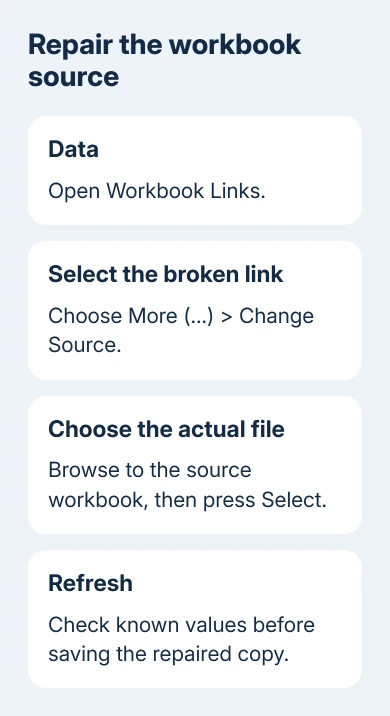
Microsoft's current Mac workbook-link repair uses those controls. Older Excel versions can show Edit Links instead. Follow the dialog actually available in your edition instead of using a File-menu path meant for Windows.
After refreshing, check several cells that use the linked data. A source with a familiar filename can still be the wrong revision. Compare a known value, the source sheet name, and the expected period or project before saving.
When a formula already contains a deleted sheet or cell reference, changing the workbook source alone may not repair it. The sender may need to restore the intended formula from an earlier working copy.
If Workbook Links is unavailable, Excel hasn't detected that kind of connection. Power Query connections use their own data-source controls. Don't treat an unavailable button as a reason to replace text throughout every formula.
4. Keep the shared workbook's source reachable
A path to a file stored only on a Windows PC won't help someone who needs to refresh that data on a Mac. Agree with the sender which source files belong with the destination workbook and which shared location both people can actually open.
For OneDrive or SharePoint sources, check your access to the source file itself. Opening the destination workbook doesn't automatically give you permission to every workbook it references.
Ask the sender to provide the linked source files or rebuild the references for the agreed location. Don't rename many folders to mimic a colleague's Windows username. The goal is a valid connection to the intended data.
The original asker reported that a particular file:/// form avoided rewriting in their old setup. That's a historical workaround for that report, not a reason to add the prefix to every formula in a current workbook.
Another later reply described stored values when moving from Mac to Windows, rather than the Mac adding its folder path. Tell support whether the file fails when moving from Windows to Mac or from Mac to Windows.
When a value-only copy is appropriate
If the source is unavailable and you only need a frozen report, ask its owner for a values-only copy. That preserves a usable report without pretending that the links will keep updating.
Break Links converts linked formulas into their current values. It isn't a repair for live connections and can discard the formulas you need. Our external-link removal guide covers that separate decision.
Give IT or Excel support copies of both linked workbooks with private data removed, both Excel versions, and the formula before and after opening on Mac. Ask them to check path rewriting, source access, and saved formula damage.
The Short Version
Update supported Excel, inspect the mixed path, and select the real source through Workbook Links. Verify refreshed values before saving. Keep the source reachable on both platforms. Break Links creates a frozen report.
Checked November 16, 2026.
 If you have any business, I can build it online






