

Outlook's registry or installation problem message doesn't always mean Office needs reinstalling. A known Outlook rules bug produced that exact error, and Microsoft fixed the subscription version through Office updates.
Start by checking how your copy of Office gets updates. If Rules and Alerts won't open, use webmail rules while you check the desktop version. Keep your working rules and leave the registry alone.
In this guide
1. Match the message before changing the installation
Use these steps when classic Outlook for Windows shows The operation failed because of a registry or installation problem as you create rules or open Manage Rules & Alerts.
The rest of the message tells you to restart Outlook and reinstall if it persists. That wording sounds definite, but it also appeared during a known update problem. The message alone doesn't mean your registry is damaged.
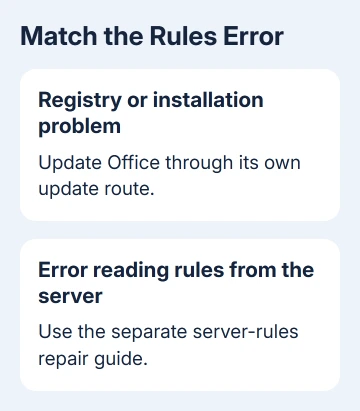
Check whether Outlook itself opens and whether the error appears only when you enter its rules window. A program that won't start needs the Outlook opening fixes instead.
A different message about reading rules from the server needs a different repair. Don't clear your entire rule list just because both errors mention rules. Check the full wording to choose the right repair.
In the original discussion, one account allowed rule creation while another account failed. That difference didn't show that Office was installed incorrectly, even though the owner had recently changed editions.
Close Outlook normally, reopen it once and retry the same account. If the message returns, move to the version check. Repeating that restart won't install the update that fixed the older problem.
2. Install available Office updates
Open File > Office Account and look under Product Information. Note the product name, version and build before changing anything. An Office 2016 name and a Microsoft 365 subscription aren't interchangeable update histories.
For an installation with Update Options, select Update Options > Update Now. If updates are disabled and the menu offers Enable Updates, enable them first when your organization allows it.
Save open documents, then quit Office programs when prompted. When updating finishes, open Outlook. Return to the affected account's rules. Success means the rules window opens and a new rule can be saved without the same message.
Microsoft's own steps say to update affected subscription installations. The rules-error page lists the affected 2018 releases and their corrected builds.
For the older bug, the Current Channel fix started at Version 1812, Build 11126.20266. Other channels had different fixed builds. That number helps you compare an old report with your copy; it isn't a build to install in 2026.
Match the update to both your Office license and the channel assigned to it. If a much newer build shows the same message, have support check that failure. Don't roll back to the release that fixed the eight-year-old fault.
I'd update before reinstalling. It addresses the published cause and leaves the existing mailbox rules in place. If updating finishes but the window still fails, check how this particular Office installation receives its updates.
3. Use the managed or volume-license update route
If Update Options is missing and only About Outlook appears, updates may be controlled by your company or delivered through a volume-license deployment. A missing button doesn't mean that all available patches are installed.
Give IT the product name and ask them to review its installation type and patch delivery. Send the version details you recorded and say that Manage Rules & Alerts fails with the registry or installation message.
For Windows 10 installations using Microsoft Update, open Settings > Update & Security > Windows Update > Advanced options. Check whether Office patches are included through the other-product update setting.
On Windows 11, the corresponding controls are under Settings > Windows Update > Advanced options. Company policy can manage these controls, so a disabled setting belongs with your help desk.
Check for available updates after enabling that option. This is a different delivery route from the subscription app's Update Now button; don't keep searching Outlook for a button your edition doesn't provide.
Don't remove security updates to try to recover the rules window. The official incident guidance advised against that workaround. If the installation is already patched, keep the error details for support instead.
4. Manage supported rules in webmail meanwhile
For a Microsoft 365 work mailbox or a personal Outlook.com mailbox, open the same account in its normal webmail. In the current interface, select Settings > Mail > Rules to view or add inbox rules.
Check the account address before saving. A browser already signed into another mailbox can make it appear that your desktop rules disappeared when you're simply looking at a different account.
Create one narrow rule with an obvious destination, then send a matching test message. Confirm it reaches that folder. The Outlook rule creation guide explains the conditions and actions.
Webmail is useful when the desktop rules dialog is broken, but it doesn't reproduce every classic Outlook action. A rule that needs a local file or a desktop-only feature can't be recreated just by choosing the nearest web option.
If webmail's rule controls fail too, ask your work-account administrator to check Health > Service health through the Microsoft 365 administration portal. Give them the time of the failure and whether other accounts are affected.
One owner reported that Office Repair hadn't helped. The discussion also referred to incident EX171088, but that's an old incident. Your administrator needs to check the current service information for your organization.
When the error survives the update
For a supported Office installation, have IT check both your desktop app and mailbox. Include the full error, build, update route, affected accounts and whether you can manage the same rules in webmail.
Office 2016 lost support on October 14, 2025. If that's still the installed product, plan a supported replacement with IT instead of waiting for another Office 2016 patch or reinstalling repeatedly.
The Short Version
An error mentioning the registry calls for checking Office's available updates before reinstalling. Try webmail rules while IT assesses a rules window that still won't open.
Checked November 16, 2026.
 If you have any business, I can build it online






