
Footnote numbers lose their raised position when Word's Footnote Reference style changes or the marks lose that style. Enable Superscript in the style first; when only some numbers respond, reapply Footnote Reference to the affected marks.
Numbers that stay flat even in a new document need a different check. An old Word 2016 update caused that exact problem, so changing a document's formatting repeatedly won't resolve every case.
In this guide
1. Restore Superscript in Footnote Reference
Save a separate document copy before making a change across all its notes. Click a footnote number in the main text, selecting just the mark rather than the surrounding sentence.
In Word for Windows, press Ctrl+Alt+Shift+S to open the Styles pane. Open Options and show All styles if Footnote Reference isn't listed. Find Footnote Reference, open its menu and choose Modify.
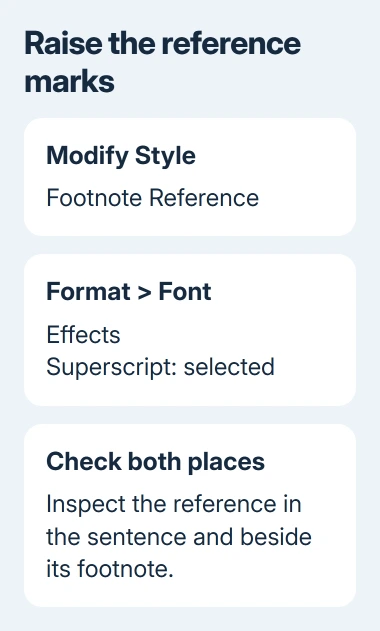
Choose Format > Font, then select Superscript under Effects. A filled square means a mixed or unclear state; click until the box shows a check mark. Confirm the Font dialog, then the style dialog.
Keep the change limited to this document unless you also want future documents from its template to use the repaired style. The original forum advice selected the template option, but a one-document repair doesn't require it.
Check a number in the main text and the matching number at the start of its note. Both normally use Footnote Reference. Changing that character style should update the marks that still carry it.
Footnote Text is a separate paragraph style for the citation wording. Making that whole paragraph superscript would raise the words as well as the number. Leave that paragraph style unchanged when only the numbers need repair.
Microsoft's style customization guide explains why changing a style updates text using it. If some numbers stay flat, they may have lost the character style and need the next fix.
2. Reapply the style to references that lost it
In the saved working copy, click in the document without leaving any text selected. Press Ctrl+H to open Replace, then choose More to show the formatting controls.
Clear any old formatting conditions in the search and replacement boxes using No Formatting. Leave Use wildcards unchecked. An old search condition can stop Word finding the reference marks you want.
Enter ^f in Find what. This searches for a footnote reference mark, rather than ordinary digits that happen to match the note numbers. Don't search for every 1 or 2 in the document.
Leave Replace with empty, with the cursor inside that box. Choose Format > Style, select Footnote Reference, and confirm. The dialog should show that style as the replacement formatting, even though the box contains no replacement text.
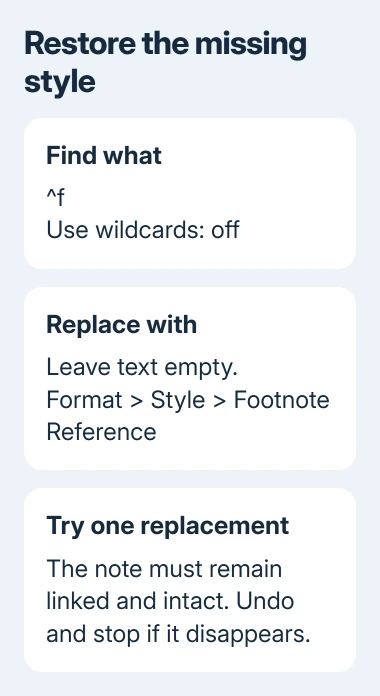
Use Find Next, then Replace on one reference first. Inspect the number and its linked note immediately. Owners in the old thread reported lost notes after a bulk replacement, so undo and stop if the mark or note disappears.
If the note is still there and its number is raised after that one replacement, use Replace All for the remaining references. Start with no text selected so the search isn't restricted to a highlighted passage.
The accepted forum procedure says replacing with no text selected reaches marks in both the main text and the footnotes. Check examples from both areas afterward, including a two-digit number and a note near the document's end.
If the references now use Footnote Reference but still aren't raised, return to that style's Font dialog once. Reapplying a style with Superscript turned off only reapplies the wrong appearance.
Avoid Ctrl+Spacebar on the whole note as a cleanup step. The thread explains that removing character formatting can also strip the reference style, leaving a number that looks like the surrounding text.
3. Repair references in Mac Word
In the Mac edition of Word, select a reference mark and open Format > Style. Show all styles if necessary, choose Footnote Reference, and use Modify > Format > Font to enable Superscript.
Check the mark in the sentence and the mark beside the note, just as on Windows. Both marks use the document's style, whichever computer last edited it.
For marks that lost their style, open View > Navigation Pane. Select its magnifying glass, then Settings > Advanced Find & Replace. Choose Replace and expand the dialog.
Use the same footnote-mark search, choosing the replacement style through Format > Style. Try one reference before changing the rest.
The browser edition lacks this full style-repair workflow. Use Open in Desktop App to repair the styles throughout this document, then save the file back to its original location when the references are correct.
For an ordinary exponent rather than a linked note, use the Word superscript controls. Applying those to all document text would raise words that should stay on the normal line.
4. Check Word itself when new notes also stay flat
Open a blank document and insert one linked footnote through References > Insert Footnote. If its new reference is raised correctly, focus on the original document's styles and reference marks.
If a newly inserted reference also stays flat despite a correct style, check the installed Word version. On Windows, open File > Account > About Word. On a Mac, use Word > About Microsoft Word.
The later forum discussion changed from a style problem to a Word 2016 update fault in March 2017. Owners reported that even manual superscript failed. Advice from the earlier Word 2010 part of the thread couldn't fix that cause.
For a supported Microsoft 365 installation on Windows, use File > Account > Update Options > Update Now. For a managed installation without that control, have your Office administrator review the build number and its update source.
Office 2016 is now outside support. Ask IT to replace the affected installation with supported Office. Don't remove a security patch to repeat the old workaround.
If a supported version of Word still creates flat reference marks in a new file, send support that small sample and the version details. Ask them to check why linked footnote numbers stay flat, rather than resizing typed numbers.
The Short Version
Enable Superscript in Footnote Reference, then reapply that style to marks that lost it. Check a single replacement before changing the whole document. If new notes fail too, check the Word installation and updates.
Checked November 16, 2026.






