OneDrive sharing emails can fail even when the recipient has file access. Email the existing link first, then check whether the missing message comes from the sharing option, mail filtering, or the sender's work account.
Changing sync settings won't repair an invitation that never arrives. For work or school OneDrive, an administrator should also check whether the sender's organization profile is missing its email address.
In this guide
1. Get the recipient into the file
Select the file in OneDrive and open Share. Use Copy link, check who the link works for and whether it allows viewing or editing, then paste it into an ordinary email to the intended recipient.
Keep access limited to the people you meant to share with. Letting anyone with the link open a confidential file changes who can read it. It won't fix missing notification emails.
Have the recipient sign in to the invited account and try that link. If the file opens, they can get to the shared document. Keep checking the invitation separately so future shares don't depend on this extra email.
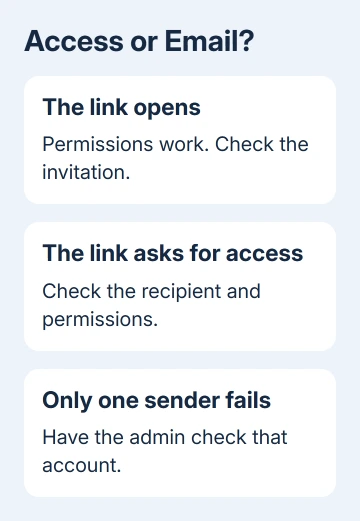
If the link opens an access request instead, return to the file's sharing permissions and check the recipient's address. If that person hasn't been given access, checking email delivery won't get them into the file.
One owner in the 2016 report described this distinction: recipients could open a manually emailed link, but automated invitations failed across the web interface and the iOS app.
Reinstalling the desktop sync app wouldn't address invitations failing in both those places.
For a file that isn't present online at all, use the OneDrive sync troubleshooting steps first. A missing upload and a missing invitation need different checks.
2. Check that the share includes an email notification
In the current work or school sharing interface, Add people gives specific people or groups access and lets you choose whether they receive an email notification. Copy link prepares a link you send yourself.
For a work or school test, open Add people, enter the recipient, turn on Send email notification, then select Share.
Look at the option used for the failed share. If you only copied a link, paste it into an email or chat message and send that message. Creating that link isn't the same action as sending a notification to a named recipient.
With a personal OneDrive account, use Share with specific people when you want an email invitation. The wording differs from work or school OneDrive. Check what the option does instead of looking for the checkbox used in older versions.
Microsoft's OneDrive sharing instructions explain both account types.
In the historical interface, the corresponding option was called Send an email invitation.
Send one new test invitation to a willing colleague using a harmless test file. Write down the sender, recipient, and time. That gives the mail administrator one specific event to check if the message doesn't arrive.
If this test arrives, compare its recipient and sending option with the failed share. If it doesn't, keep the test details and continue to the mail checks without repeatedly sending the same invitation.
3. Check the recipient's mail folders and delivery
Ask the recipient to search Junk or Spam as well as the inbox for the invitation. A notification moved into a filtered folder can look exactly like a message that OneDrive never sent.
If the message is there, mark it as legitimate using the mail service's controls. Add the recognized sender to its safe-sender list where available, then use another test share to check future delivery.
For a work mailbox, give the mail administrator the test time and both email addresses. Ask whether the invitation was delivered, held in quarantine, rejected, or never reached the mail system they manage.
An ordinary message from the same person's mailbox is a useful comparison. If both messages fail, the administrator has a broader email delivery problem to check. If only the invitation fails, keep the focus on the sharing notification.
In the saved report, the owner said their mail administrator had already ruled out junk filtering, and ordinary email worked. Repeating those same checks on every computer didn't solve the account's missing invitations.
If only one receiving mailbox is affected, its administrator should follow that delivery result. If several recipients miss invitations from the same OneDrive sender, have the organization check the sender's profile next.
4. Have an administrator check the sender's Email field
This check applies to accounts managed by an organization. Have the Microsoft 365 user administrator inspect the affected sender's Email property in Microsoft Entra ID, the organization's user directory.
The sign-in name isn't enough; the administrator needs to check the separate Email field.
Microsoft's missing sharing-email repair identifies an empty Email property as a cause.
A user administrator with permission to edit the account needs to correct it.
In the Entra admin center, the route is Identity > Users > All users. Select the affected employee, open Edit properties > Contact Information, correct Email, and save the change.
The administrator also needs to check that they've selected the employee's own member account. Guest accounts have a different purpose. Don't change a guest into a member just to make an email test pass.
If the organization manages the address through Microsoft 365 or an on-premises directory, have its administrator use the appropriate account-management route.
That helps them update the right account without conflicting with the system the organization uses to manage it.
After the correction, send a fresh invitation and check both delivery and file access. If the field was already correct, tell support what the field already contains; don't substitute an unrelated address.
5. Escalate an account-specific failure with the test results
Compare one affected sender with another authorized colleague sharing a test file. If the colleague's invitations arrive and yours don't, include that difference in the support request, together with the recipient and recorded times.
The historical thread ended with a service-side code fix for a business account using SharePoint Online and on-premises Exchange. Internal sharing emails failed while external invitations and library alerts worked.
The service team had to fix that fault; the owner couldn't change a setting to repair it. Have your Microsoft 365 administrator request help with OneDrive or SharePoint invitation delivery, and include those test results.
Keep using the manually sent link while the invitation problem is being fixed.
If OneDrive itself won't open, follow the separate OneDrive not opening checks before treating that wider failure as an invitation-only problem.
The Short Version
Confirm file access with a manually sent link. Check the sharing notification option and mail filtering, then have the administrator verify the sender's Email property. Escalate account-specific failures with timed examples.
Checked November 16, 2026.